
How to Quickly Color Grade Videos for Better Contrast and Exposure
Color grading is one of the most transformative yet overlooked aspects of video production. Whether you're a content creator, marketer, or filmmaker, understanding how to adjust contrast and exposure can elevate your videos from amateur to professional in minutes.
What Is Color Grading and Why Does It Matter?
Color grading is the process of enhancing the color, contrast, and overall visual tone of your video footage. Unlike color correction (which fixes technical issues), color grading is a creative process that sets the mood and visual style of your content.
The Impact on Contrast and Exposure
Proper color grading directly affects two critical visual elements:
- Contrast: The difference between the darkest and brightest parts of your image. Higher contrast creates drama and depth, while lower contrast produces a softer, flatter look.
- Exposure: The overall brightness of your footage. Correct exposure ensures details are visible in both shadows and highlights.
When done correctly, color grading can:
- Make subjects stand out from backgrounds
- Create emotional resonance with viewers
- Ensure consistency across multiple shots
- Hide minor filming imperfections
- Give your content a distinctive visual identity
Why Color Grading Is Difficult on Mobile Devices
Mobile video editing has come a long way, but professional color grading remains challenging on smartphones and tablets. Here's why:
1. Limited Screen Real Estate
Mobile screens are simply too small to accurately judge subtle color adjustments. What looks perfect on your phone may appear completely different on a desktop monitor or TV. Professional colorists use calibrated, large displays for a reason.
2. Touch Interface Limitations
Precise color grading requires fine-tuned adjustments. Touch sliders and pinch gestures lack the precision of a mouse and keyboard, making it difficult to dial in exact values for:
- Lift, gamma, and gain controls
- Saturation curves
- Hue vs. hue adjustments
- RGB parade scopes
3. Processing Power Constraints
Real-time color grading is computationally intensive. Mobile devices often:
- Preview at reduced quality
- Lag when applying multiple adjustments
- Overheat during extended editing sessions
- Compress output, losing color data
4. Lack of Professional Tools
Most mobile editing apps offer basic filters rather than true color grading tools. You'll rarely find:
- Waveform monitors
- Vectorscopes
- RGB parade displays
- Secondary color correction
- Power windows and masks
5. Color Accuracy Issues
Mobile displays vary wildly in color reproduction. Without a calibrated screen, you're essentially grading blind. Your video might look great on your device but appear oversaturated or washed out elsewhere.
The Solution: mirame360's New Color Grading Feature
This week, mirame360 introduced a game-changing update: professional color grading directly from the video details page. This feature bridges the gap between mobile convenience and desktop-quality results.
How to Access Color Grading in mirame360
- Navigate to your Video Details Page
- Look for the Color Grading option in the editing toolbar
- Adjust contrast, exposure, and other parameters using intuitive controls
- Preview changes in real-time
- Save and apply your grade instantly
Key Benefits of mirame360's Implementation
Desktop-First Approach
Unlike mobile apps, mirame360's color grading is designed for desktop browsers, giving you:
- Full-screen preview capability
- Precise mouse-based controls
- Access to professional-grade adjustment tools
- No processing limitations
Quick Adjustments for Busy Creators
The interface is optimized for speed without sacrificing quality:
- One-click presets for common looks
- Before/after comparison toggle
- Undo/redo functionality
- Auto-exposure detection
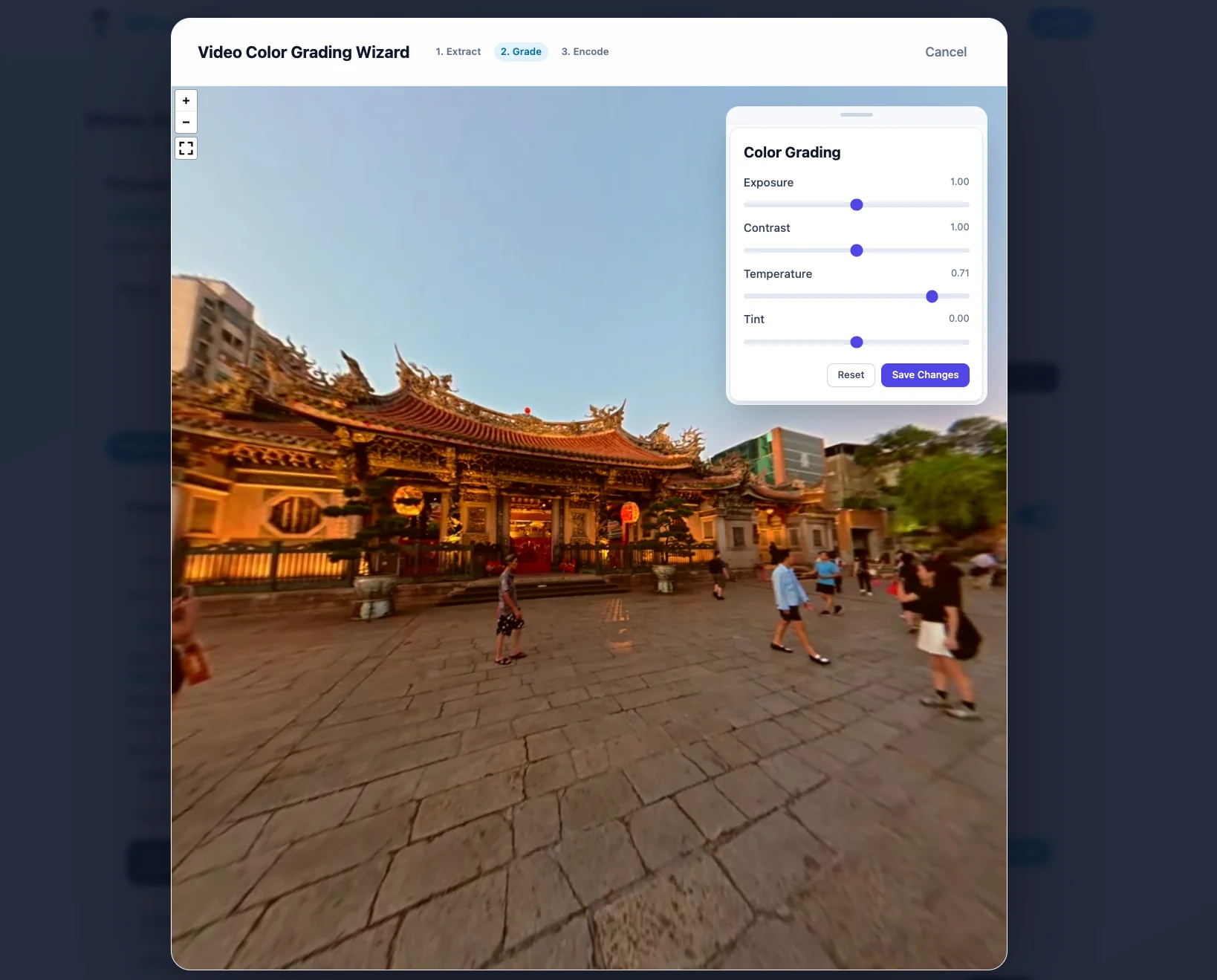
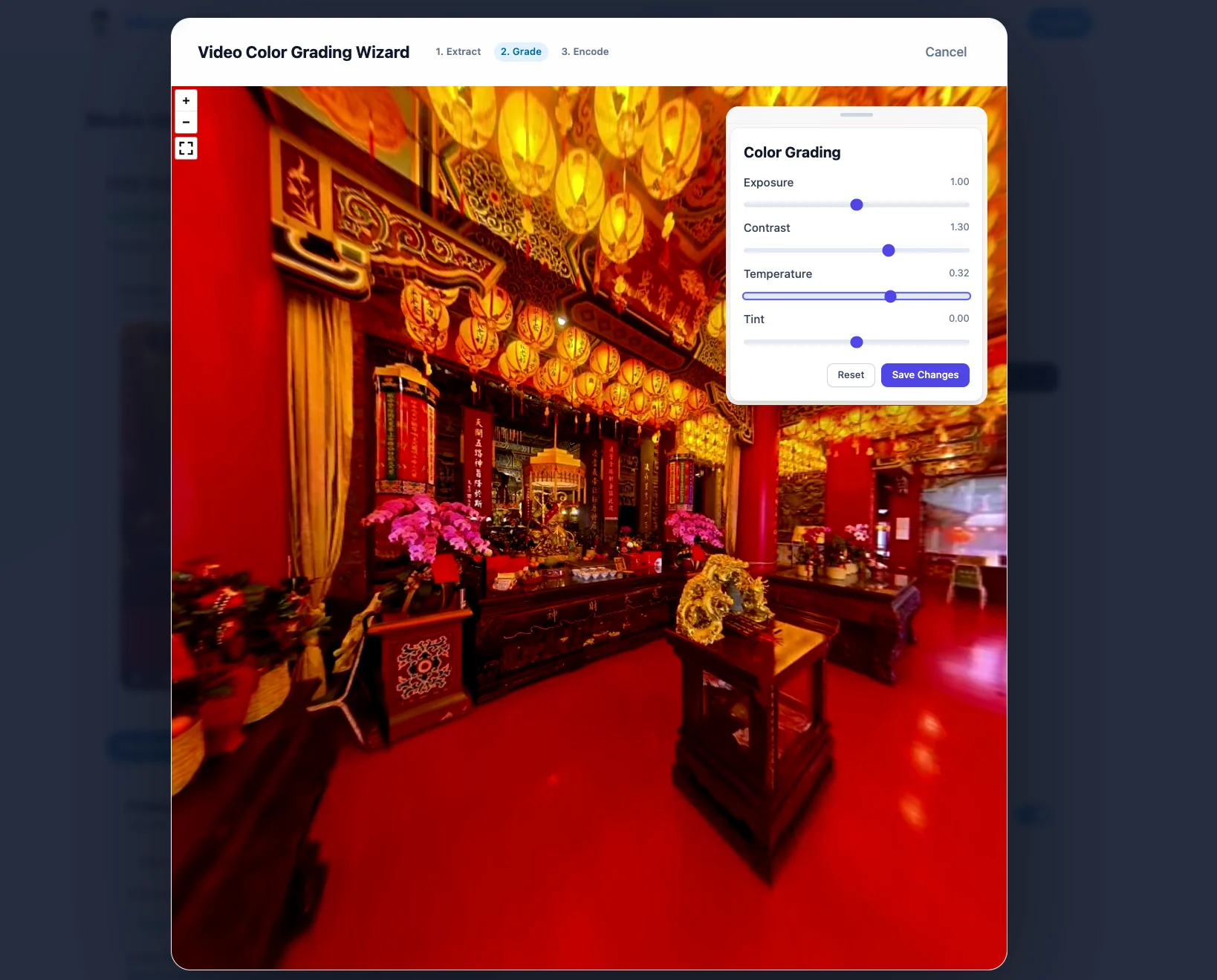
This is the base interface on Mirame360 you can use to edit your video. You can quickly adjust the exposure, contrast and make sure it works the best for your videos!
Professional Results Without the Learning Curve
You don't need to be a DaVinci Resolve expert to achieve great results. mirame360 simplifies the process while maintaining professional standards.
Best Practices for Quick Color Grading
Step 1: Fix Exposure First
Always start with exposure adjustments:
- Ensure highlights aren't clipped (pure white with no detail)
- Check that shadows retain some detail (not pure black)
- Aim for a balanced midtone range
Step 2: Adjust Contrast
Increase contrast to add depth:
- Pull down shadows slightly
- Boost highlights moderately
- Watch for loss of detail in extreme areas
Step 3: Fine-Tune Colors
Once exposure and contrast are set:
- Adjust saturation to taste (less is often more)
- Correct any color casts
- Ensure skin tones look natural
Step 4: Review on Multiple Devices
Before finalizing:
- Check your graded video on different screens
- View in different lighting conditions
- Get a second opinion if possible
Common Color Grading Mistakes to Avoid
Over-Saturation
Making colors too vibrant is the most common mistake. It looks artificial and can cause banding in gradients.
Crushed Blacks
Pushing shadows too far loses detail and creates a muddy, unprofessional look.
Ignoring Context
Grade your video considering where it will be viewed. Social media platforms compress video differently than streaming services.
Inconsistent Grades
If you're working with multiple clips, ensure they match. Inconsistent color grading is distracting and amateurish.
Conclusion
Color grading is essential for creating professional-looking videos with proper contrast and exposure. While mobile devices have limitations that make quality grading difficult, mirame360's new feature brings desktop-level color correction to your video details page.
The ability to quickly adjust and enhance your videos without leaving the platform saves time and improves results. Whether you're correcting exposure issues or creating a specific visual style, proper color grading transforms good footage into great content.
Ready to elevate your videos? Access the new color grading tools in mirame360 today and see the difference professional color correction makes.