
The best free 360 video editing software in 2026 is Insta360 Studio for Insta360 footage, GoPro Player or Quik for GoPro MAX footage, DJI Studio or Mimo for Osmo 360 footage, and DaVinci Resolve 21 for a real multi-clip edit. There isn’t one free editor that does every job equally well.
A 360 video editor is software that can preserve or deliberately transform spherical footage while you stitch, stabilize, reframe, cut, grade, add sound, and export. That definition matters. Plenty of free editors can trim an equirectangular MP4, but only a smaller group can preview the sphere correctly or use the camera’s gyro data.
My short recommendation: start in the camera maker’s app, then move a stitched export into DaVinci Resolve when the project needs a proper timeline. It’s less glamorous than hunting for one magic program, but it works.
Best free 360 video editing software: quick picks
- Best for most beginners: the free desktop or mobile app made for your camera.
- Best free finishing editor: DaVinci Resolve 21 for careful cuts, color and sound on an already stitched 2:1 file. Its new dedicated VR180/VR360 mode is Studio-only.
- Best for Insta360 cameras: Insta360 Studio on desktop; the Insta360 app on mobile.
- Best for GoPro MAX and MAX 2: GoPro Player on desktop; GoPro Quik on mobile.
- Best for DJI Osmo 360: DJI Studio on desktop; DJI Mimo on mobile.
- Best open-source tools: Hugin for still panoramas and Blender for CGI, compositing, and custom 360 authoring.
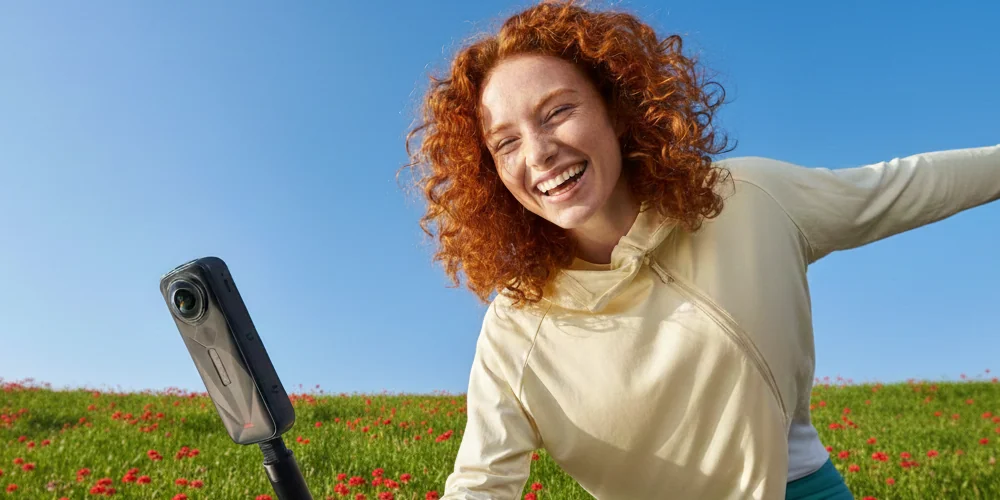
If you’re still choosing hardware, Mirame360’s Insta360 X5 settings guide shows why the camera and editor should be treated as one workflow.
360 video editing software comparison
The table separates genuinely free tools from trials and discontinued software. “Stitching” means combining lens views into a sphere; it does not mean joining clips on a timeline.
| Tool | Platform / OS | Price and free-tier limits | 360-specific features | Supported formats / export | Ease of use | Best-fit use case |
|---|---|---|---|---|---|---|
| Insta360 Studio | Windows 10/11; macOS 13+ recommended | Free camera companion; built around supported Insta360 media, not a universal editor | Camera-aware stitching, FlowState stabilization, horizon leveling, keyframed reframing, Deep Track, Auto Frame, Tiny Planet, 2:1 immersive export | Imports INSV, LRV, INSP, MP4, MOV and JPG; exports MP4, MOV, JPG, DNG and INSV | Easy | Fastest path from an Insta360 camera to a stabilized 360 master or reframed social clip |
| GoPro Player and Quik | Player: Windows 10+ and macOS 10.14+; Quik: iOS and Android | Player’s core 360 tools are free; HyperSmooth Pro is paid and is not available for 360 content. Quik has subscriber-only premium tools | MAX playback, trim, batch export, horizon leveling and keyframed Reframe; Quik adds object tracking, CameraFX and Tiny Planet | 8K, 5.6K and other 360 media; H.264, H.265/HEVC, ProRes and CineForm options | Easy | GoPro MAX/MAX 2 ingest, reframing, and transcode before a larger edit |
| DJI Studio and DJI Mimo | Studio: Windows 10+ and macOS 11+ on Apple silicon; Mimo: iOS 15+ and Android 9+ | Free camera companion apps; camera-native rather than general-purpose | Osmo 360 processing, stitching, stabilization and reframing; Mimo handles phone edits; official Premiere and Resolve handoff plugins are available | Reads Osmo 360 OSV media and LRF proxies; panoramic or flat output plus plugin handoff | Easy | DJI Osmo 360 owners who want the correct first-stage processing |
| DaVinci Resolve 21 | Windows, macOS, Linux | Free edition: up to 3840×2160 at 60fps. The new dedicated VR180/VR360 workflow is Studio-only; Studio is a $295 one-time purchase | Free can cut and grade a stitched 2:1 file as ordinary video; Studio adds immersive projects/viewer, keyframable orientation, mixed VR timelines, delivery presets and PanoMap/LatLong tools | Broad professional format support; free output ceiling makes full-resolution 5.7K/8K delivery the other major catch | Medium–hard | Free: conventional finishing after stitching. Studio: complete VR-aware multi-clip work |
| Adobe Premiere Pro | Windows and macOS | Not free: one full seven-day trial, then a paid Creative Cloud subscription unless cancelled | Automatic VR-property detection, 360/180 viewer, proxies, VR-aware timeline and tagged VR export; camera plugins add direct reframing | Common professional formats; H.264, HEVC and QuickTime VR delivery | Medium | Professionals already using Adobe or testing a short project during the trial |
| Blender | Windows, macOS, Linux | Free and open source under the GNU GPL | Equirectangular and fisheye cameras, 360 CGI rendering, animation, tracking, compositing and a video sequence editor | FFmpeg-backed video import/export plus image sequences and rendered equirectangular animation | Hard | Building 3D titles, virtual sets, VFX, or fully synthetic 360 scenes |
| Hugin | Windows, macOS, Linux/Unix | Free and open source; actively maintained, with version 2025.0.1 released in December 2025 | Fisheye calibration, control points, masking, exposure correction and spherical projection | Still images in; JPEG, PNG, TIFF and other panorama outputs. Not a normal video editor | Hard | Calibrating a custom multi-camera rig or stitching 360 stills on a zero budget |
| PTGui 13 | Windows, macOS, Linux | Not free: unlimited trial, but every stitched panorama has a visible watermark; paid license for clean output | Fast GPU photo stitching, fisheye support, masking in Pro, equirectangular and stereographic Tiny Planet projections | JPEG, TIFF, PNG and RAW still workflows; not a video timeline | Medium | High-quality still panoramas and lens calibration, not routine 360 video editing |
| Kolor Autopano Video / Autopano Giga | Legacy Windows/macOS systems | Discontinued: Kolor closed in 2018; no sales, updates, or current support. Do not treat mirror downloads as a modern free tier | Legacy multi-camera video synchronization and stitching, once excellent for GoPro rigs | Legacy project and equirectangular video workflows; compatibility is frozen | Hard and risky | Opening an archived project on a known-compatible machine only |
Three facts in that table save a lot of wasted downloads. Adobe’s trial is not free software. PTGui’s trial watermarks the output. Kolor Autopano is dead: GoPro’s own Kolor page says existing products will no longer be updated.
The free tools I’d actually install
Insta360 Studio: the best beginner choice for Insta360
Insta360 Studio is the right first download for X-series footage because it understands what a generic editor cannot see: the paired-lens source, stitch calibration, and motion metadata used for stabilization. Its current Project page can combine multiple clips, music, text, and transitions, so it’s no longer only a converter.
The strongest feature is still reframing. Add keyframes to move from a forward view to a wide view or Tiny Planet, and Studio builds the move between them. Deep Track can keep a person, vehicle, or animal centered. For a true interactive 360 export, choose the 2:1 panorama output; keyframed camera moves apply to flat exports, not to a sphere the viewer controls.
There are limits. Studio supports a single audio track on the Project page, and it remains most comfortable with Insta360 media. That’s fine. Use it to stitch and stabilize, export a high-quality master, then grade and mix in Resolve.
GoPro Player and Quik: simple, good, and easy to misunderstand
GoPro Player is a focused desktop utility, not a full nonlinear editor. It plays, trims, reframes and batch-exports MAX media. The useful 360 functions are free; GoPro explicitly says HyperSmooth Pro is a premium purchase and also says that feature is not available for 360 content. In other words, don’t pay for it expecting better MAX stabilization.
On a phone, GoPro Quik is more creative. It has keyframes, object tracking, MotionFrame, and effects such as Spin, Roll and Tiny Planet. Some premium tools require a subscription, but the app is still the most direct mobile route for GoPro 360 clips.
One stale recommendation deserves retiring: Quik Desktop. GoPro discontinued the desktop Quik apps, removed the Mac version at the end of 2024, and never released the promised Windows version. Use Player on desktop and Quik on mobile.
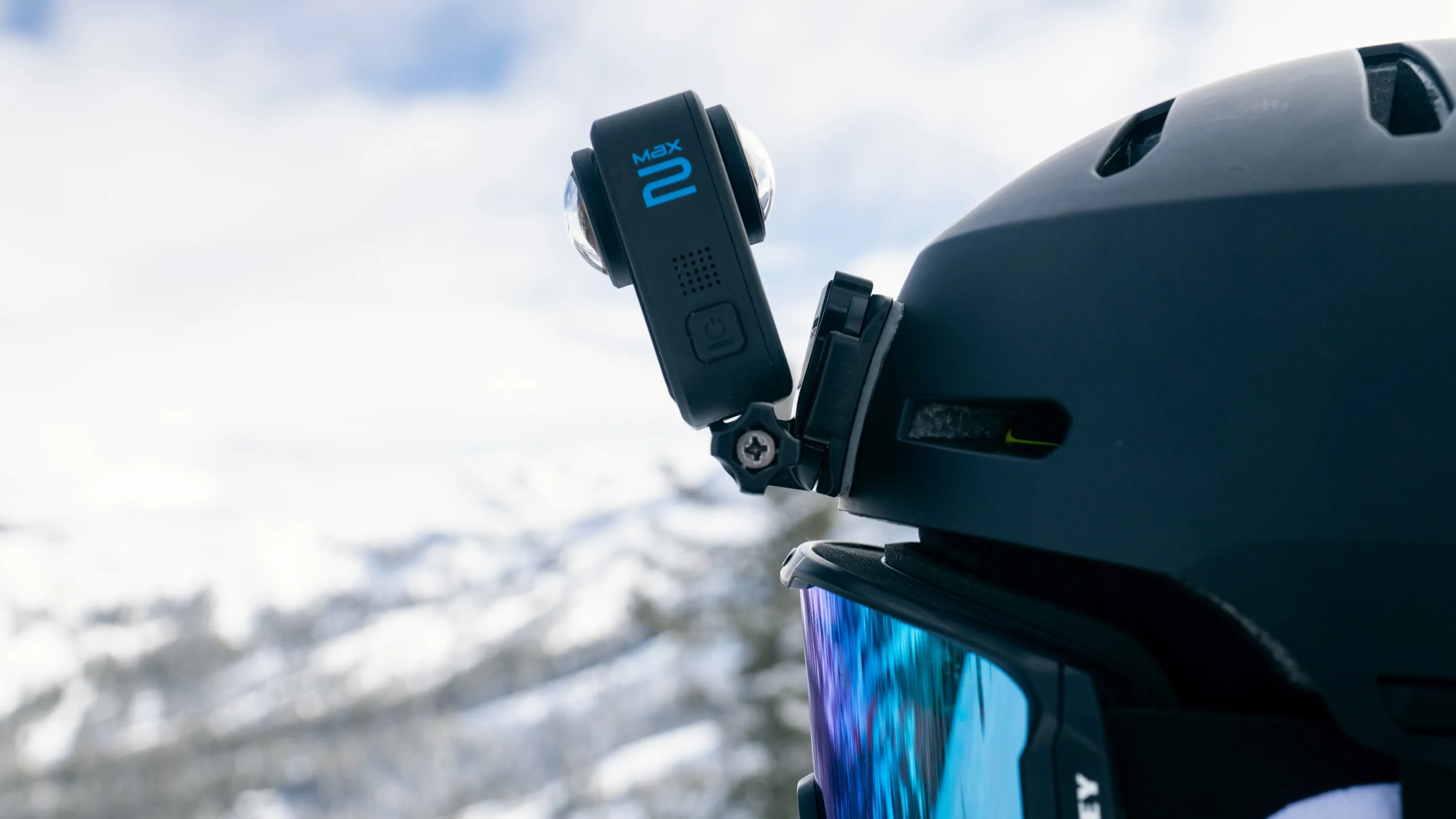
Mirame360’s GoPro MAX 2 deep dive covers the camera side of this workflow in more detail.
DJI Studio and Mimo: the correct route for Osmo 360
DJI’s current desktop option is DJI Studio for Windows and Apple-silicon Macs. The Osmo 360 records panoramic video as OSV files with LRF proxies, so process that media in DJI’s software before expecting a general editor to behave well.
DJI now publishes official Reframe plugins for Premiere and DaVinci Resolve. The Resolve instructions are unusually clear: preprocess panoramic footage in DJI Studio, export the dedicated Resolve format, then reframe inside Resolve. That two-stage route is the professional choice. Mimo is the simpler phone option and can edit footage directly while connected to the camera.
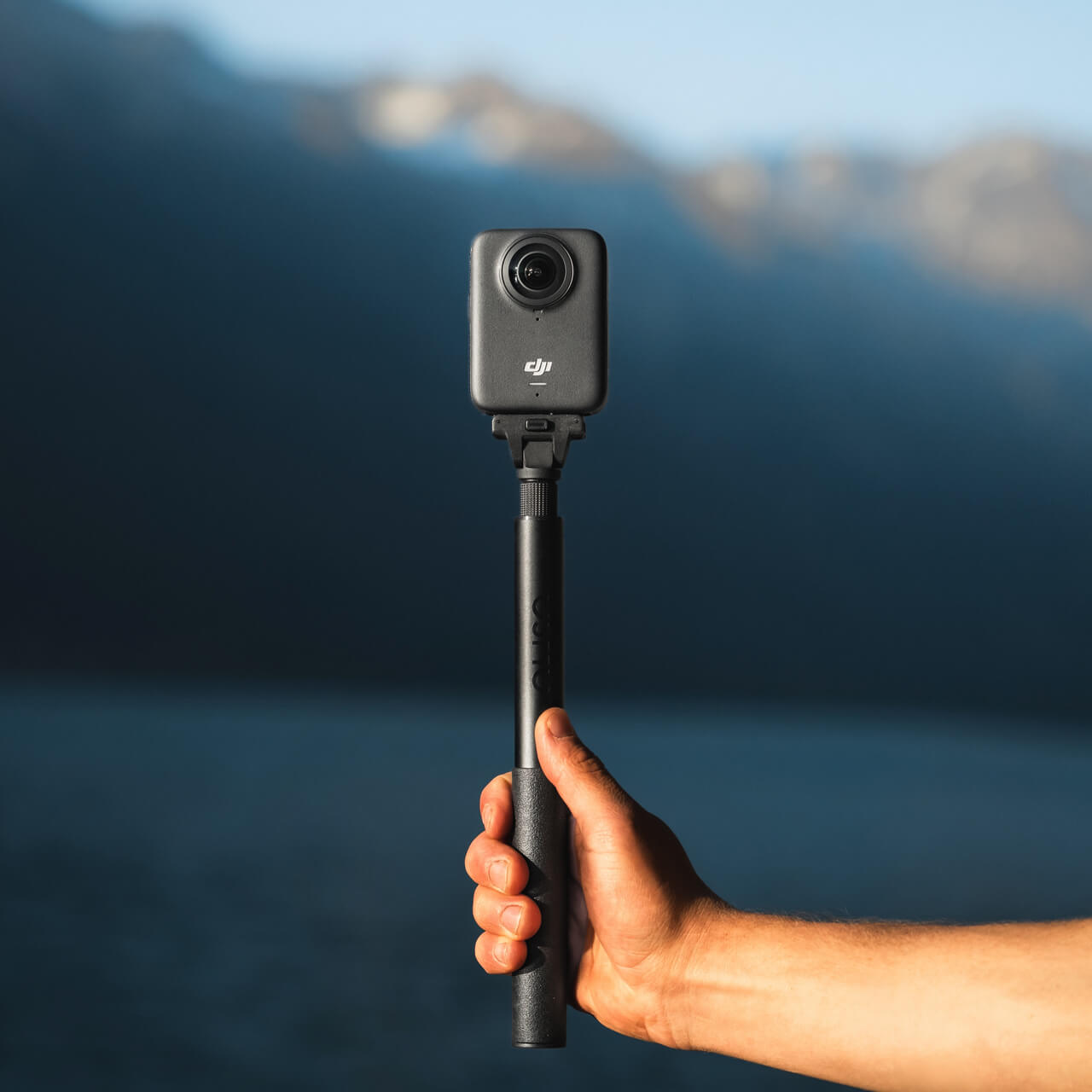
For the hardware context, read Mirame360’s DJI Osmo 360 guide.
DaVinci Resolve 21: best free finishing editor, not a free VR suite
Resolve is my free finishing pick, with two large asterisks. You can import an already stitched 2:1 equirectangular file, make cuts without changing its geometry, grade it, mix the sound, and export it. That gives a zero-cost workflow a genuinely professional timeline.
Version 21 also added a Standard Immersive project mode for VR180 and VR360, an immersive viewer, keyframable tilt/pan/roll orientation, a VR delivery preset, and Fusion PanoMap/LatLong tools. Those dedicated immersive features are Resolve Studio features, not part of the free edition. This distinction is easy to miss on the main product page and changes the recommendation: use Resolve Free for conservative finishing, not for a fully VR-aware edit.
The second catch is export resolution. Blackmagic limits the free edition to Ultra HD 3840×2160 at up to 60fps. A full 5.7K or 8K equirectangular master is larger than that. Resolve Free is excellent for a 4K deliverable or a flat reframe; preserving the camera’s full spherical resolution may mean buying Resolve Studio or using the native camera app for the master export.
Adobe Premiere Pro: excellent VR editor, inaccurate “free” recommendation
Premiere detects VR properties, provides a 360/180 viewer, supports proxy editing, and can attach the correct VR information on export. With Insta360, GoPro, or DJI plugins, it becomes a polished reframing environment inside a familiar professional timeline.
But this is a guide to free software, so the billing detail belongs near the feature list. Adobe offers one seven-day full trial for Windows and macOS. It converts to a paid membership unless cancelled. That makes Premiere useful for evaluating a workflow, not a sustainable free 360 video editor.
Free 360 video editor downloads: use the official source
“Free download” is where old 360 software gets messy. Search results still surface Autopano installers, abandoned utilities, and modified APK files. A program being downloadable without payment does not make it maintained, licensed, or safe.
Use this rule:
- Download camera software from Insta360, GoPro, or DJI.
- Download Resolve from Blackmagic Design, Blender from blender.org, and Hugin from its SourceForge-linked project page.
- Check the operating-system requirement before moving a multi-gigabyte shoot.
- Test one short clip from import through final export before committing a full project.
- Keep the untouched camera originals and proxy files until delivery is approved.
Hugin is a good example of a real free download: it is open source, cross-platform, and still receiving releases. Autopano is the opposite. It was commercial software, its vendor closed, and third-party archives cannot turn it into a supported 2026 product.
Best free VR video editor for immersive output
A VR video editor must preserve the sphere through preview and export. The honest 2026 answer is that there is no complete, free, camera-agnostic professional timeline with the dedicated immersive toolset of Resolve Studio or Premiere.
The camera-native apps are the best free VR editors for simple cuts because they can preview and export their own spheres properly. Resolve Free can finish a stitched 2:1 file if you avoid projection-changing effects and check test exports in an external 360 player. Resolve Studio adds the proper immersive viewer and workflow; Premiere is the other paid professional choice, and its trial shouldn’t be the foundation of a “free” workflow.
Blender belongs here for a different reason: it can render a full 360×180 equirectangular animation from a panoramic camera. That makes it useful for titles floating in the scene, CGI environments, product visualization, and VFX plates.
None of those tools magically fixes a bad stitch from two physical lenses. Stitch and stabilize the camera original first. Then cut the equirectangular master without changing its 2:1 shape. Before delivery, inspect the seam, the zenith above the camera, and the nadir under it in a real 360 player.
360 video maker or 360 video editor?
People searching for a free 360 video maker often mean one of two outputs:
A flat reframed video is a normal 16:9, 9:16, or square clip. You choose where the virtual camera points. Viewers cannot look around. Insta360 Studio, Quik, GoPro Player, DJI Studio, and the maker’s mobile apps are ideal for this.
An interactive 360 video keeps the full 2:1 equirectangular sphere. The viewer controls the direction on a phone, browser, or headset. The file needs the right projection and metadata, plus a player that understands it.
Don’t decide at the export screen. Decide before editing. A dramatic keyframed pan is useful in a flat reframe but fights the viewer in immersive VR, where forced rotation can cause discomfort.
360 video authoring tools go beyond editing
“Authoring” covers the pieces around the timeline: stitching a custom rig, adding spatial graphics, preparing metadata, building a tour, and publishing an interactive player.
Hugin and PTGui are authoring tools for still panoramas. Hugin is the honest free choice; PTGui is faster and friendlier for many professional still workflows, but clean output requires a license. Neither should be sold as a drop-in video editor. Frame-by-frame video stitching with either is a technical batch workflow, not a pleasant way to edit a holiday clip.
Blender is the free authoring tool for 3D. It can render an equirectangular world, composite graphics, and animate elements around the viewer. Resolve or Premiere is still a better place to cut the finished shots.
Publishing is another stage. Once you have a clean equirectangular file, Mirame360’s 360 video upload guide explains the handoff. You can also browse public 360 examples to check how different scenes feel in a browser player, or use the FAQ when a file appears flat instead of interactive.
Opinionated recommendations by user
Beginners
Use the app that matches the logo on the camera. It will produce a cleaner first result than dropping proprietary footage into a general editor. Learn stitching distance, stabilization, and export settings before learning a node graph.
Professionals
Stitch in the camera-native tool, keep a high-quality 2:1 master, and finish conservative cuts in Resolve Free. If the job requires a proper immersive viewer, spherical transforms, 5.7K/8K delivery, advanced codecs, or an Adobe team handoff, budget for Resolve Studio or Premiere. “Free at any cost” is a poor production policy.
Mobile-only users
Choose the Insta360 app, GoPro Quik, or DJI Mimo. They can reframe with touch or phone movement and understand their own camera metadata. Generic mobile editors are fine after you export a flat clip, but most do not preserve an interactive 360 sphere through the edit.
Insta360, GoPro, and DJI camera-native workflows
For Insta360, use Studio or the Insta360 app. For GoPro, use Player or Quik; ignore old Quik Desktop tutorials. For DJI, use Studio or Mimo, then the official Premiere/Resolve plugin if the project grows. Mixing brands? Normalize each camera in its own software first, then bring the stitched exports into one Resolve timeline.
A practical zero-cost workflow
For most creators, this is the least painful route:
- Copy the full camera folder to a fast drive; don’t separate paired lens files or their proxies.
- Stitch, stabilize, level the horizon, and correct the initial orientation in the maker’s desktop app.
- Export a high-bitrate 2:1 equirectangular master for interactive delivery. Export a separate flat reframe for social platforms.
- For a multi-clip story, edit the stitched masters in Resolve 21. Use proxies if 5.7K or 8K playback stutters.
- Export a short test and view it in a 360-aware player before rendering the whole timeline.
- Upload the approved immersive master to a host that preserves 360 playback.
The free software is good enough now. The trick is giving each program the job it is actually built to do.
If you already have a stitched 2:1 MP4 or MOV, create a Mirame360 account, upload the short test first, and check the seam and horizon in the browser before you commit to the final render.