
To share a 360 video with a link, export the full spherical video, upload it to a host with an interactive 360 player, and send the viewing URL. The recipient opens the link and drags the picture to look around, without installing your camera's editing app.
A 360 viewing link opens a player that lets the viewer choose the direction of view. Sending an MP4 attachment or a download link doesn't, by itself, provide that experience.
This guide takes you from an Insta360 or DJI recording to a link you can send to friends, family, or followers. Start with a short clip: it's easier to check one successful upload before processing an entire holiday.
Why your shared video no longer looks like 360
There are two different results you can make from a 360 recording. A reframed video contains the angles you selected during editing. A spherical video preserves the surrounding scene so the person watching can choose where to look.
Both can be MP4 files. The filename extension doesn't tell you which one you have.
In a September 2026 Reddit discussion about choosing a camera for social sharing, the conversation quickly moved from buying a camera to the difficulty of sharing actual 360 content. That's the decision to make before exporting: should the audience watch your edit, or explore the scene?
For a social teaser, choose your best angles and export a conventional clip. For an interactive experience, keep the spherical version and share its viewing link. You can make both from the same recording.
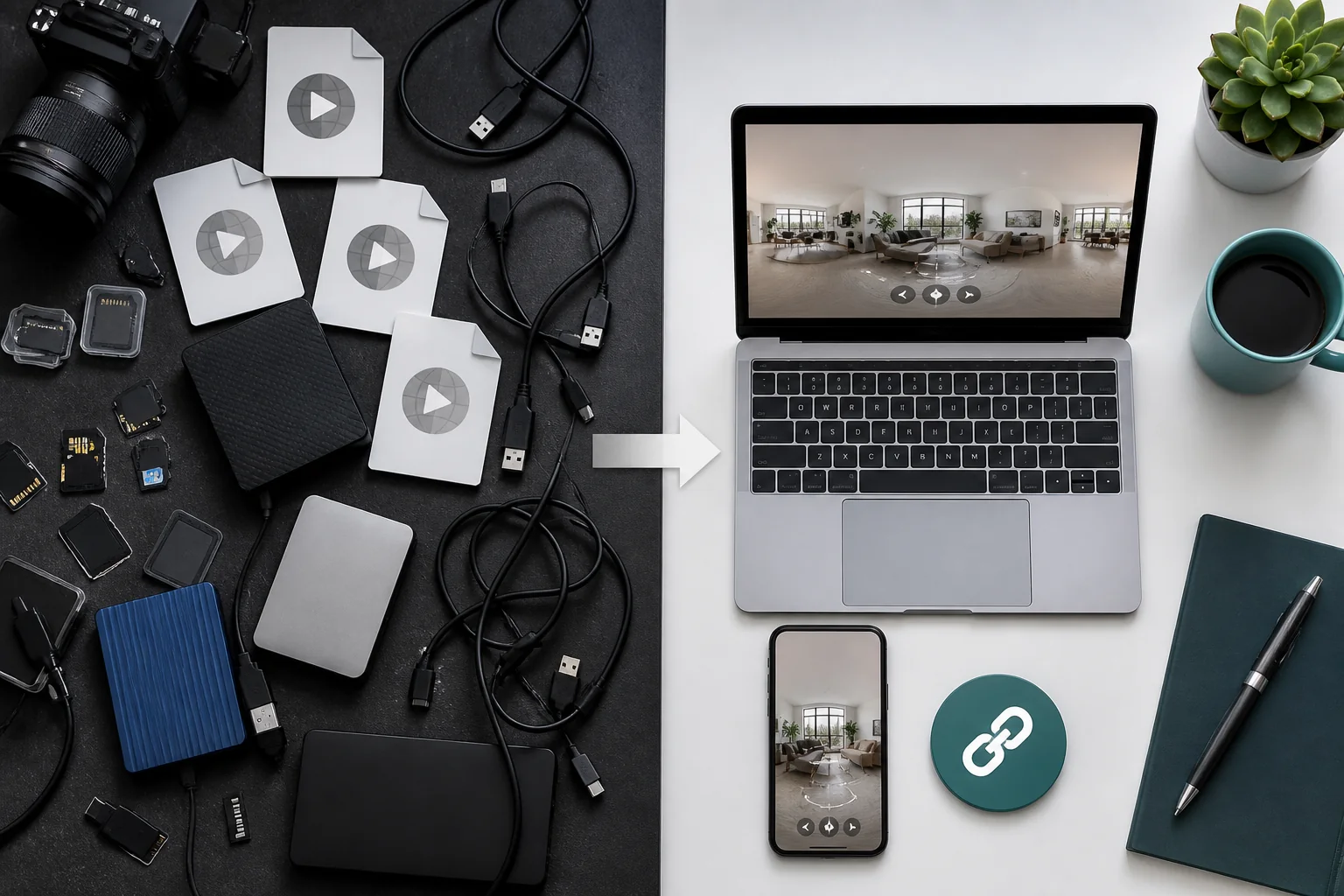
Export the full 360 video from Insta360 or DJI
The workflow below uses a stitched, equirectangular MP4 as the upload file. An equirectangular frame lays the entire sphere out as a rectangle, usually twice as wide as it is tall for a monoscopic 360 video.
That rectangle looks stretched in an ordinary player. This is expected: a 360 player wraps it around the viewing position.
Insta360: keep the project in 360 mode
Open the original recording in a version of Insta360 Studio that supports your camera. For the Project workflow, Insta360's export instructions specify setting the project's aspect ratio to 2:1 (360) before editing and exporting.
Trim the beginning and end, check the horizon, and export the spherical video. If your workflow offers a choice between a 360 export and a reframed export, choose the 360 option. Check the exported file rather than relying only on the editor preview.
A vertical clip showing one selected angle is already reframed. Uploading it to a 360 host cannot recover the parts of the scene that were excluded. Return to the original recording and export again.
DJI Osmo 360: transfer the recording, then prepare the panorama
The official Osmo 360 support page identifies OSV as the camera's panoramic video format. It also documents transfer through DJI Mimo, a card reader, or a USB-C connection using the camera's USB mode.
Copy the recording to your computer and use DJI Studio to prepare the panoramic video. For this guide, export a full spherical MP4 rather than a clip with a fixed viewpoint. The support page links DJI's desktop editing tutorial if you need help locating the controls in your installed software.
Keep the original OSV files. Changing an OSV filename to end in .mp4 is not a substitute for export.
Keep a useful master
Export at the recording's frame rate and avoid unnecessary downscaling. Keep that master separately from the versions prepared for online playback. A hosting service may transcode your upload for streaming, so keeping the full sphere and keeping the original encoded quality are different things.
You don't need to send that large master to everyone. It's your source for future uploads and edits.
How to share a 360 video with a link on Mirame360
Once the export is ready, the remaining job is to put it in a player the recipient can open.
- Sign in and open the upload page. Choose the video media type and upload your spherical MP4. Use a short, descriptive title, such as “Sunset at the lake.”
- Wait for processing to finish. A completed upload isn't necessarily ready for playback yet. Check the processing status in your media library.
- Open the processed video. Play it and drag around the scene. Check behind the initial viewpoint as well as in front of it.
- Enable sharing through the embed controls. In the media details, enable embeds and create a readable URL using Embed aliases. Copy the resulting share URL rather than the address of your account dashboard.
- Test the link while logged out. Open it in a private browser window and on a phone before sending it.
The Mirame360 upload guide explains the upload and embed workflow. A share URL is useful for messages; an iframe snippet is for placing the player inside a website. You don't need to paste iframe code into a chat.
Treat an enabled viewing link as something its recipients can forward. A hard-to-guess address is not the same as a password or an invitation restricted to one person. Check the scene and the sharing settings before sending personal footage.
What to send in WhatsApp, email, or a direct message
Send the viewing URL as a text link, with one sentence explaining the controls. The experience opens on the linked page; the message's thumbnail isn't the interactive player.
For example:
Here's the 360 video from our hike: [paste your viewing link]. Open it, press play, and drag the picture to look around. Try looking behind the camera too.
That last instruction matters. Someone who hasn't watched a 360 video before may assume the initial view is the entire video.
If the link opens inside a messaging app and the player doesn't respond correctly, try opening it in the phone's main browser. Test touch dragging rather than relying on motion controls, which can depend on browser permissions and device support.
For followers, a short reframed preview can introduce the scene. Place the interactive viewing URL in a clickable location supported by the social service you're using and explain what the longer experience contains. A clear invitation such as “look around the whole campsite” is more useful than simply writing “360.”
Troubleshooting: flat pictures, fixed views, and inaccessible links
The picture is stretched across a wide rectangle
You may be looking at the equirectangular file in a conventional player. Open the hosted 360 viewing page instead of a direct file preview. If it still appears flat, check that the upload was recognized as spherical media and that the export contains appropriate spherical metadata.
The 2:1 shape is a useful clue, not proof: an ordinary video can also have that aspect ratio. Metadata cannot turn an ordinary recording into a complete sphere.
The video plays, but nobody can look around
Try dragging the picture. If the camera follows exactly the same path every time and there is no way to change the viewpoint, check whether you exported a reframed clip. Return to the original camera files and choose a spherical export.
The link works for you but fails for a friend
Check it in a private browser window. You may have copied an owner-only page, left sharing disabled, or sent the URL before processing completed. Copy the generated share URL again after checking the media's settings.
The online video looks softer than the recording
Check the uploaded master first, then the player's selected quality and your connection. Online playback can use a lower-resolution rendition. Also remember that a 360 video's pixels cover the entire sphere: the visible direction uses only part of the full frame.
Avoid downloading a compressed social clip and uploading that as your master. Start from the export you saved from the camera footage.
Keep the original, share the experience
A viewing link makes a recording easy to watch, but it shouldn't be your only copy. Keep the original camera files and your finished spherical export in your own backup storage. The link handles viewing; your archive preserves the material for later use.

Before sharing a whole trip, try one short scene with someone who wasn't there. If they can open the link and look around without help, the workflow is doing its job.
Choose a clip worth exploring, create a Mirame360 account, and make your first viewing link. Send it with a simple invitation: “Drag to look around.”