If your Insta360 INSV won't open, stop using the microSD card and work only on copies. For a non-zero file that still exists, the safest first attempt is the official Insta360 File Repair tool with a healthy reference clip from the same camera and shooting mode. If the clip was deleted, image the card first and recover from the image, not from the original media.
Insta360 does not promise a perfect result: even a playable repair can be missing gyroscope data or audio. That makes the order of operations important. Preserve first, diagnose second, repair third.
Quick triage: corruption or an import problem?
Before rebuilding anything, copy the entire recording set to a local SSD and leave the originals untouched. Then check these points:
- Keep every file with the same timestamp and clip number. Some cameras and modes create paired lens files; losing one can trigger an import error even when the surviving file is healthy.
- Do not substitute the
.lrvfile. Insta360 describes LRV as a low-resolution proxy, not the editable master. - Confirm the master still has the
.insvextension. Insta360 Studio's current troubleshooting guide says a changed extension can cause an unknown import error. - Update Insta360 Studio, then try the copied files from a local internal drive. The official guide recommends both steps before assuming the media itself is broken.
- Check file size. A zero-byte entry contains no video payload for a repair tool to reconstruct. A large file is not proof of recoverability, but it at least contains data to analyze.
The failure language is remarkably consistent in community reports: file damaged, cannot open file, unknown error, a playable LRV beside an unreadable INSV, or File Repair asking for a second path. A December 2024 r/Insta360 report describes copied files whose byte counts matched the originals but still failed in Studio; an October 2025 X5 report describes the master failing while the LRV still played. Those reports are useful symptoms, not technical specifications.
What is an INSV file, and why does it break?
INSV is Insta360's master video format for immersive recordings. It carries the lens imagery plus camera-specific information that Insta360 software uses for stitching and stabilization. The companion LRV is a preview proxy. A generic player seeing some video frames does not mean the full 360 recording, stabilization data, and audio are intact.
Paired versus single-file recordings
File layout depends on camera generation and shooting mode. Insta360's File Repair documentation shows older paired 360 recordings with matching 00 and 10 INSV files, while current workflows can also present a single INSV master. Match files by recording timestamp and suffix, and follow the repair tool's prompts for your clip. If a paired recording is missing one lens stream, recover that mate before attempting a normal stitch.
Common causes
An abnormal shutdown while the camera is finalizing a clip is the clearest documented cause. That can follow battery removal, power loss, a crash, or thermal shutdown. Insta360 also warns that incompatible storage can interrupt recording or leave footage unusable; for X4 and X5, its current requirement is UHS-I V30 or faster in exFAT.
Filesystem damage and interrupted transfers are different problems. A bad directory entry can make files disappear even though blocks remain on the card. An incomplete copy can damage only the destination. Keep the source card read-only until the copy has been opened successfully in Studio.
| Failure | Recovery outlook | Best first move |
|---|---|---|
| Abnormal shutdown with a substantial INSV file | Possible, not guaranteed | Insta360 File Repair |
| One stream missing from a paired recording | Poor until its mate is found | Recover the matching file |
| Deleted or formatted card, no new recording | Possible | Clone, then scan the image |
| Zero-byte file | No video payload in that entry | Search the card/image for another copy |
| SD filesystem or read errors | Variable | Image with ddrescue before repair |
| File opens but shows two fisheye views | Often a metadata/stitching issue | Official File Repair, then Studio |

Public-domain photo by Michael Rößler, via Wikimedia Commons. Physical damage is only one failure mode; logical corruption is far more likely to leave a normal-looking card.
How to repair a corrupted INSV with Insta360 File Repair
The official X-series repair page lists three target symptoms: an unpreviewable file, an import error, or lost stitching data/two spherical images. Download the separate utility from Insta360 Downloads and use the platform version offered for your computer.
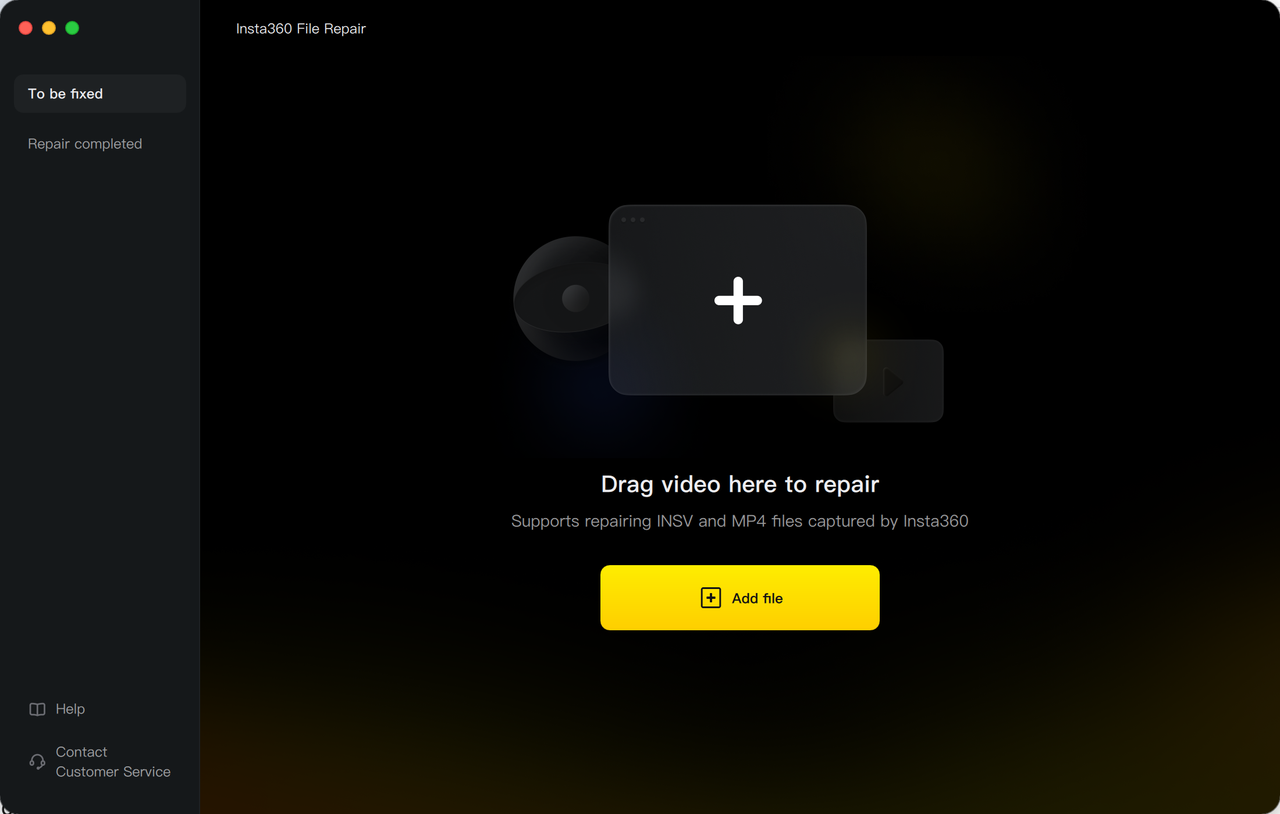
Screenshot: Insta360's public File Repair Help Documentation.
Official repair procedure
- Make a working folder on a local SSD. Copy the damaged INSV and all files from the same recording into it; never run experiments on the only copy.
- Open Insta360 File Repair and choose
Add file, or drag the damaged video into theTo be fixedlist. - If the recording has two INSV streams, add both matching files in the order requested. Do not add the LRV as the second stream.
- Add healthy reference footage from the same camera, shooting mode, resolution, frame rate, and other recording settings. For a paired recording, add both healthy reference streams in the order shown by the tool.
- Decide whether to enable
Repair stabilization. Enabled produces one stabilized 360 file but takes longer and needs more temporary storage. Insta360 says this is only basic stabilization, not the original camera-quality FlowState result. - With stabilization disabled, the repair is faster and preserves separate files for later stitching in Studio. Keep the default output filenames; Insta360 warns that changing them can stop Studio recognizing the set.
- Click
RepairorRepair all, wait without moving the source files or disconnecting power, then save from theRepair completedlist. - Import the saved result into the latest Insta360 Studio and inspect the entire duration, both lens seams, audio sync, horizon behavior, and export. A successful dialog is not the same as a fully usable clip.
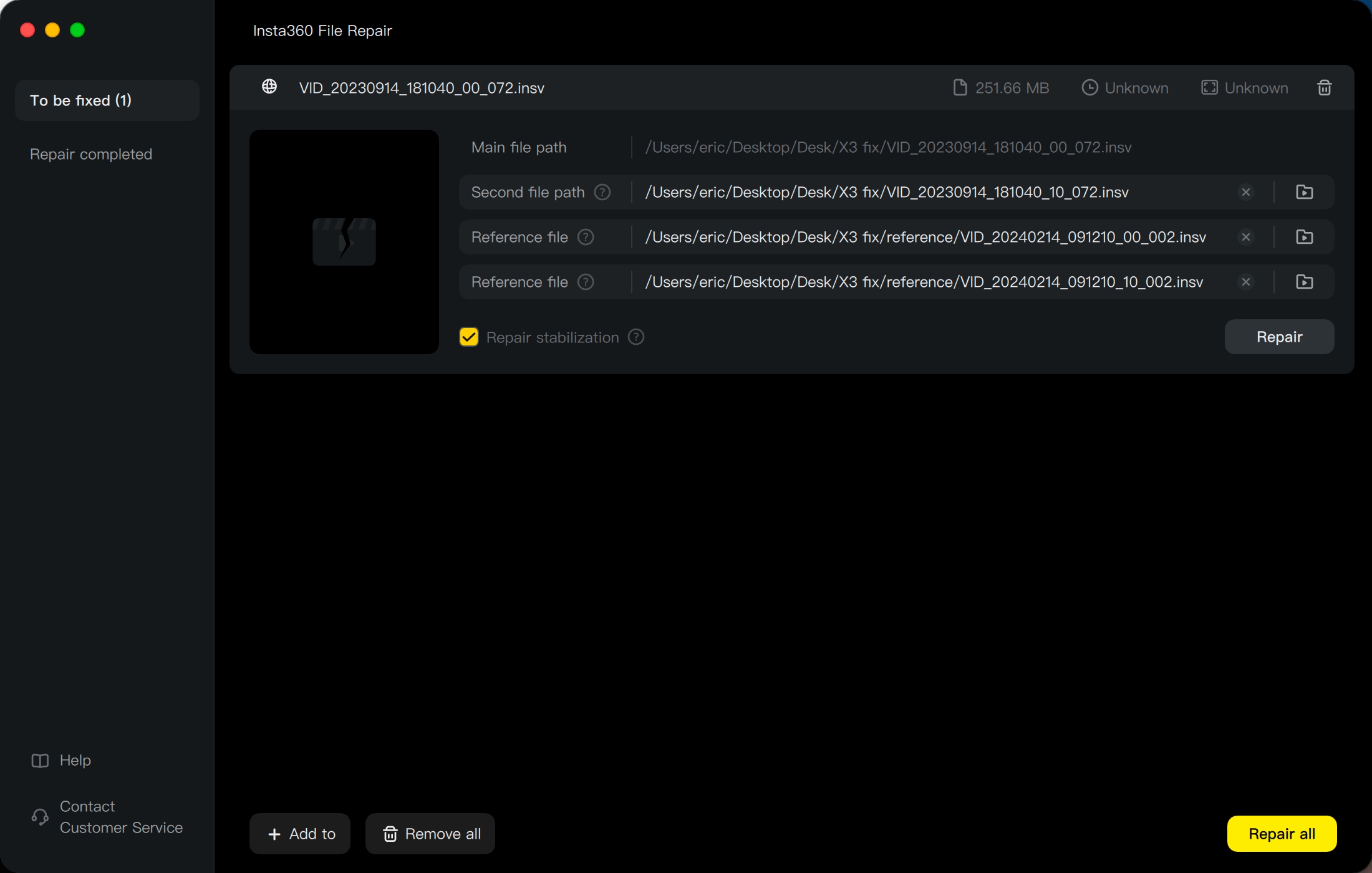
Screenshot: Insta360's official help page. The reference clip must be healthy and closely match the damaged recording's settings.
Repair with or without stabilization
Start without stabilization if the priority is salvaging frames quickly or disk space is tight. If that works, repeat from a clean working copy with stabilization enabled. Do not overwrite the first successful output. The official File Repair help explicitly says missing or incorrect reference files cause failure, and green patches or spots already present in the damaged media cannot be repaired as image quality defects.
What the official tool cannot promise
Insta360 says success depends on the extent of corruption and is not guaranteed. Gyroscope data or audio may remain missing. A zero-byte entry has nothing for the software to parse, and a paired recording without its mate will fail the documented paired-file workflow. If the tool fails after you have supplied the correct set and a matching reference, preserve the files and contact Insta360 Support before trying destructive changes.
Insta360 Studio does not have a documented “Fix Video” command
Search results often tell users to open a mythical Fix Video menu in Studio. The current Studio import troubleshooting page does not document such a feature; it directs corrupted INSV and MP4 files to the separate Insta360 File Repair utility. Studio can expose the symptom, update compatibility, and stitch a repaired set, but File Repair performs the recovery attempt.
Renaming .insv to .mp4 is not that repair. At best, a generic player may expose an unstabilized fisheye stream from a copy. At worst, the changed extension creates another import error and hides which file belongs to which clip.
Experimental fallback: untrunc
untrunc is an open-source tool for rebuilding truncated MP4/MOV-family files from a healthy reference. Its project does not claim full Insta360 metadata support, so use it only after the official tool, only on duplicates, and treat any output as a salvage file.
A minimal test follows the project's documented argument order: healthy reference first, damaged file second.
./untrunc /path/to/healthy.insv /path/to/damaged.insv
Choose a reference from the same camera and settings. If your build rejects the INSV extension, rename only working copies to .mp4; never rename the originals. The resulting file may play yet lack usable gyro, lens pairing, or Insta360 metadata. That is still valuable if the goal is extracting frames, but it is not equivalent to restoring the original master.

NASA Visible Earth image, modified by Mdf, public domain in the United States via Wikimedia Commons. A repaired master still needs correct stitching and metadata to become a normal equirectangular 360 video.
For a clear explanation of the metadata required after stitching, see 360° Metadata Explained.
Recovering deleted INSV files from a microSD card
Deletion recovery is not file repair. The first rule is to stop recording immediately: every new clip can overwrite blocks belonging to the deleted one. Remove the card, use a write blocker or locked full-size adapter where practical, and create a sector image to another physical disk.
For a healthy readable card, a disk-imaging application can create a raw image. For read errors, GNU ddrescue is safer than repeatedly scanning the original because it copies good areas first and records progress in a mapfile. Its version 1.30 manual, dated January 1, 2026, documents SD/flash media support. Device names are unforgiving: verify the source in Disk Utility or diskutil list, unmount it, and never guess.
sudo ddrescue -f -n /dev/rdiskN /Volumes/Recovery/insta360-card.img /Volumes/Recovery/insta360-card.map
/dev/rdiskN must be the source card; both output files must be on a different drive with enough free space. Windows users can use the Read function of a raw disk-imaging utility such as Win32 Disk Imager. If the card clicks, disconnects repeatedly, or is physically damaged, stop and use a professional lab.
Scan the image, not the card
PhotoRec is free and signature-based. Its official documentation says it does not preserve original filenames or directory structure and warns never to write recovered data back to the source filesystem. Open the image, select the relevant partition, enable the video families you need, and send recovered files to another disk. For a corrupted filesystem, scan the whole partition; Keep corrupted files can retain fragments for a later repair attempt.
Camera video is often fragmented, and PhotoRec's own manual warns that generic carving can return unreadable MOV/MP4 files in that case. Insta360 adds another matching problem: older recordings may need two lens streams plus proprietary telemetry. Sort recovered files by size and available timestamps, group likely pairs, then test only copies in File Repair. Commercial tools such as Disk Drill or Recuva may offer a friendlier interface, but no product can recreate overwritten sectors.
SD card practices that prevent repeat corruption
The practical rule is simpler than forum folklore: buy to Insta360's published compatibility list, not to the biggest speed-class number on the label. For X4, the official storage page specifies UHS-I V30 or above, exFAT, and no more than 1TB. It explicitly advises against UHS-II and UHS-III cards. The same UHS-I V30-or-higher requirement appears in current X5 specifications.
There is no official basis for saying V60 is required for 8K on X4 or X5. V30 is the documented minimum. Tested X4 examples include SanDisk Extreme/Extreme Pro V30 A2 and Lexar 1066x UHS-I Silver models; confirm the exact model number against the page for your camera before buying.
After backing up, format periodically in the camera or Insta360 app. Insta360's X4 instructions use Settings > SD Card > Format; if formatting on a computer, choose exFAT with the default allocation size. Never remove the battery, pull the card, or disconnect external power while the camera is saving. Keep several gigabytes free rather than recording to the last available block.
Are commercial repair tools worth paying for?
Only if a preview proves they recovered your actual clip. Test the full duration, both directions of the 360 image, audio, seams, stabilization, and export before paying. A tool that produces a short flat preview or green macroblocks has not restored an editable 360 master. Preserve the original and every intermediate so a vendor or Insta360 Support can inspect them later.
FAQ
Can I rename an INSV file to MP4 and play it?
Sometimes a generic player will inspect a copied file under an MP4 extension, but renaming does not repair corruption, stitch the two lenses, or restore stabilization. Keep the original extension for Insta360 Studio and experiment only on a duplicate.
My INSV file is zero bytes. Can it be recovered?
Not from that directory entry: it contains no payload. Stop using the card and image it, because a deleted or orphaned copy may still exist elsewhere in unallocated space. If no underlying blocks remain, no repair tool can invent the footage.
Does Insta360 Studio have a built-in repair feature?
The current official Studio troubleshooting documentation points users to the separate Insta360 File Repair application. It does not document a Fix Video command inside Studio.
Will data-recovery software restore FlowState stabilization?
Only if it recovers the original file bytes and telemetry intact. Insta360 itself warns that even its repair tool may not restore gyroscope data or audio, while signature carvers can lose names, structure, and fragments. Assume stabilization is at risk until a full export proves otherwise.
Which microSD speed do I need for 8K Insta360 recording?
For current X4 and X5 guidance, Insta360 specifies UHS-I V30 or faster in exFAT. V60 is not listed as an 8K requirement. Use a card model tested for your exact camera and keep its firmware current.
After recovery: verify, export, then back up
A playable INSV is only the first checkpoint. Scrub the whole clip, export a 2:1 equirectangular 360 file, verify its projection metadata, then keep both the repaired master and final export on two separate devices. The Mirame360 upload guide covers the browser-ready formats and checks.
Once the export behaves correctly, create a Mirame360 account and upload the recovered scene. That final playback test is also a useful confirmation that the stitch and 360 metadata survived the rescue.
Source-date note: Insta360's online repair, import, storage, and formatting pages do not display publication dates; their current versions were checked on August 1, 2026. The community examples above were posted December 14, 2024 and October 4, 2025. Cover photo: -stk, CC BY-SA 4.0, via Wikimedia Commons; resized and recompressed.