
An 8K 360 video can look blurry after export because those 8K pixels describe the entire sphere, not the small view shown in a normal 16:9 or 9:16 frame. Reframing discards most of the sphere, while zoom, stitching overlap, low light, motion blur, compression, and a second platform encode can remove still more detail. Exporting the result as a 4K file does not create detail that was never present in the selected view.
That is the short answer. The useful answer is learning where the quality was lost, because changing the wrong setting often produces a much larger file with exactly the same soft image.
Why 8K 360 video is not an 8K flat video
A conventional 8K camera points almost all of its recorded pixels at one rectangular frame. A monoscopic 8K 360 camera distributes its panoramic output across 360 degrees horizontally and 180 degrees vertically. When you reframe that sphere into a normal shot, you use only the pixels inside the chosen field of view.
For a quick first-order estimate, take the width of an equirectangular panorama and multiply it by the horizontal field of view divided by 360:
approximate horizontal source pixels in view = equirectangular width × horizontal FOV ÷ 360
For a 7680-pixel-wide panorama, the simple estimate gives:
| Horizontal field of view | Approximate source pixels across the view |
|---|---|
| 60° | 1280 px |
| 90° | 1920 px |
| 120° | 2560 px |
| 170° | 3627 px |
This is not a promise of final resolution. Perspective projection is not a simple crop, vertical coverage matters, and real cameras lose useful pixels to fisheye geometry, lens overlap, stitching, stabilization, and sometimes upscaling. The formula above is a simplified estimate for intuition, not the more rigorous GoPro Labs method, which measures the active 180-degree diameter across both fisheye images. GoPro Labs explains that maximum effective 360 resolution method and why overlap pixels are necessary for stitching but do not add unique detail to the completed sphere.
The practical lesson is more important than the formula: a narrower field of view gives you a more conventional-looking shot, but it magnifies a smaller part of the sphere. A wider field of view uses more recorded information, although the image may look more distorted.
Why your 8K 360 video looks blurry after export
Several different faults get described as "blurry." Identify the pattern before changing the export preset.
1. The reframe is too tight
Zoom is the most common quality killer. A 90-degree view from an 8K-wide equirectangular frame starts with roughly 1920 horizontal source pixels under the simplified calculation above. Push into a distant face, number plate, or trail sign and the editor must stretch fewer pixels across the output.
Selecting a 3840 × 2160 export canvas does not change that. It can be useful for platform delivery, but it cannot turn a heavily cropped view into true captured 4K detail.
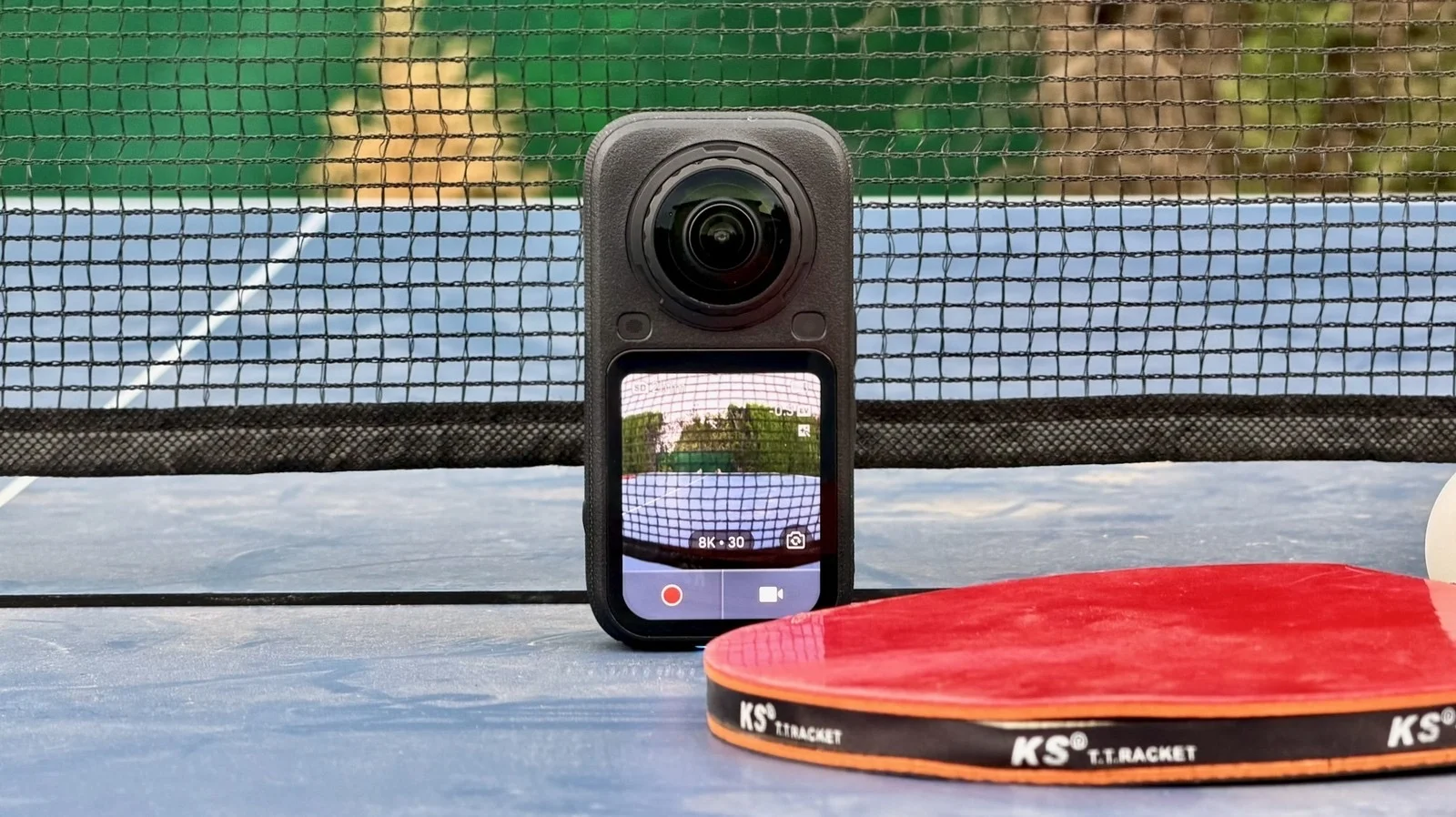
A July 2026 Insta360 X5 owner reported soft moving footage despite shooting 8K/30 and exporting at 4K with a 150 Mbps bitrate. Insta360 support's reply correctly separated the total panoramic resolution from the smaller portion used for a flat export.
2. Motion blur or noise was recorded in the source
Compression is easy to blame because it happens at the end. Often the damage happened at capture. Short winter days, indoor rooms, forest shade, night riding, and fast road footage force a small-sensor camera to balance shutter speed and ISO. A slower shutter smears motion; high ISO creates noise, and aggressive noise reduction smears fine texture.
Check a frame from the original camera file before reframing. Look at a stationary object near the intended viewing direction. If that object is already soft, bitrate is not the first problem to solve. More light, a more suitable shutter strategy, a cleaner lens, and keeping the subject away from the stitch boundary will matter more.
3. You exported a preview or proxy instead of the original
Many 360 workflows create lightweight preview files so a phone or computer can scrub high-resolution footage smoothly. Those files are useful for editing decisions, not as final masters. Keep the camera originals and any companion files together until the export is complete.
For Insta360 footage, that normally means preserving the INSV originals rather than treating an LRV preview as the source. DJI OSV and GoPro .360 workflows have their own import and stitching paths. Mirame360's 360 video format guide documents the current upload formats, including exported equirectangular video, DJI OSV, and GoPro .360; it does not replace the camera maker's instructions for preserving or exporting INSV originals.
4. The bitrate is too low for the scene
Resolution describes the dimensions of the frame. Bitrate describes how much data the encoder can spend per second. Water, leaves, gravel, snow, crowds, and fast camera movement are difficult to compress because large parts of the image change from frame to frame.
Insta360's current export guide states that higher bitrate reduces pixelation in moving images but increases file size. It also notes two limits that are frequently missed: exporting at 4K cannot recover detail from a low-resolution capture, and an export cannot exceed the frame rate used while filming.
A starved bitrate can absolutely damage a good source. The opposite mistake is assuming that 200 Mbps repairs every problem. Once detail has been lost to blur, a tight crop, stitching, denoising, or an earlier lossy encode, a higher final bitrate mainly preserves the softened result more faithfully.
5. The video was compressed more than once
A common workflow is camera original → camera app export → editing app export → social platform encode. Each lossy generation can remove detail. Exporting an H.264 file at a high bitrate, importing it into another editor, and encoding it again is not lossless merely because both files have large bitrates.
One X5 creator described exporting from Insta360 Studio, editing in Premiere Pro, and then using 160 Mbps H.265 or 200 Mbps H.264, yet still seeing a substantial quality drop. The full workflow report is a useful warning: "Match Source" and a very high number do not guarantee that projection, sequence, color, scaling, and encoder settings are all correct.
For projects that need titles, tracking, or several rounds of revision, a high-quality intermediate can be easier to manage than repeatedly encoding delivery files. Professional editors discussing an 8K 360 and 3D-tracking workflow recommended approving the reframe, rendering a stable plate, and separating graphics when that reduces fragile live links and repeated processing. That is not necessary for a quick holiday clip, but it is sensible for paid production.
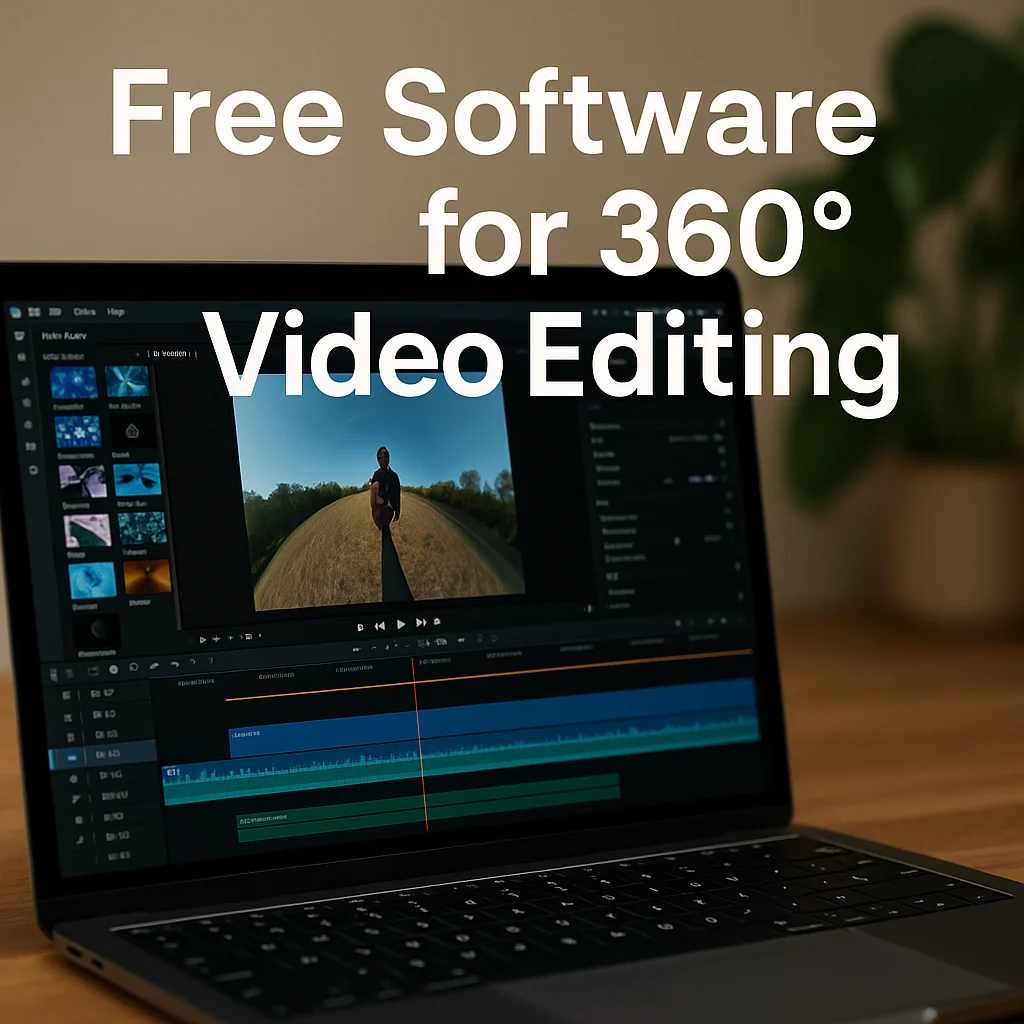
A cleaner 360 export workflow
Use the shortest workflow that preserves the type of video you actually want. A flat reframed video and an interactive 360 video are different deliverables.
- Copy the complete camera originals to reliable local storage. Do not erase the card yet.
- Open the originals in the manufacturer's software or a tool that explicitly supports that camera format.
- Decide whether the output should be flat or interactive 360.
- For a flat video, set the keyframes and field of view before export. Avoid unnecessary digital zoom.
- For interactive 360, export a stitched 2:1 equirectangular master at the source frame rate and confirm that the project is monoscopic 360 × 180 when appropriate.
- If another editor is required, match the sequence to the master and minimize lossy generations.
- Inspect the local export at 100% before blaming the upload platform.
- Test the final file in a real 360 player before deleting the originals.
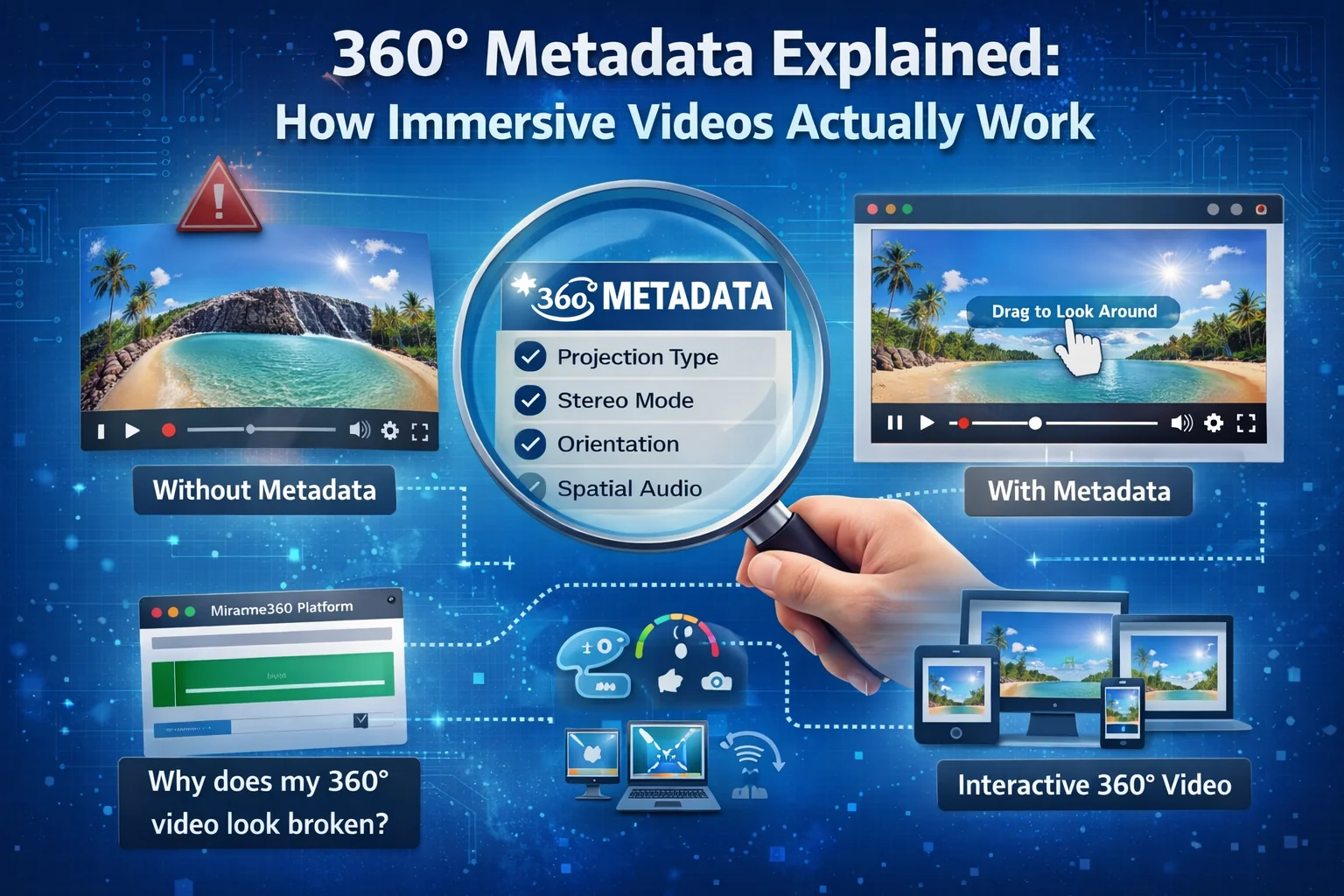
That last check catches a different class of failure: a sharp equirectangular file can still open as a flat rectangle if its spherical metadata is missing. Mirame360's free 360 Metadata Doctor checks the file locally in the browser, so you can distinguish a metadata problem from a resolution problem without uploading the media.
Flat reframe versus interactive 360 export
A flat reframe records the editor's chosen viewpoint. Keyframed pans, subject tracking, and tiny-planet transitions become part of an ordinary 16:9, 9:16, or square video. The viewer cannot look in another direction afterward.
An interactive 360 export keeps the sphere. The player decides which viewport to display while the viewer drags, swipes, or moves a headset. Insta360's export documentation notes that reframing adjustments such as keyframes and tracking are not retained when exporting in 360 mode. That is expected behavior, not an export bug.
Do not use the flat social-media preset when the goal is an interactive upload. Conversely, do not send a full equirectangular master to Instagram and expect it to behave like a carefully reframed Reel.
A practical master strategy
If the footage matters, retain three distinct assets:
- the untouched camera originals and required companion files;
- one high-quality stitched 360 master;
- one or more delivery exports, such as a vertical clip or web-ready interactive version.
Storage is cheaper than discovering six months later that the only surviving copy is a compressed social export.
Export settings for YouTube 360
YouTube's official 360 workflow says to stitch the source, use a VR sequence that matches the footage, encode at high resolution, and verify that 360 playback is active before publishing. YouTube warns that spherical processing can take up to an hour to appear after upload. During that period, a video may not yet behave or look like the final processed version. See YouTube's 180° and 360° upload instructions.
For general SDR uploads, YouTube currently lists these H.264 reference ranges:
| Upload resolution | 24–30 fps | 48–60 fps |
|---|---|---|
| 4K | 35–45 Mbps | 53–68 Mbps |
| 8K | 80–160 Mbps | 120–240 Mbps |
These are upload recommendations, not proof that every 8K 360 camera captures the same effective detail. YouTube also recommends keeping the recorded frame rate, progressive scan, variable bitrate, 4:2:0 chroma subsampling, and BT.709 for SDR. Check the official encoding settings before copying a preset from an old forum post.
After uploading, wait for high-resolution processing and manually select the highest playback quality during testing. A browser on a slow connection may choose a lower adaptive rendition even when the high-resolution version exists.
Quick diagnosis: where did the detail go?
Use this sequence instead of changing five settings at once.
The original is soft
Fix capture first: clean the lenses, improve light, review shutter speed and ISO, reduce camera vibration, and keep important nearby subjects away from the stitch line.
The original is sharp but the flat reframe is soft
Widen the field of view and remove zoom. Confirm that the editor is reading the original rather than a proxy. Export a short section and compare it at the same display size.
The local export is sharp but the upload is soft
Wait for high-resolution processing, inspect the selected playback rendition, and compare the platform's recommended codec, bitrate, color, and frame-rate settings.
The export is sharp but opens as a flat rectangle
Check projection and spherical metadata. Do not solve a metadata problem by increasing bitrate.
The center is acceptable but the seam is soft or doubled
This is likely a stitching or parallax issue. Nearby objects are harder to stitch because each lens sees them from a slightly different position. Reposition the camera, increase subject distance, select the correct lens-guard or stitching mode, and test a short clip before a critical shoot.
Can an 8K 360 camera produce real 4K reframed video?
Sometimes a very wide reframe can be delivered in a 4K-sized file and retain substantial detail. A narrower, natural-looking view usually contains far fewer than 3840 unique horizontal source pixels. Camera geometry, stitching overlap, stabilization, and upscaling make a universal "8K in, 4K out" promise unreliable.
Use 4K as a delivery canvas when the platform or workflow benefits from it. Do not confuse canvas dimensions with captured resolving detail.
Does a higher bitrate fix blurry 360 video?
No. A higher bitrate can reduce compression artifacts such as blocking, smeared texture, and breakup during motion, but it cannot recover detail lost to focus, motion blur, tight reframing, denoising, or an earlier lossy encode.
Run a short A/B export. Keep resolution, frame rate, FOV, and codec identical; change only the bitrate. If the image does not improve at normal viewing size, bitrate is no longer the bottleneck.
Should you export H.264, H.265, or ProRes?
Use H.264 when compatibility is the priority. H.265 can preserve similar quality at a smaller file size, but encoding, playback, and editing support varies by device. ProRes and other mezzanine codecs create much larger files and make sense mainly as intermediate masters for further editing, not as default files for casual sharing.
The best codec is the one that survives the complete workflow. A technically efficient file that your editor, browser, headset, or client cannot decode is not a useful master.
Test the file as a 360 video, not as a flat strip
An equirectangular master is supposed to look stretched in a normal image or video viewer. Judge it inside a player that maps the rectangle back onto a sphere. Check the intended direction, stitch boundary, moving detail, and playback rendition on both desktop and mobile.
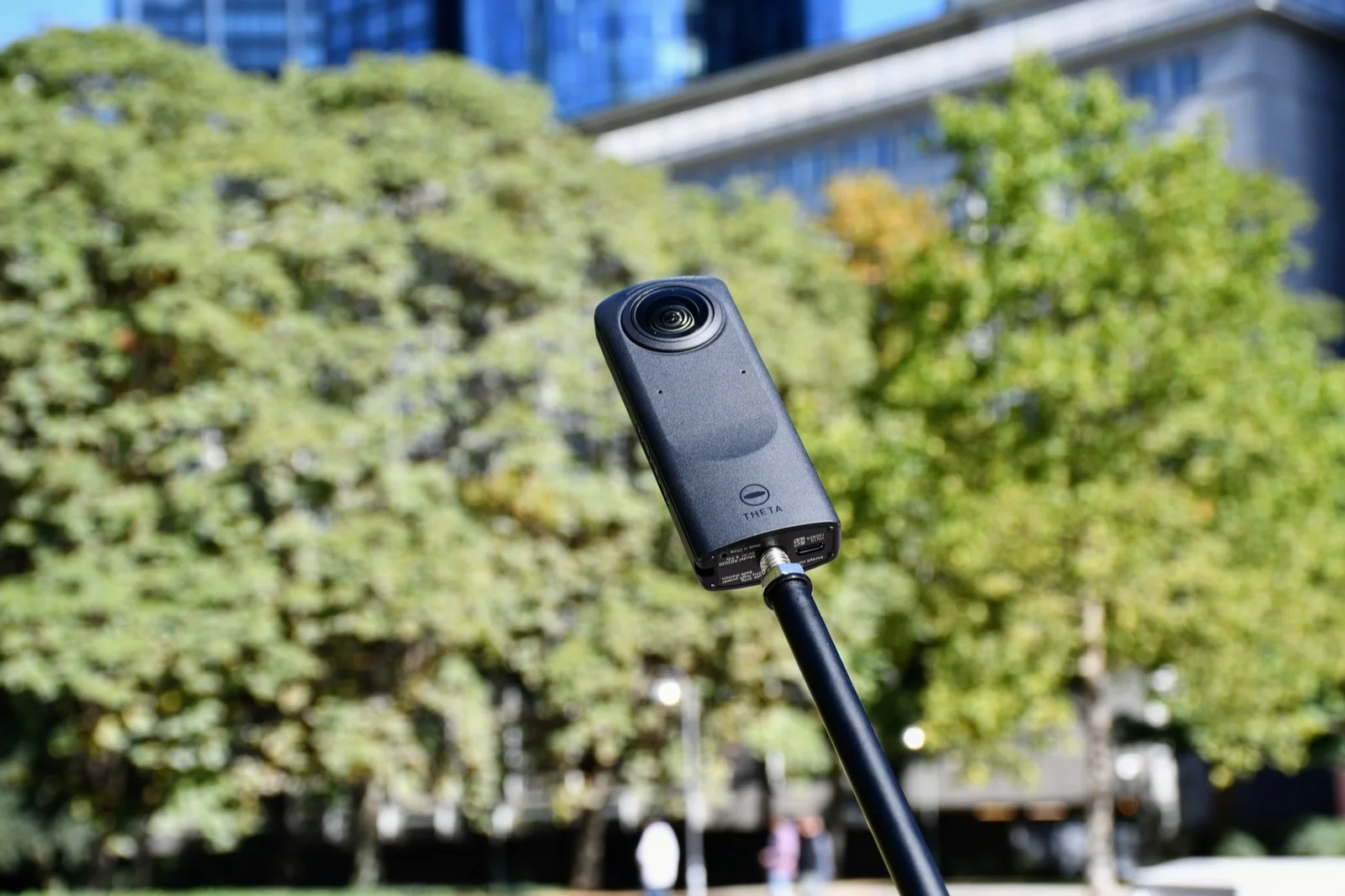
If your local export is sharp, correctly stitched, and carries the right metadata, the next useful test is real browser playback. Upload a test clip to Mirame360 for free and see how it renders on desktop and mobile before you commit to a final export. Keep it private while it processes, then inspect the result on the devices your audience will actually use. That test tells you more than another hour spent pushing the bitrate slider higher.