
You've taken a 360 photo, opened it on your phone and enjoyed looking around the scene. Then you post it on Facebook, and all anyone sees is a flat, stretched image. It's frustrating, especially when the photo looks fine in the Insta360 app.
If your Insta360 360 photo appears flat on Facebook, start with the exported JPEG, then check its panorama metadata and try uploading the same file from a computer. Those three checks help you work out where things went wrong without exporting the photo over and over.
You may already have everything you need in the original capture. Let's start there.
First, make sure you've exported the whole scene
A 360 photo needs to contain the view all around the camera, including above and below it. In an ordinary image preview, that full scene usually looks like a stretched rectangle, twice as wide as it is tall. A 360 viewer wraps it around you so you can look in different directions.
That means a rectangular preview alone doesn't tell you the photo is broken. If this is the part that's confusing you, the guide to why a 360 photo shows up flat in a browser explains the difference between the file and the viewer.
Open your original capture in the Insta360 app or Studio and look for the option to export the full panoramic photo. The wording can vary between versions. For this upload, you want the whole panorama rather than a reframed view, a Tiny Planet image or a screenshot.
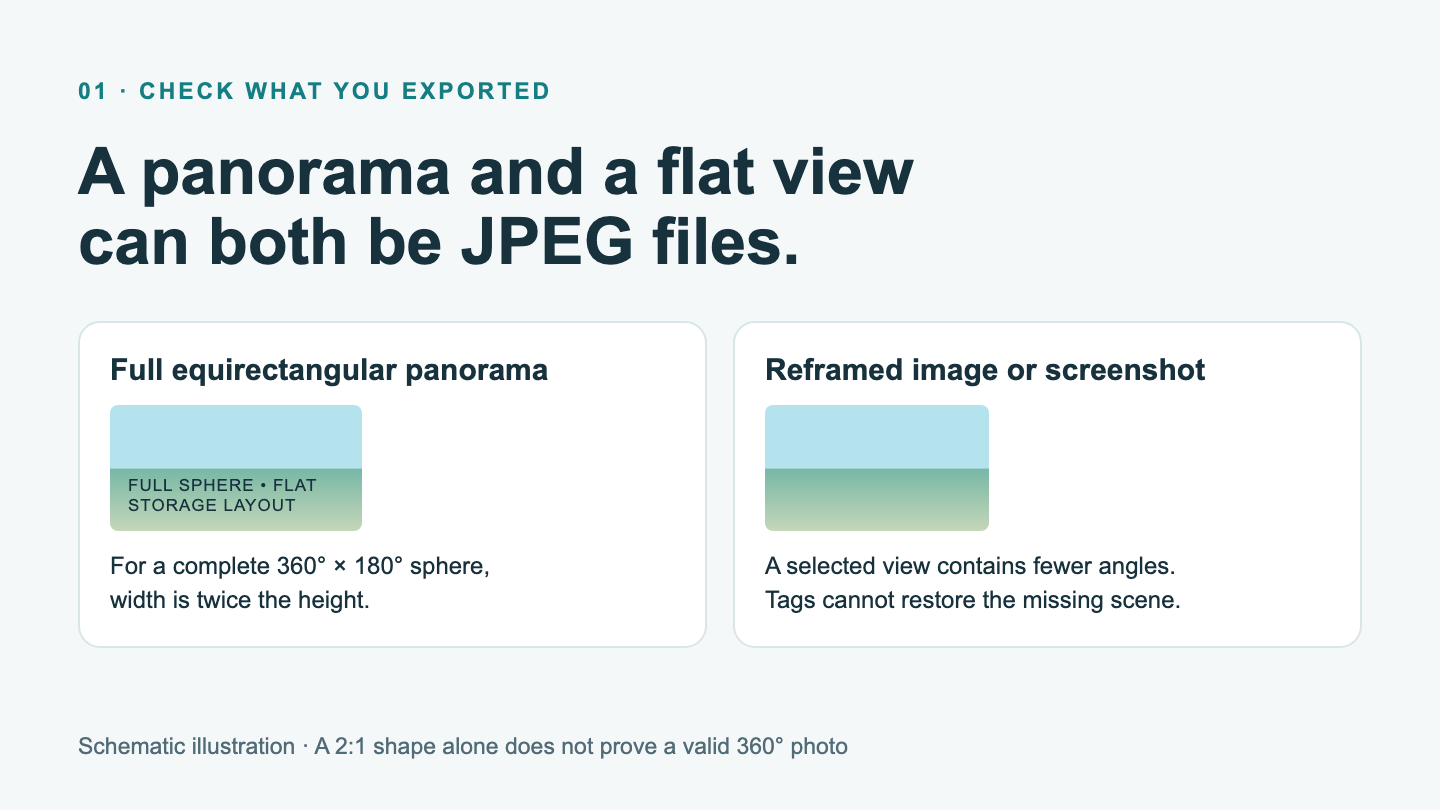
A reframed photo keeps the view you've chosen. A full panorama keeps the scene around you.
Think of a reframed photo as choosing where to point a normal camera. It's useful when you want a conventional picture, but the other directions aren't included in that exported image. No metadata fix can put them back. Return to the original capture and export the panorama instead.
Keep this fresh JPEG as your reference copy. Try it before making further edits or cropping it. If you move it to a computer, transfer the actual file rather than taking a screenshot of the preview.
The photo is complete, but Facebook still shows it flat
The next thing to check is the information stored inside the JPEG. Panorama metadata tells a compatible service how to interpret the image: how it should wrap around the viewer, how large the full scene is and whether any of it has been cropped.
You don't need to learn all the field names to make a useful first check.
Try Metadata Doctor on a copy
Open Metadata Doctor and select your exported JPEG. The inspection runs locally in your browser, and you don't need an account.
If the tool finds missing 360 metadata, and you've confirmed that the image is a complete, correctly stitched panorama, use the offered correction and download the new copy. Depending on the result, the interface may offer “Add 360° metadata” or take you straight to a correction-and-download action. Keep your original JPEG too, so you can compare them.
If the tool already finds panorama metadata, move on to the upload check below. Repeatedly adding the same tags won't help you find out why Facebook is displaying that file differently.
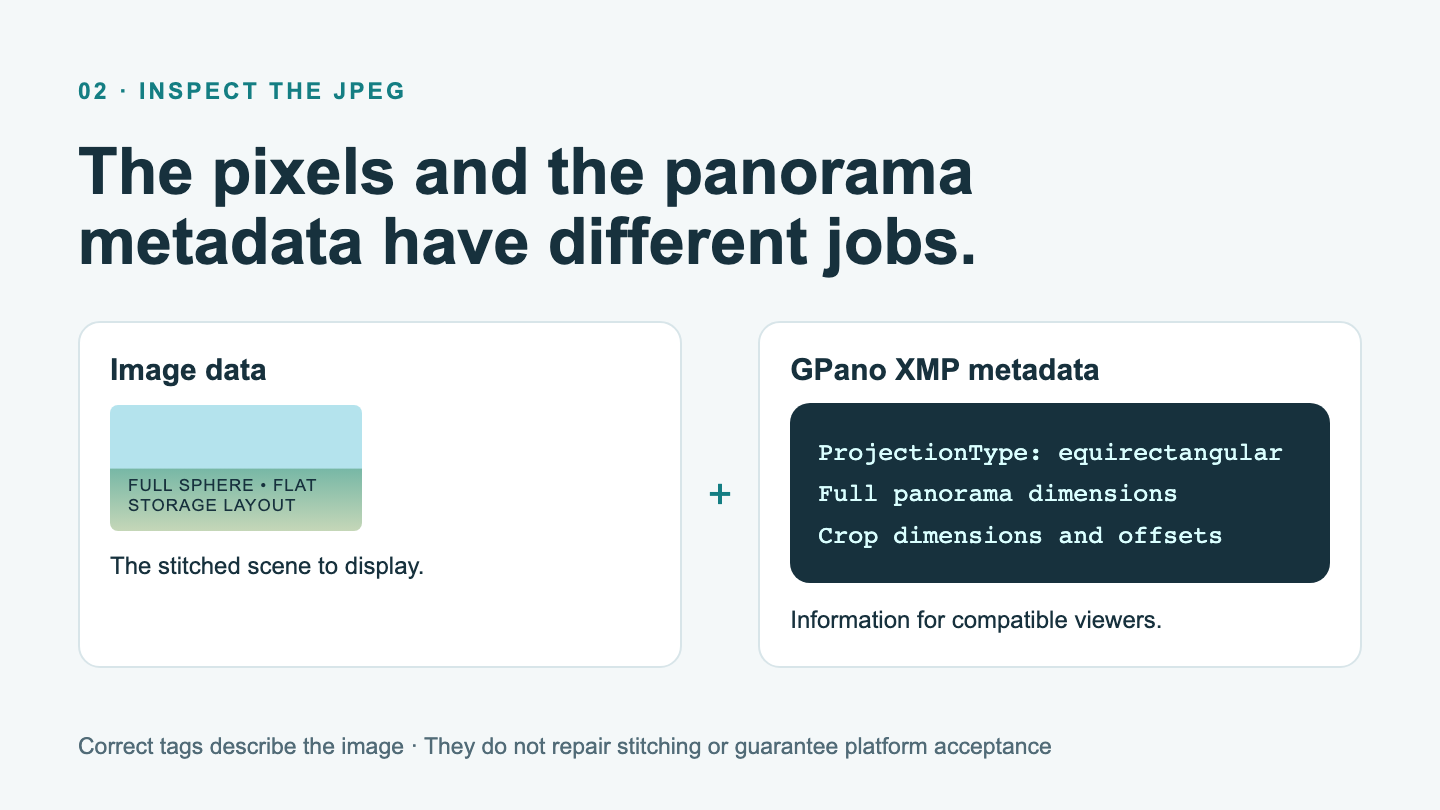
Metadata helps a viewer understand the photo. It can't restore a missing part of the scene.
Want to look at the tags yourself?
The panorama fields are called GPano metadata and are stored using XMP. The projection field, GPano:ProjectionType, should say equirectangular for this kind of panorama.
The full-panorama dimensions and crop information should also describe the image correctly. For example, a complete, uncropped 8000 × 4000 photo has matching full-panorama and image-area dimensions, with both crop offsets set to zero. That's an example, not a required export size. A 2:1 shape is a useful clue, but stretching an ordinary photo to that shape won't turn it into a sphere.
If you've resized or cropped the file, its metadata needs to reflect those changes. Google's Photo Sphere XMP specification explains the fields in detail if you need to investigate further.
Try the same JPEG from your phone and computer
Once you're happy with the export, keep the file the same while you try a different upload route. Otherwise, it's hard to tell whether the improvement came from a new export, a metadata correction or the way you posted it.
A simple comparison is enough:
- Upload your chosen JPEG from your phone. Note whether you selected it inside Facebook or shared it from the phone's gallery.
- Transfer that same JPEG to a computer and try the Facebook website. Use the same posting destination where possible.
- Check whether you can actually look around the resulting photo. A rectangular preview on its own doesn't answer that question.
- If you're comparing the original and metadata-corrected copies, upload both through the same route.
Use an audience you're comfortable with for these test posts, wherever that option is available.
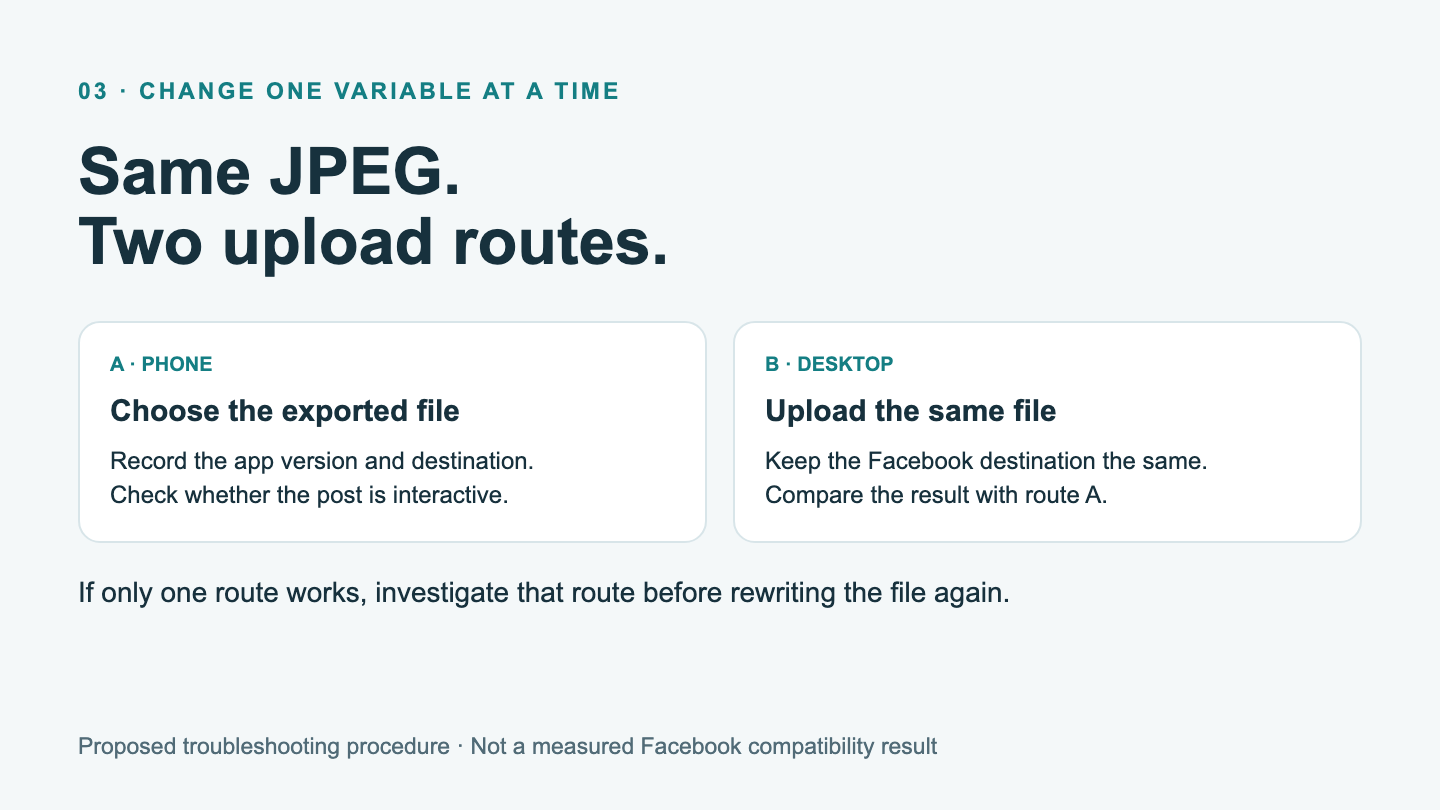
Keep the photo the same when comparing uploads, so you can see what made the difference.
If the computer upload works, you've found a way to share that photo without starting again. It doesn't necessarily explain every phone upload failure, but it gives you a useful next step.
If both attempts fail, save the original file and note your camera model, app version, export method and upload destination. Those details give support something concrete to investigate. They're more useful than another round of adding tags to the same file.
Is this an Insta360 X6 issue?
There is a relevant Reddit discussion about X6 exports. The poster reported that an X6 photo exported through the iOS app wasn't recognized as a 360 photo on Facebook, while an X5 export worked. They identified a missing projection tag, and Insta360's support account said iOS compatibility work was ongoing.
That report is a useful reason to check your file. It doesn't mean every X6 export has the problem, or tell you whether your app version is affected. Insta360's X Series XMP documentation describes panorama information in JPG output and explains which originals need exporting through the app or Studio.
Other users describe mixed results with Facebook upload routes in a separate community discussion. That thread starts with video but also discusses photos. Neither discussion is a substitute for checking your own JPEG, and neither establishes that Facebook has stopped supporting all 360 photos.
Just want people to look around your photo?
Sometimes the goal is simply to share a room, a place you've visited or a family memory. You can also share a link to an interactive viewer, where people open the photo and look around on its own page.
The Facebook link preview will still be a preview; the interactive experience opens when someone follows the link. Check that page on your phone and computer before sending it to others.
If you'd like to try that route, create a Mirame360 account and upload one compatible panoramic photo. Open its viewing page, make sure the scene looks right, then share the link. Keep the original capture and exported JPEG in your own archive too, so you can always come back to the photo.