The Photo Isn't Broken. The Metadata Is Missing.
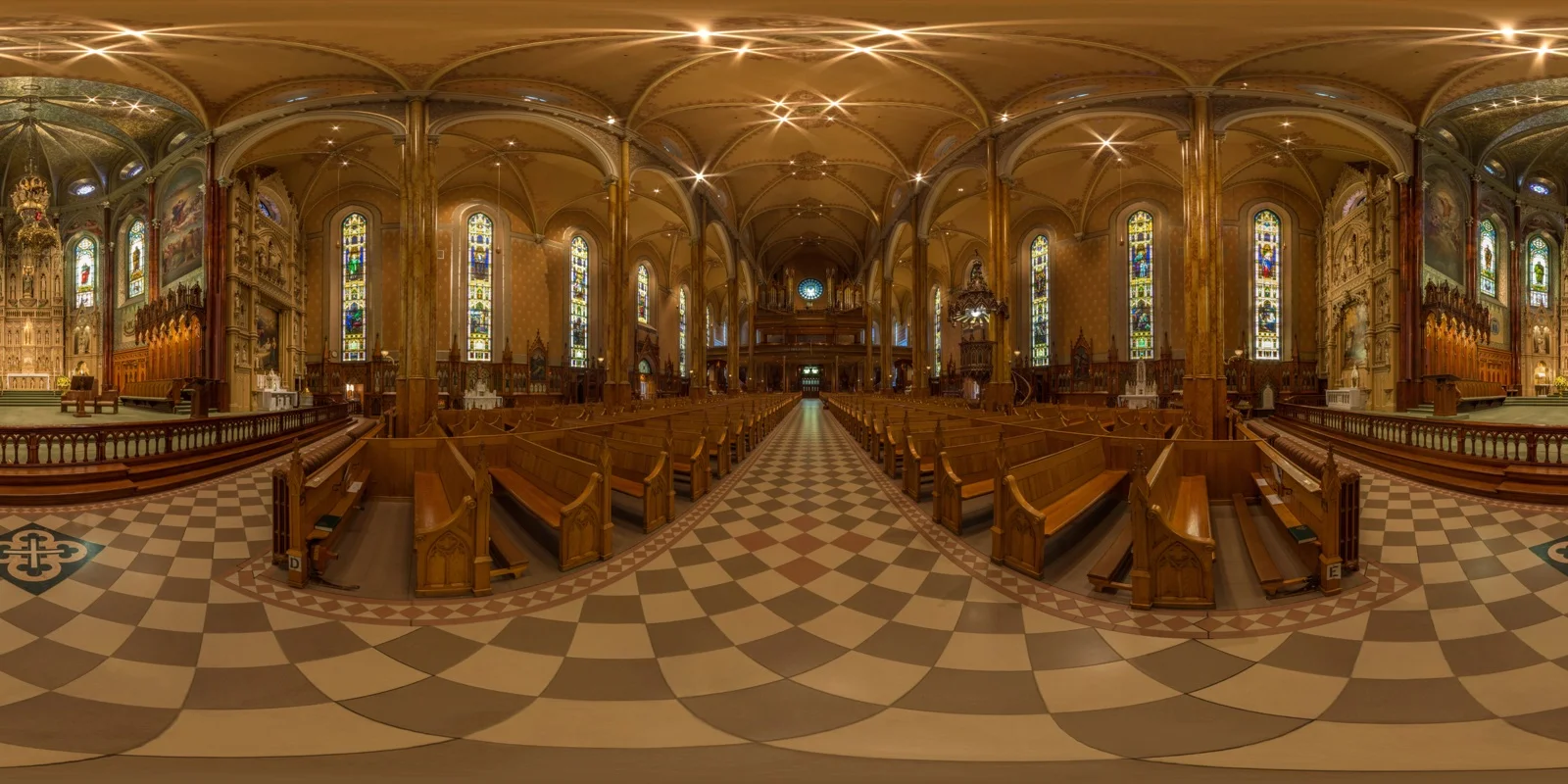
You shot a 360° photo, and instead of the interactive sphere you expected, your browser shows a stretched, warped rectangle — wide buildings bent like a fisheye lens gone wrong, straight lines curving at the top and bottom. Nothing about the image file is corrupted. The pixels are exactly what your camera captured. What's missing is a small block of embedded XMP metadata that tells software "this flat-looking rectangle is actually a sphere, unwrapped."
That rectangle is called an equirectangular projection, and it's how every 360° camera stores a spherical scene as a normal 2D image, at a fixed 2:1 width-to-height ratio (say, 8000×4000 pixels). A viewer that knows the projection remaps those pixels onto a sphere and lets you drag around inside it. A viewer that doesn't just shows you the flat rectangle, distortion and all. The image is doing exactly what it's supposed to; the software just wasn't told what it's looking at.

What a Browser Actually Checks Before Rendering a Sphere
No browser guesses that an image is a 360° photo from its aspect ratio alone — plenty of ordinary panoramas are also wide and short. Instead, compatible viewers (Google Photos, Facebook, Flickr, embedded WebGL players like the one Mirame360 uses) look inside the file for a specific XMP namespace called GPano, defined by Google's Photo Sphere metadata spec. The tags that matter most are:
ProjectionType— must be set toequirectangularUsePanoramaViewer— a boolean flag telling the app to render it as a sphere, not a flat photoFullPanoWidthPixels/FullPanoHeightPixels— the full 360°×180° canvas sizeCroppedAreaImageWidthPixels/CroppedAreaImageHeightPixels— the visible portion, if the capture doesn't cover the whole sphereCroppedAreaLeftPixels/CroppedAreaTopPixels— where that visible portion sits within the full canvas
If UsePanoramaViewer and ProjectionType aren't present, most platforms fall back to treating the file as a plain photo. It's a deliberate, conservative default: showing a random wide photo as a warped sphere would be worse than just showing it flat.
Why the Metadata Disappears in the First Place
This almost never happens because a camera fails to write it. It happens somewhere downstream, and the pattern shows up constantly in support threads and panorama-photographer forums:
- Editing software strips it. Opening a 360° JPEG in Photoshop, Lightroom, or Affinity and re-saving frequently drops the GPano block entirely, even when nothing about the crop or exposure changed.
- Messaging apps re-encode images. Sending a panorama through WhatsApp, iMessage, or a chat client typically re-compresses the file and discards XMP data in the process.
- Some export/resize tools only keep EXIF, not XMP. Basic resizers built for ordinary photos often aren't aware GPano exists, so they copy camera EXIF but silently drop the panorama-specific XMP block.
- The file was never tagged. Some stitching software or older camera firmware simply doesn't write GPano tags by default, so the metadata was never there to begin with.
A 360° photography guide on ashblagdon.com puts it plainly: metadata gets lost through completely normal workflows, not exotic ones. If you've edited the file at all after it left the camera, that's the first place to look.

How to Check What Your File Actually Has
Before reaching for a fix, confirm what's missing rather than guessing. A few ways to check:
- Run it through Metadata Doctor — Mirame360's free browser-based tool reads a photo or video and reports exactly which GPano (for photos) or Spherical Video V2 (for video) tags are present, missing, or malformed. Nothing gets uploaded to a server; the file is inspected entirely client-side.
- Inspect the XMP block directly with ExifTool.
exiftool -XMP-GPano:all yourfile.jpglists every GPano tag currently in the file. An empty result means the metadata is gone. - Check the aspect ratio. If the image isn't close to 2:1, that's a separate, bigger problem than missing metadata — it likely wasn't stitched as a full sphere at all, and no amount of tag-injection will fix that.
Fixing It: Two Practical Paths
The no-install route
Drop the file into Metadata Doctor. If the projection and dimensions are correct but the GPano tags are simply absent, the tool writes them back in and hands you a corrected copy — no command line, no account, no upload round-trip. This is the right first move for a one-off photo you just need working again for a client or a listing.
The manual route with ExifTool
For batch fixes or scripted workflows, ExifTool can write the tags directly:
exiftool -XMP-GPano:ProjectionType="equirectangular" \
  -XMP-GPano:UsePanoramaViewer="True" \
  -XMP-GPano:FullPanoWidthPixels="8000" \
  -XMP-GPano:FullPanoHeightPixels="4000" \
  -XMP-GPano:CroppedAreaImageWidthPixels="8000" \
  -XMP-GPano:CroppedAreaImageHeightPixels="4000" \
  -XMP-GPano:CroppedAreaLeftPixels="0" \
  -XMP-GPano:CroppedAreaTopPixels="0" \
  yourfile.jpg
The width and height values need to match your actual file dimensions, not be copied blindly — that's the detail people get wrong most often, and a mismatch here is exactly what tools like Metadata Doctor are built to catch before you ship a broken file to a client twice in a row.

Verifying the Fix Actually Worked
Don't just trust that the write succeeded — check it the same way the platform you're publishing to will:
- Re-run the file through Metadata Doctor or
exiftool -XMP-GPano:alland confirm all seven core tags are present with correct values. - Open it somewhere that actually respects GPano, such as Google Photos or an embedded viewer, rather than a generic image previewer like Windows Photo Viewer or macOS Preview — those two ignore GPano entirely and will always show it flat, metadata or not.
- If you're publishing it as a virtual tour rather than a single image, embed it through a player built for spherical content instead of a plain
<img>tag. Mirame360's how-to guide walks through publishing a photo as an interactive tour once the file itself is correct.
When It's Not a Metadata Problem At All
Sometimes the fix doesn't work, and that's useful information too. If the image still looks warped after correct GPano tags are in place, the projection itself is probably wrong — the file wasn't stitched as equirectangular, or the aspect ratio isn't 2:1. Metadata can tell a viewer what to do with correctly projected pixels; it can't turn a badly stitched panorama into a good one. If you've confirmed the tags are right and it's still broken, check the stitching output before touching metadata again.
If your file passes all of the above and just needs a home that will actually respect the metadata and render it as a proper interactive sphere, publish it on Mirame360 — the viewer reads GPano correctly out of the box, so a fixed file stays fixed instead of flattening out again the next time someone shares the link.
FAQ
Why does my panorama look stretched and distorted instead of spherical? Because the browser or app you're viewing it in has no GPano metadata to tell it the image is an equirectangular projection, so it renders the raw file as a normal flat photo.
What's the correct aspect ratio for a full 360° photo? 2:1 — width exactly double the height, covering the full 360° horizontally and 180° vertically.
Can I add GPano metadata without installing anything? Yes. Metadata Doctor checks and repairs it entirely in your browser, no software or account required.
Does every viewer respect GPano metadata? No. Generic image viewers like Windows Photo Viewer and macOS Preview ignore it completely and will show the flat rectangle regardless of what's embedded. You need a viewer built for panoramas.
Does editing a 360° photo in Photoshop or Lightroom remove the metadata? Often, yes. Re-saving through general-purpose photo editors is one of the most common ways GPano tags get stripped, even when the edit itself didn't touch the image content.