Yes, you can put a 360° video experience in an email newsletter, but you should not try to make the interactive player run inside the message. Gmail, most Outlook versions, Yahoo Mail, and many mobile apps will not play a normal HTML5 video reliably, and a true 360° player needs even more web functionality than a flat video. The dependable method is a linked preview image that opens the hosted 360° player in a browser.
That answer can sound like a compromise. In practice, it is the version I would ship even if every inbox suddenly learned to play MP4 files. A browser gives the viewer room to drag, pan, enter full screen, and understand that the scene is interactive. A cramped email pane does not.
Why a 360° video is harder than an ordinary video
A 360° video is usually delivered as an equirectangular video stream plus a player that maps the flat frames onto a sphere. The viewer changes the camera direction by dragging, swiping, moving a phone, or using a headset. Without that player, the MP4 may appear as a stretched, two-eyed-looking rectangle. It is technically video, but it is not the experience you intended.
The web player typically relies on JavaScript, interactive controls, and sometimes an iframe. Those are exactly the things email clients treat with suspicion. Mailchimp’s HTML email guidance says the vast majority of inboxes block scripts, and that most clients also block iframes because they often contain scripts. In other words, pasting Mirame360 embed code, a YouTube iframe, or any other web-player snippet into an email builder is a dead end.

Image: Jonathan, public domain, via Wikimedia Commons.
HTML5 video support across Gmail, Outlook, and major email clients
Even if we ignore the interactive 360° layer and test only the HTML <video> element, the audience is fragmented. The current Can I Email compatibility table estimates 19.51% full support plus 4.88% partial support, or 24.39% in total. That is nowhere near a safe baseline for a newsletter.
Here is the practical reading of its client-by-client tests:
| Email client | Native HTML5 video | What that means for a 360° newsletter |
|---|---|---|
| Gmail on web, iOS, Android, and mobile web | No | Do not expect an in-message player. Use an ordinary linked image outside the video tag. |
| Outlook for Windows 2007–2019 | No | A fallback image and link are essential. |
| Outlook.com | No reliable playback | The element may be recognized, but strict content security prevents playback in the cited tests. |
| Outlook for Mac | Mixed | Some versions support video, while newer tested behavior has awkward control limitations. It is not a campaign-wide solution. |
| Apple Mail on macOS | Yes in the cited test | Flat HTML5 video can play, but that still does not turn the inbox into a proper interactive 360° player. |
| iOS Mail | Partial | Controls are required and autoplay is not supported in the cited tests. |
| Yahoo Mail | No | Show the linked fallback. |
| Samsung Email | Partial | Playback requires controls in the cited test. |
| Thunderbird | Yes in the cited test | Native video may work, but recipients elsewhere still need the same fallback. |
Gmail: a YouTube preview is not a general embed standard
Gmail does not support the HTML video element in its desktop webmail or Gmail apps according to Can I Email. Some guides mention that Gmail can create a special YouTube preview. That is Gmail recognizing a YouTube link, not Gmail promising to run an arbitrary hosted 360° player or your own HTML <video> block.
Build for the predictable behavior: a thumbnail opens a web page. Mailchimp’s video block does exactly this for Vimeo and YouTube, and its merge tags generate a player-like image linked to the online video rather than embedding playback. Mailchimp even auto-converts embedded videos in imported HTML or RSS content into linked screenshots. That is a useful clue about what survives real campaign delivery.

Image: Google Gmail mark, a public-domain text logo on Wikimedia Commons; trademark rights still apply.
Outlook: one new exception, with a narrow audience
Ordinary Outlook newsletter HTML remains a poor home for native video. There is, however, a newer Microsoft 365 feature that deserves a precise explanation. Microsoft documents an embedded video player in Outlook on the web, new Outlook for Windows, Outlook for Android, and Outlook for iOS when enterprise users share supported video files from OneDrive for work or school or SharePoint.
This is useful for internal company communication. It is not a public newsletter solution. Microsoft says only enterprise users can use the feature, external recipients see a link instead of the embedded player, and access follows the organization’s file permissions. Non-mobile Outlook also limits an email to five Loop components. A tourism mailing list, property campaign, or event newsletter sent across many organizations cannot assume any of that Microsoft-specific context.

Image: Usertoop, CC0 1.0, via Wikimedia Commons.
Apple Mail: playable video is still not a complete 360° experience
Apple Mail is the strongest mainstream case for native HTML5 video. If most of a tightly controlled audience uses Apple Mail, a developer can add a video element with a poster image and fallback content. But this is progressive enhancement, not the core delivery method.
The limitation is conceptual as much as technical. A native email video control knows play, pause, time, and volume. It does not automatically know that an equirectangular frame should become a draggable sphere. You would still need the interactive player code that email clients block. Showing a distorted 2:1 panorama moving inside Apple Mail is worse than showing an honest preview that opens the right player.
The real workaround: preview image, link, hosted 360° player
The robust pattern has three layers: a web-hosted 360° video, a strong preview inside the email, and a normal HTTPS link between them. Email handles the invitation. The browser handles the experience.
This is not an obscure hack. Campaign Monitor recommends a static image with a play button as the easiest cross-client method, provided images are not blocked. Brevo’s video block documentation uses the same pattern: it retrieves a thumbnail for supported services, then opens the hosted video in a new browser window. For a platform its block does not recognize, Brevo tells senders to add a screenshot to an image block and link it manually.
Here is the workflow I would use for a 360° campaign:
- Upload the stitched equirectangular video to a real 360° host. Mirame360 is free, and its how-to section covers the publishing workflow.
- Open the public viewing page in a private browser window. This catches forgotten permissions and login-only links before subscribers find them.
- Capture a normal-looking view from inside the player, not the raw 2:1 equirectangular frame. Pick a direction with a clear subject.
- Add a visible play symbol plus a small “Drag to look around” or “Interactive 360°” label. The extra cue matters because a conventional play triangle suggests passive video.
- Insert that preview as a linked image in the newsletter. Repeat the same destination in a text button such as “Open the 360° tour,” and give the image useful alt text.
- Send test messages to Gmail, Outlook on Windows, Outlook.com, Apple Mail, and at least one mobile device. Test with images both enabled and blocked, then click every route to the player.
The text link or button is not decorative redundancy. Some recipients block remote images, use a screen reader, or receive a corporate security rewrite of the message. They should still be able to reach the experience.
Should the preview be an animated GIF?
A short GIF can show that something moves, and it will attract more attention than a still frame. It still cannot pan around, play sound, or replace the hosted 360° viewer. Think of it as a teaser.
There is another catch: Campaign Monitor notes that Outlook 2007, 2010, and 2013 on Windows show only the first frame of an animated GIF. Put the play icon, title, and important subject in frame one. If frame one is an accidental blur or an empty part of the room, that is what a substantial slice of business recipients will see.
My preference is a crisp static image for broad newsletters. A lightweight GIF is worth testing for launches or travel scenes where motion genuinely adds something, but it should use the exact same linked-player fallback. The cleverest preview is still useless if it makes the email slow to open.
Make the click feel worth it
Once the recipient leaves the inbox, do not drop them onto a generic homepage and ask them to hunt. Link directly to the public 360° video. The initial camera direction should reveal the subject promised by the email, whether that is a hotel suite, a concert stage, a museum gallery, or a mountain trail.

Photo: FloppaIngénieur, CC BY 4.0, via Wikimedia Commons.
Keep the email copy explicit: “Open the interactive 360° view in your browser” is clearer than “Watch now.” It sets the expectation that clicking is part of the design, not evidence that the embed failed. On the viewing page, visitors can use the larger screen and familiar browser controls instead of fighting a postage-stamp player inside a preview pane.
If you need inspiration before sending, browse the public experiences on Mirame360 Explore and notice which opening views make sense before you drag. That first view is the one to borrow for your newsletter thumbnail.
The verdict
Do not embed a 360° player in a general email newsletter. Native HTML5 video support is too limited, and native video alone does not supply the spherical rendering and interaction a 360° scene needs. Gmail, Outlook, Yahoo Mail, and corporate security layers make the ambitious version fragile before the first viewer even tries to pan.
Host the 360° video on the web, use a clear preview image with a play-and-drag cue, and link both the image and a text button to the public player. It is less flashy in the inbox and much better after the click, which is the part the audience actually came for.
If you already have a stitched 360° file, create a free Mirame360 account, publish one test scene, and send the linked preview to your own Gmail and Outlook addresses. Ten minutes of inbox testing will teach you more than another round of clever embed code.
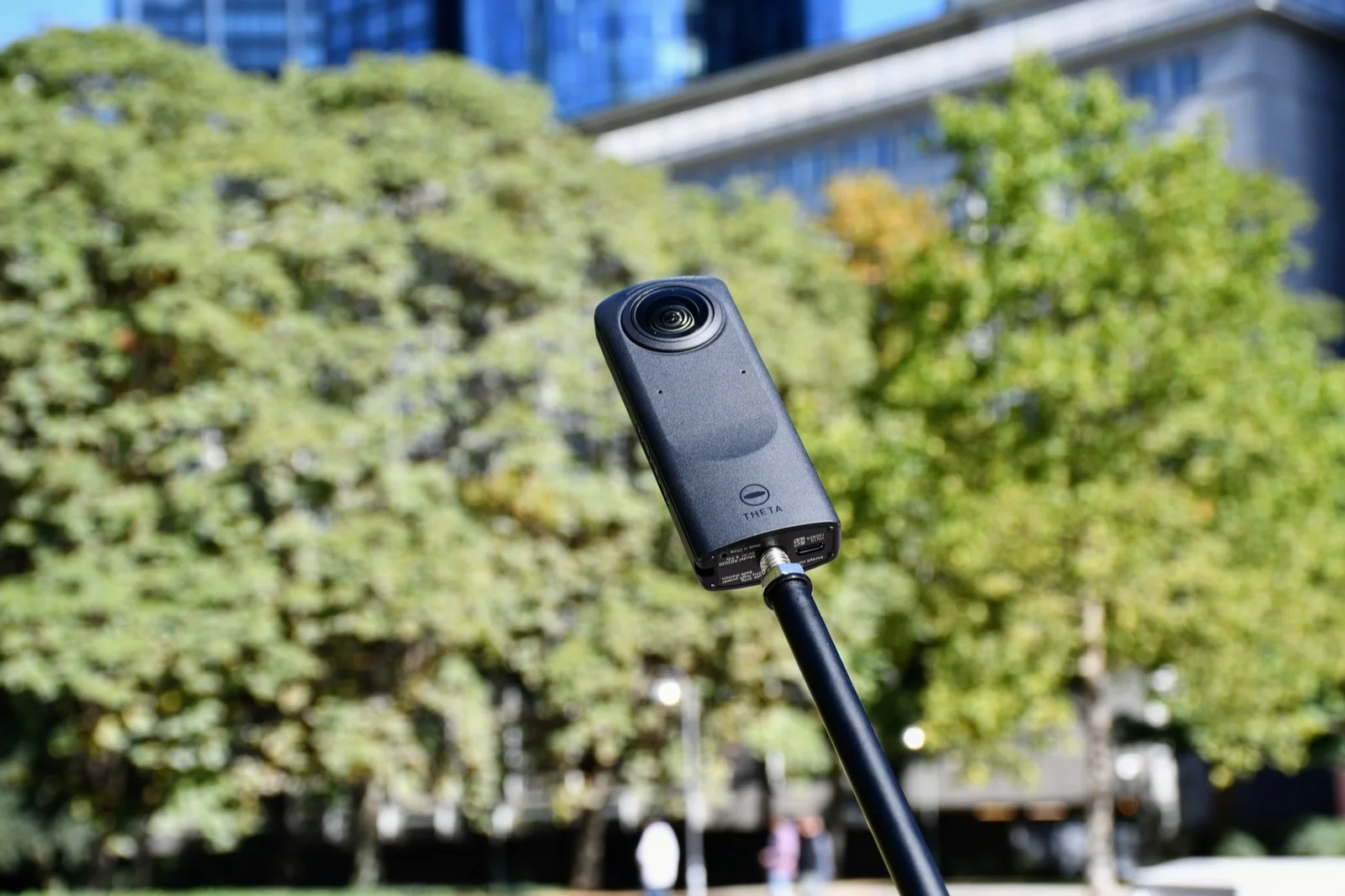
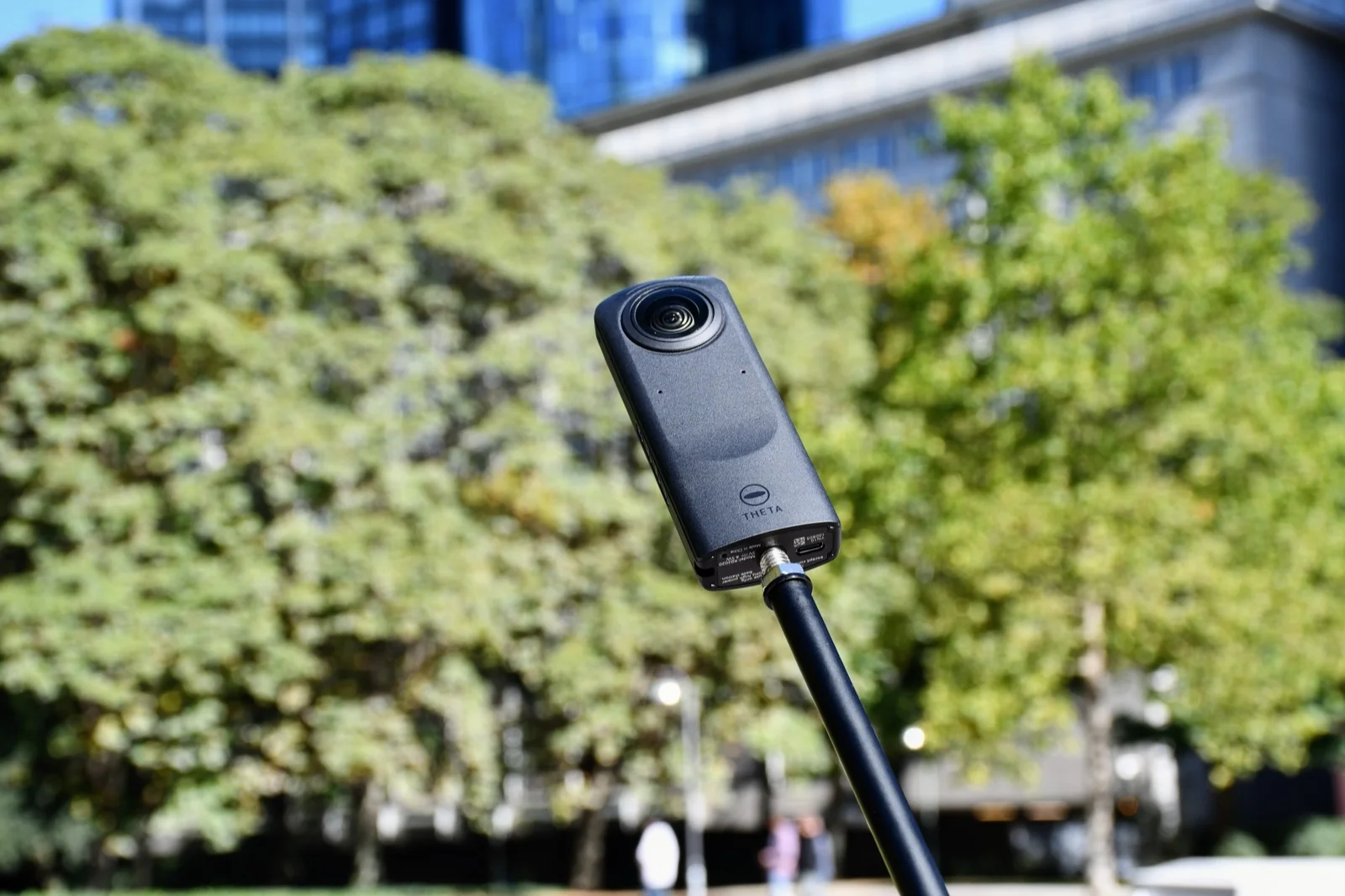
Cover photo: Kristian Stöckel, CC BY-SA 4.0, via Wikimedia Commons; resized and re-encoded for the web.