
To edit a 360° photo without losing its spherical information, work with the complete panorama, export a JPEG containing GPano metadata, and check the downloaded file before sharing it. You can do the editing in the free Mirame360 Photo Editor and inspect the result in Metadata Doctor. Neither step requires an account or uploads your photo for processing.
The important detail is that a panorama has both image content and instructions for interpreting it. A file can retain every visible pixel while losing the information that tells a compatible viewer to present those pixels as an interactive sphere.
Why a 360° photo can look flat after editing
An equirectangular photo stores a full spherical view in a rectangular image. When an ordinary image viewer opens it, you usually see a stretched strip. A spherical viewer wraps that image around you, allowing you to look in different directions.
GPano metadata describes the projection and panorama dimensions. Google's Photo Sphere metadata documentation specifies fields for the full panorama, the cropped image area and viewing information. These fields help compatible software interpret the file correctly.
That does not mean every app will display it interactively. A viewer must support spherical photos too. A flat preview alone is therefore not proof that your metadata is missing.
The safest approach is to check the file separately from the app displaying it. That gives you a useful distinction: a metadata problem needs a file correction, while a viewer limitation needs a different way to open or share the photo.
Use a stitched panorama as your starting point
For this walkthrough, we use Kaitu's Orimento panorama from Wikimedia Commons. It is a complete equirectangular JPEG measuring 5376 × 2688 pixels, with a 2:1 aspect ratio.
Download the original from its Commons file page if you want to follow along. Keep the author and licence details with any version you share. Our use of this image is credited at the end of the guide.
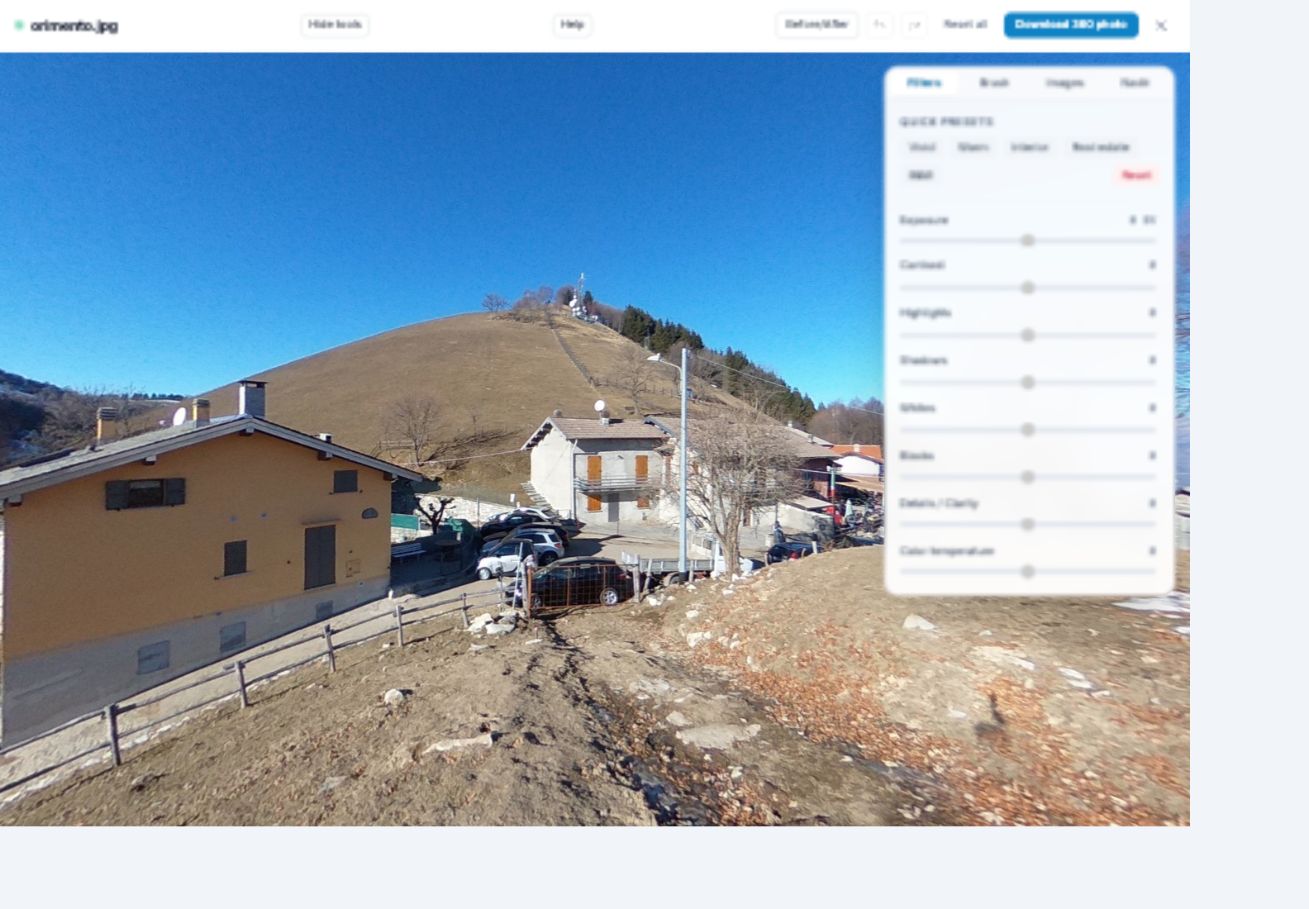
The spherical preview shows a navigable view of the scene. The complete source remains a rectangular panorama.
Open the Photo Editor on a desktop or laptop, then select the panorama from your computer. A source consisting of two fisheye circles needs stitching before this step. A screenshot of an interactive viewer is also unsuitable: it only contains the direction that was visible when the screenshot was taken.
Make your image adjustments in the spherical preview
The workspace opens with Filters. Drag the preview to inspect the scene, then adjust the light and colour while looking at the areas that matter.
For the example below, we use Exposure +0.2 EV, Shadows +15 and Saturation +5. These values demonstrate the controls rather than establish an ideal look for this panorama. Your photo may need very different adjustments, or none at all.
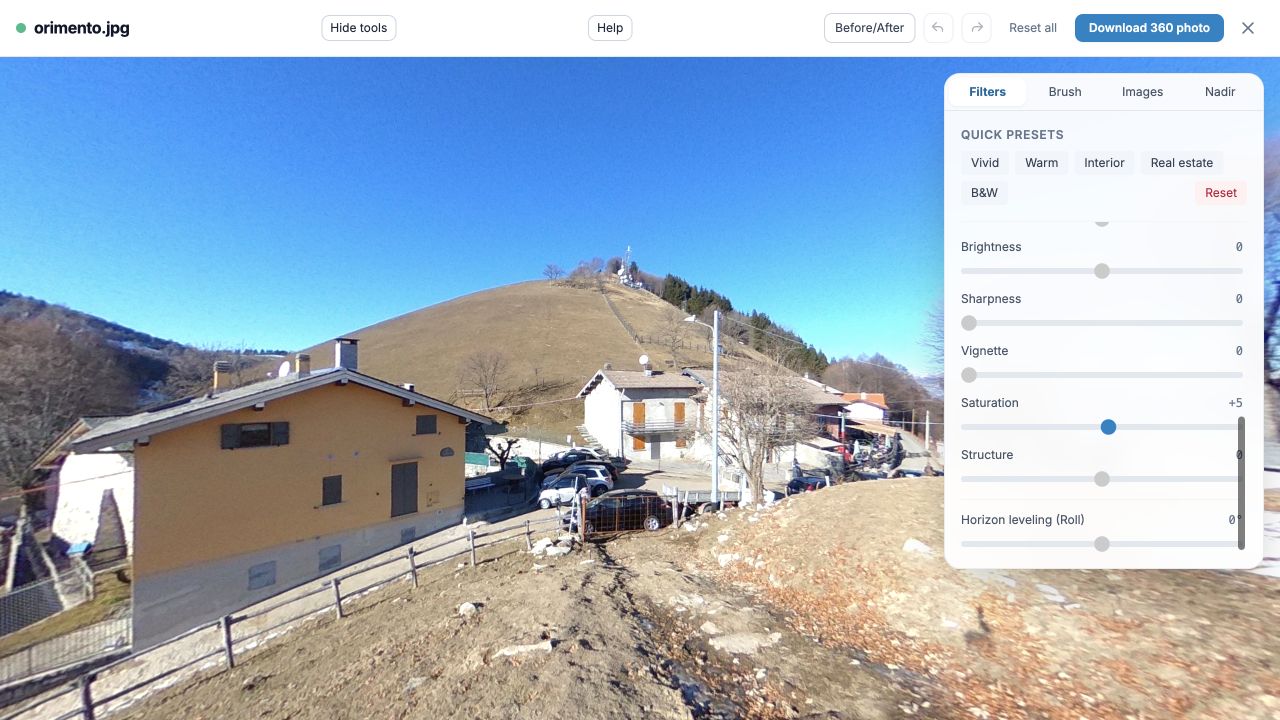
A small set of colour adjustments in the actual browser editor. Check the whole sphere before deciding the edit is finished.
Move around the panorama after changing a global setting. A brighter foreground can come at the expense of a bright sky elsewhere in the sphere. If you use Nadir, inspect the bottom as well. Our verification export includes a nadir blur with a 30° radius and 10° edge softness.
Hold Before/After when you need to compare with the original. Keeping the changes modest makes it easier to notice whether you have improved the photograph or simply made everything more intense.
Export, then inspect the downloaded JPEG
Choose Download 360 photo. The editor writes a new full-resolution JPEG with spherical GPano metadata. Wait for the download before closing the workspace, and give the output a name that distinguishes it from your original.
Check the actual downloaded file, not the source that you imported. A good source cannot tell you whether a later export is still correct.
- Open Metadata Doctor and choose the downloaded JPEG.
- Read the spherical metadata status.
- Expand Technical details and check the projection and dimensions.
- Keep the checked output as the version you send or upload.
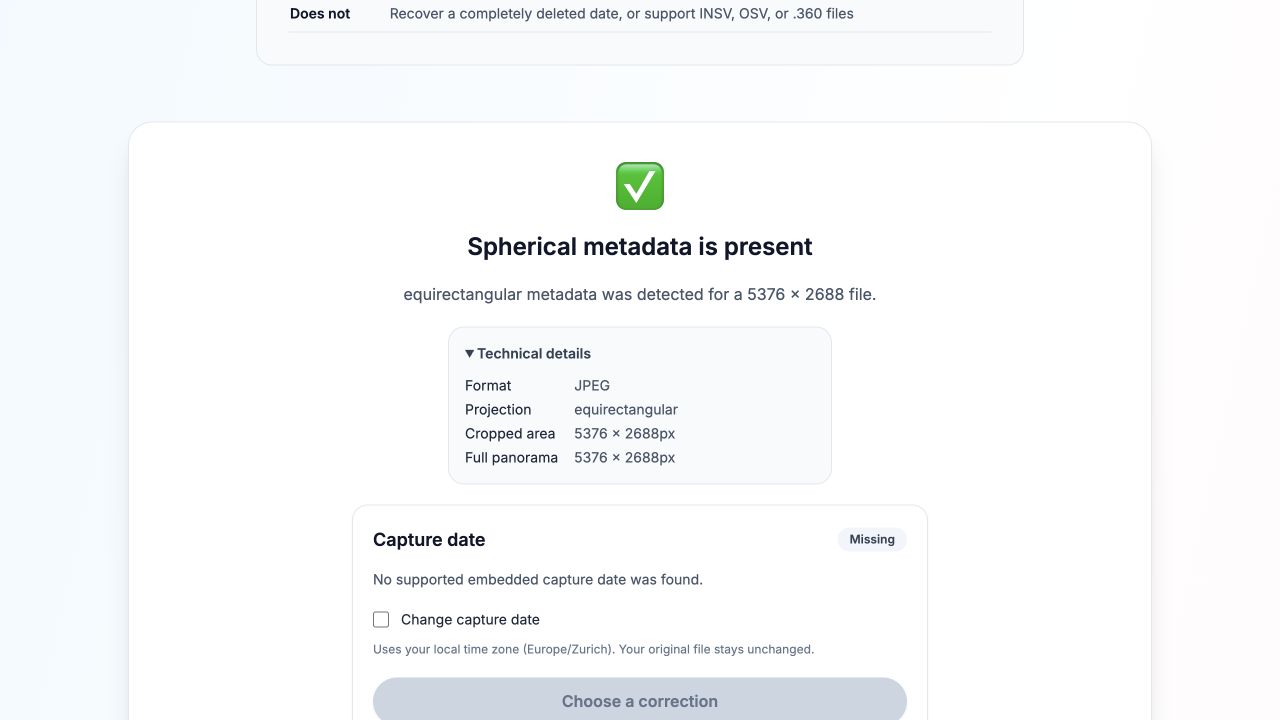
Verified on October 22, 2026: the Photo Editor export with Nadir blur is recognised as equirectangular, with spherical metadata present and matching 5376 × 2688 dimensions.
Capture dates are a separate check. A file can have valid spherical metadata while its capture date is missing. Our example export demonstrates that distinction in Metadata Doctor. Do not read “spherical metadata is present” as a promise that every piece of the original camera metadata has been preserved.
What to do if an older export fails the check
If Metadata Doctor reports missing spherical metadata, first confirm that the image really contains a complete equirectangular panorama. Metadata cannot restore directions that were cropped out, stitch separate lenses or turn an ordinary photograph into a sphere.
For a suitable full panorama, select Add 360° metadata, apply the correction and download the corrected copy. Keep the original until you have checked the result. You can inspect the corrected file again before sharing it.
This also applies to files downloaded from the Photo Editor before its October 22, 2026 metadata fix. Updating the website does not rewrite files already on your computer. You can export a fresh copy with the updated editor or repair the existing panorama using Metadata Doctor.
Share a file you have actually checked
Open the final JPEG in a viewer that supports spherical photos and look around the scene. Check the horizon, the image boundary and the ground beneath the camera. That visual check complements the metadata report: both the picture and its spherical description should make sense.
If you want a web link others can explore, create a Mirame360 account and upload the finished panorama. For local editing, you can keep using the tools without signing up. Making the metadata check part of your export routine is a small step that can save a confusing round of “why is this showing as a flat image?” later.
Image credits
Example image: Kaitu, Orimento (spherical panoramic), CC BY-SA 4.0, via Wikimedia Commons. Editor screenshots are genuine captures; the panorama is shown with a changed viewing direction, colour adjustments and nadir blur. These panorama adaptations are shared under the same licence.