
Looking for a free online 360° video editor? Mirame360 Video Editor runs directly in your desktop browser: you can cut and combine stitched MP4 clips, add text and audio, reframe the view, and export an interactive 360° video or a flat social clip. No software installation or account is needed to edit and download, and your footage is not uploaded for editing.
If you have a recording sitting on your camera's memory card, a useful first project is a short version you can actually share. Remove the setup at the beginning, keep the part you like and decide how people should watch it. You can keep the surrounding scene available to explore, or guide the camera towards a particular moment and make a vertical clip.
This guide shows how to edit 360° videos online, from importing your first clip to saving the finished MP4. The screenshots use a short Wikimedia Commons video, so you can try the same starting material yourself.
Open the free online 360° video editor and follow along with a short stitched MP4.
What files can you edit in an online 360° video editor?
Use a desktop or laptop with a mouse. Chrome or Edge is the recommended starting point; Firefox also works. Safari is not fully tested, and the editor is not designed for phones.
Your source should be a stitched 360° MP4. In a complete equirectangular recording, the scene around the camera is stored in one rectangular frame. A compatible preview lets you look around that scene.
H.264 is supported, with HEVC available where your computer and browser can decode it. Each source can be up to 30 minutes and 8K; the current import panel also lists a 4 GB limit. Start with a short clip before committing to a large project, particularly on a computer you haven't used for video editing before.
Proprietary camera recordings need to be stitched or converted to a suitable MP4 first. Changing a filename extension won't do that conversion.
For the screenshots, we used Jan Ainali's Esino Lario 360, available on Wikimedia Commons under CC BY-SA 4.0. The original is a 1920 × 960 WebM, which we converted to an H.264 MP4 while keeping the full panorama.
How to edit 360° videos online: import your footage
Choose Open the video editor, then use Import in the Media panel to select your MP4. A short interactive tour appears on your first visit. Follow it if you want a quick introduction, or reopen it later with Guide.
The workspace has a media panel, a preview, a timeline and an inspector. In our example, importing the first video added it to the timeline automatically. If your timeline is empty, drag a video from Media onto it.
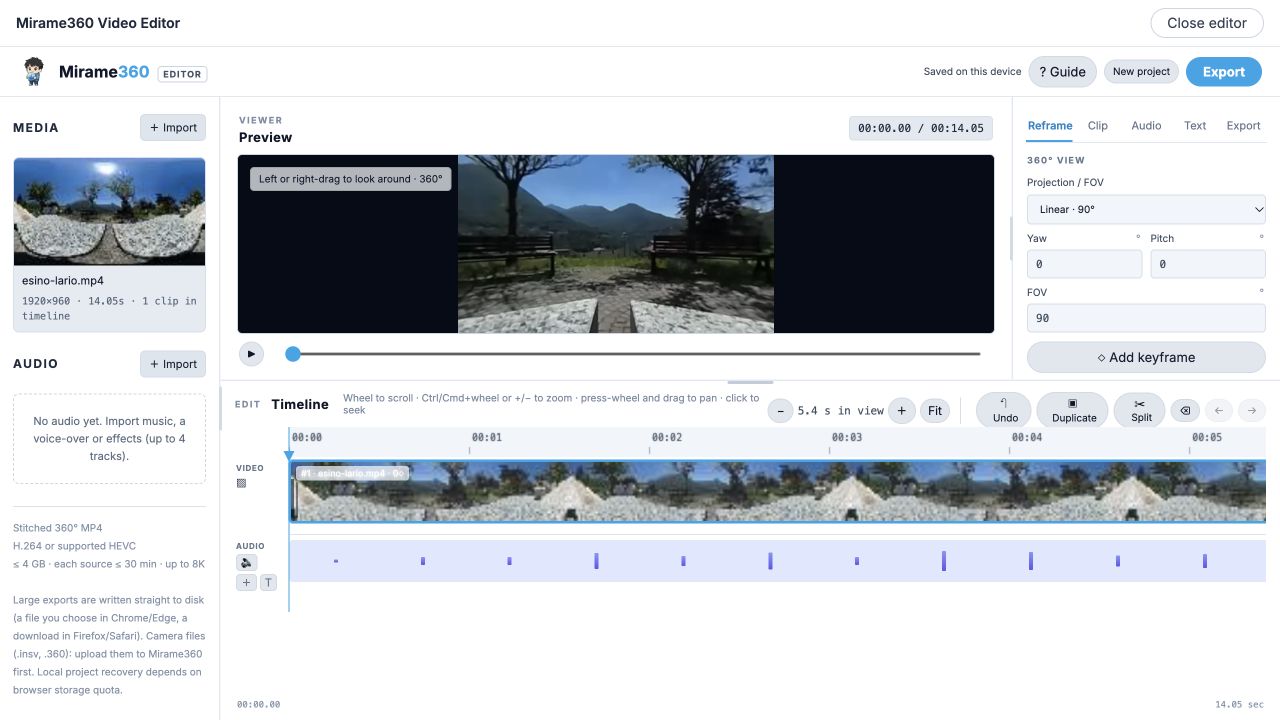
The actual editor with the Esino Lario example loaded. You can rotate the preview to inspect different parts of the scene.
Drag the preview to look around. This helps you check that the source contains the full panorama and find the part of the scene you want to show. Rotating the preview by itself does not remove the rest of the sphere from your source.
Cut, split and combine 360° video clips
Start by watching the recording once. Decide where the useful part begins and where it ends. A little preparation here is more helpful than adding effects to footage you will later cut away.
Select a clip and open Clip in the inspector. The In and Out fields select the source interval to keep. In our demonstration, we entered 2 for In and 10 for Out, then chose Apply trim. The result is an eight-second clip.
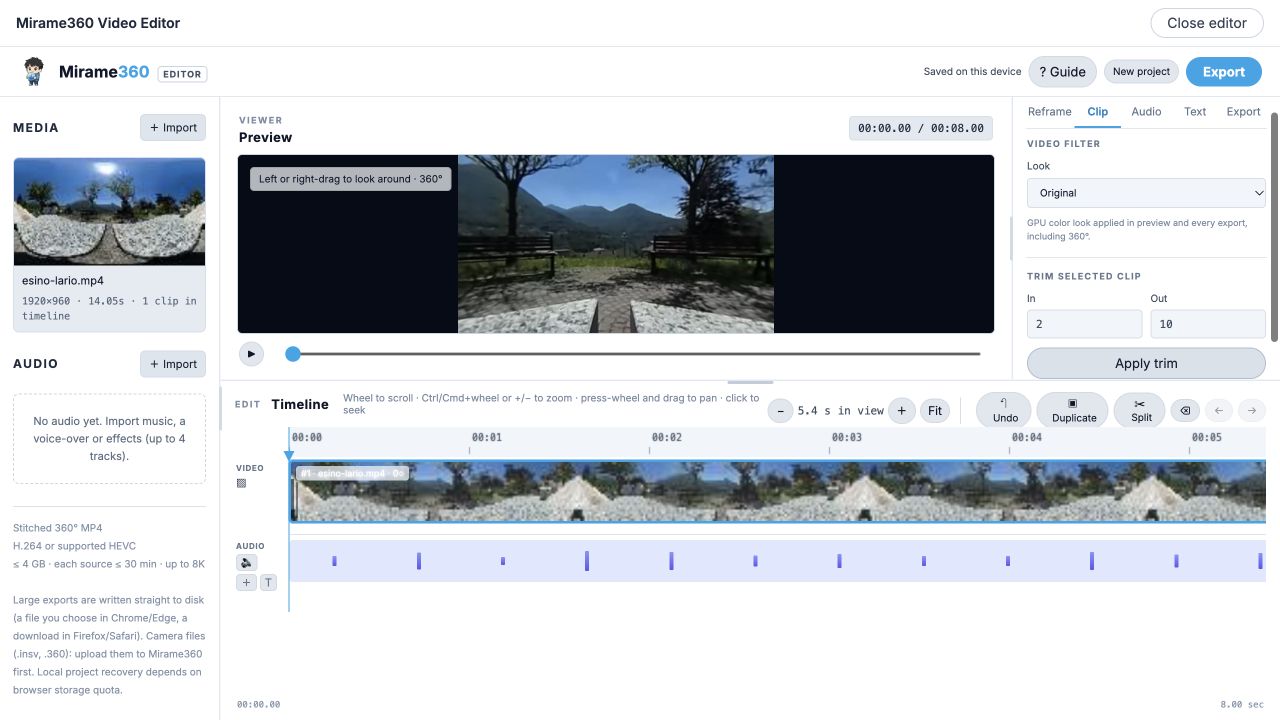
Trimming is one part of the workflow. The same timeline can hold clips from several imported videos.
Use Split when you want to divide a clip at the playhead, for example to remove an interruption in the middle. You can then reorder the remaining clips to create the sequence you want. Keep checking the beginning and end of each cut as you work.
When a direct cut feels too abrupt, you can add a crossfade between clips on the timeline. The transition includes audio, so listen to it as well as watching it. A dissolve that looks gentle can still join two very different sounds awkwardly.
If you only need a shorter recording, this can be your entire edit. Try trimming your own 360° video in the browser, then choose the full-sphere export described below.
Reframe 360° video for landscape or vertical clips
For a flat video, Reframe lets you turn a spherical recording into a sequence of camera views. Move to a point in the timeline, aim the preview towards your subject and add a keyframe. Move to another point, choose the next view and add another keyframe.
This is useful when the subject moves around you, or when you want to show two directions without cutting to a different recording. For a first attempt, use just a few deliberate camera positions. Watch the movement between them before adding more.
The optional Smooth camera path setting softens movement between your reframe keyframes. It does not remove shake already recorded in the source and is not gyro-based stabilisation.
You can export the reframed result in landscape 16:9 or vertical 9:16. That gives you a conventional clip to post on social media while keeping your original spherical recording for another edit.
Add text, music and voice-over to your 360° video
The Text tools place titles on the sphere, attached to the scene. That is useful for a location name or a short explanation that belongs to a particular direction. Keep titles brief and check them while looking around, rather than only from the view where you placed them.
You can also import music or a voice-over into the Audio panel. The editor supports up to four additional audio tracks, with volume and fade handles. A quiet music bed can sit beneath the original sound, or a voice-over can explain what someone is seeing.
Listen through the whole sequence after adding audio. Check that speech is understandable and that the beginning and ending are comfortable. Only use recordings and music you have permission to include in the finished video.
Export a 360° video or a flat clip
Before exporting, decide what you want the downloaded file to contain:
- 360° · 2K, 1080p or 4K keeps the complete sphere for interactive viewing.
- Flat · 16:9 creates a landscape video using your chosen camera view.
- Flat · 9:16 creates a vertical video for a phone-shaped frame.
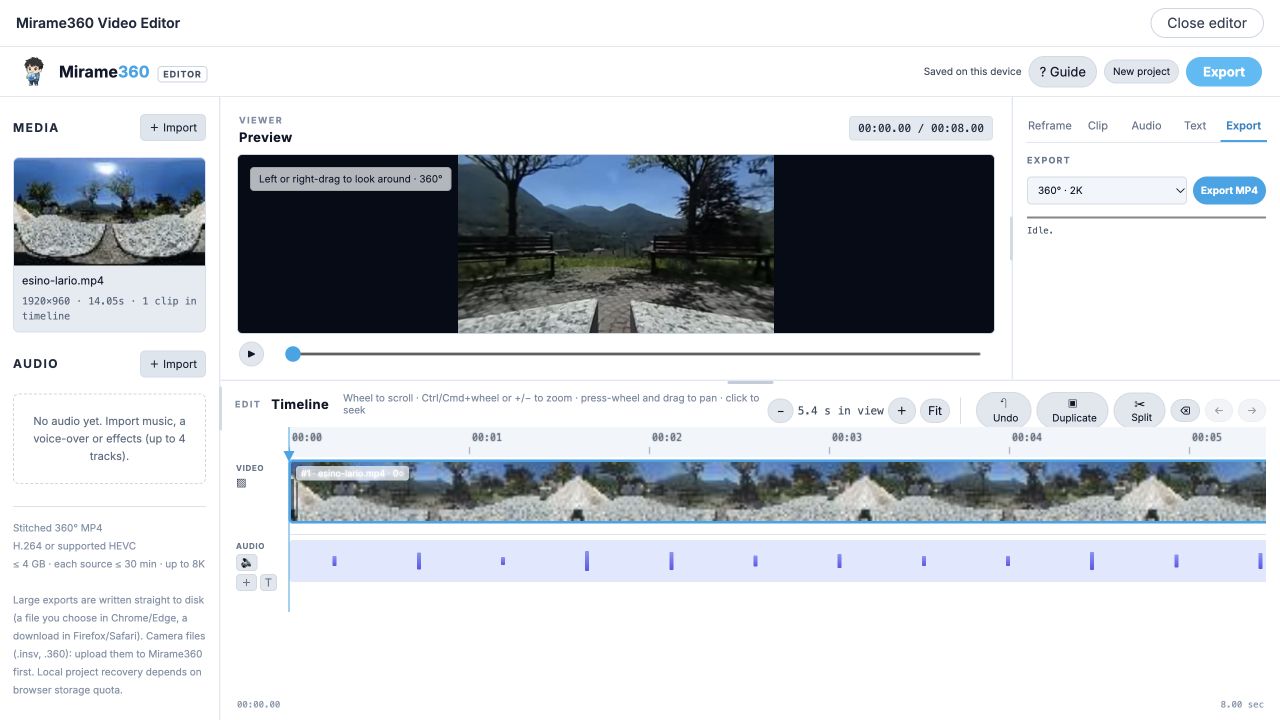
Check the export selection before starting. In our session, the menu initially selected Flat · 16:9; we changed it to 360° · 2K.
Choose Export MP4, wait for the export to finish and save the result. Large exports are written straight to disk: a file you choose in Chrome or Edge, or a download in Firefox and Safari. Keep the editor open until the output has been saved.
The full-sphere export includes spherical metadata. For our eight-second example, FFprobe recognised the downloaded file as equirectangular spherical video, and ExifTool found its Spherical and Stitched flags. Selecting a larger export resolution cannot recreate detail that wasn't present in the source.
Check the finished video and share it
Play the downloaded file, check your edits and listen to the audio. For a 360° export, use a compatible viewer and confirm that you can look around. For a flat export, check that your subject stays in the frame throughout the camera movement.
The editor saves your project locally on the device, subject to browser storage availability. Keep your original media and downloaded results too, especially before clearing browser data or switching computers.
If you want to share an interactive video through a web link, you can create a Mirame360 account and upload the finished export. Editing and downloading remain available without signing in. If you also have panoramic photographs to prepare, the Photo Editor handles those in the browser.
Questions about editing 360° video online
Is the online 360° video editor free to use?
Yes. You can edit and download with Mirame360's browser video editor without creating an account. Hosting and sharing an uploaded video is a separate step that requires an account.
Do I need to upload my video before editing it?
No. Editing runs on your computer in the browser. Selecting a local file opens it for editing without sending the footage to a server. If you later choose to upload the finished video for hosting, that is a separate action.
Can I edit footage from an Insta360, DJI or GoPro camera?
Use a stitched equirectangular MP4 that your browser can decode. The input format matters more than the camera brand. Proprietary .insv, .osv and .360 recordings need conversion or stitching first; this guide starts with the resulting MP4.
Can I keep the video interactive after editing?
Yes. Choose a 360° export to keep the full sphere and its spherical metadata. Flat 16:9 and 9:16 exports contain your selected camera view instead. Check the export menu before starting and test the finished file in a compatible viewer.
Start with one short recording in the free 360° video editor. Make a cut, check the result and save the version you want to share.
Image credits
All inline images are real Mirame360 editor screenshots using Jan Ainali's Esino Lario 360, linked above. The demonstration includes WebM-to-MP4 conversion, trimming and spherical export. Adaptations of the video shown in these screenshots are shared under CC BY-SA 4.0. The cover is a separate generated editorial illustration, not an interface screenshot.