
You can hide the tripod area in a 360° photo by applying a soft blur to the bottom of the sphere, then exporting the complete panorama as a JPEG. In the free Mirame360 Photo Editor, you do this in your browser without uploading the photo or creating an account.
The bottom of a spherical photo is called the nadir. It is easy to overlook when you are checking the horizon, but anyone exploring your panorama can look straight down. That is where a tripod base, a camera support or an awkward stitching point can interrupt an otherwise finished image.
What nadir blur can do
Nadir blur softens a circular area around the bottom of your panorama. You choose how much of that area to cover and how gradually the effect blends into the surrounding picture.
It is a practical finishing option when you are happy for viewers to see a discreet blurred patch beneath the camera. It does not reconstruct tiles, remove a shadow across the room or produce an invisible repair. If you need an uninterrupted floor pattern, a carefully photographed replacement patch or a separate retouching workflow may be a better choice.
For this walkthrough, we use Kaitu's spherical panorama of Orimento from Wikimedia Commons. Its ground already has a small stitching point rather than a prominent tripod. The screenshots demonstrate where the nadir tool works and what its blur actually looks like; they are not a claim that this source contained a large tripod.
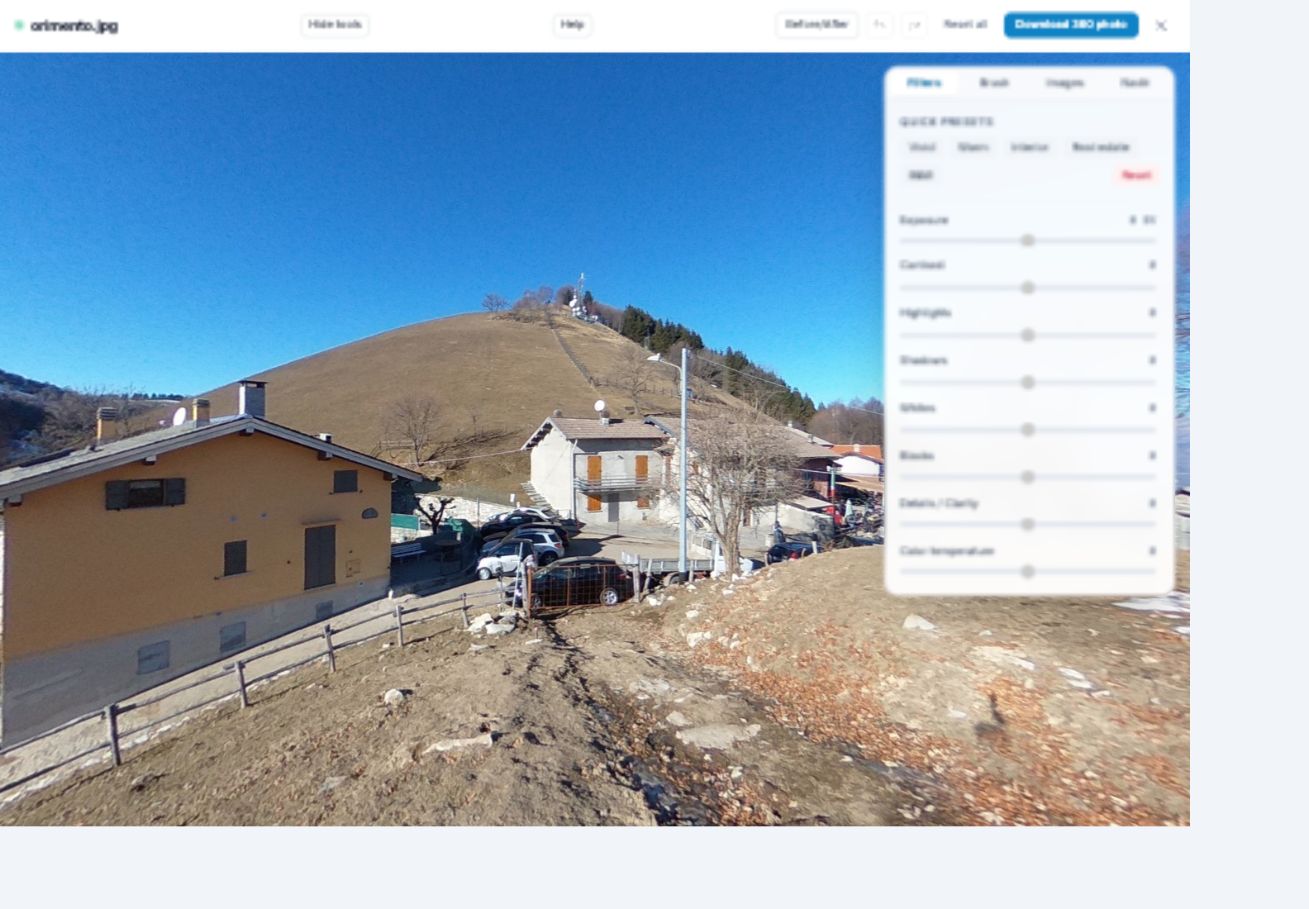
Example panorama: Kaitu, Orimento (spherical panoramic), CC BY-SA 4.0.
Start with a complete spherical photo
Open the editor on a desktop or laptop and choose your image. Use a stitched equirectangular panorama: the full scene is stored as a rectangle twice as wide as it is high. Our example is 5376 × 2688 pixels.
An ordinary wide landscape photograph is different. Giving it the same proportions will not create the missing views above, below and behind the camera. Similarly, if your camera has exported two separate fisheye circles, stitch them into a spherical panorama before starting this guide.
Keep the original file somewhere you can find it. The editor downloads a new JPEG, which makes it straightforward to compare your result with the source and to try a smaller blur later.
When the workspace opens, a short guide explains the main controls. You can reopen it with Help. For now, choose Nadir from the tools panel.
Look down before choosing the blur size
Drag the preview until you are looking towards the ground directly beneath the camera. In Nadir mode, dragging changes your view. Moving the view does not crop the panorama or decide what someone else is allowed to see.
Look at the full extent of the unwanted area. A small central support might need only a modest patch. Wide tripod feet can reach further out, and their shadows may extend beyond the part you want to blur.
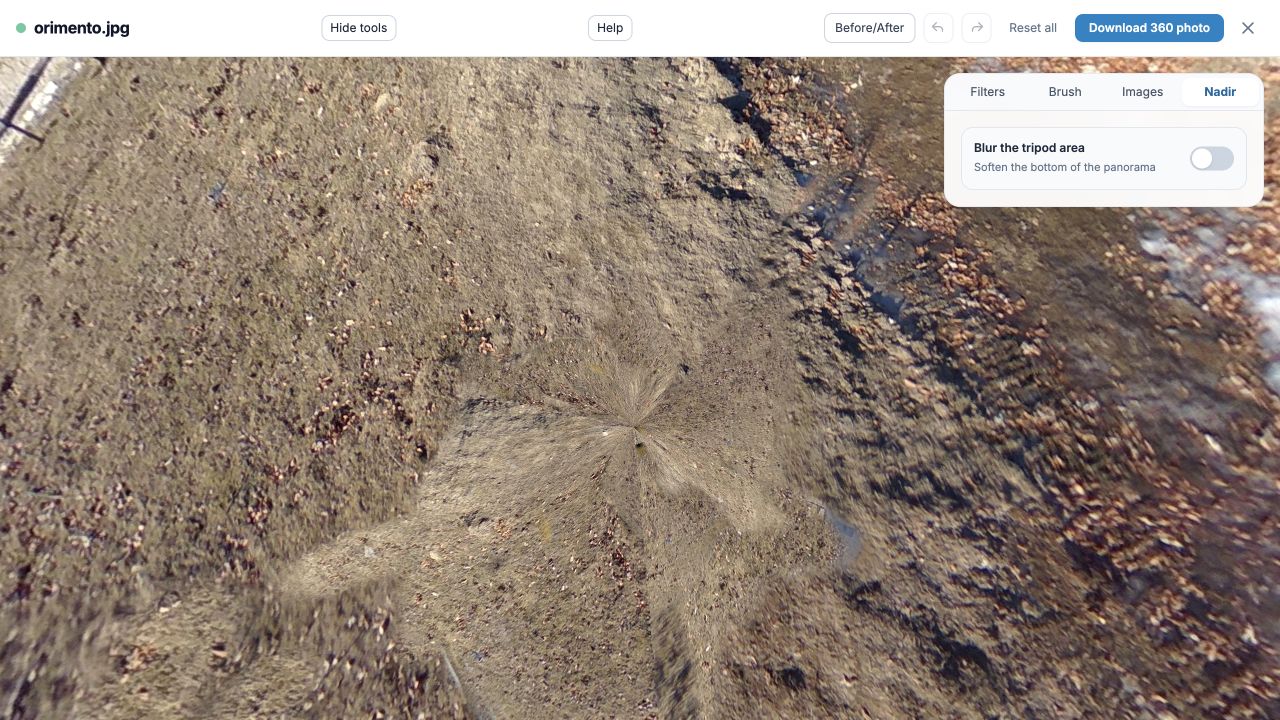
The original ground in our example, viewed inside the actual editor. This view helps you judge the area affected by the next step.
Apply nadir blur and adjust its edge
Turn on Enable nadir blur. Three settings control the result:
- Nadir radius sets the area around the bottom of the sphere. Increase it until the support is covered, up to 60°.
- Opacity controls the strength of the applied effect. Check whether the unwanted detail is still recognisable.
- Edge softness changes the transition between the blurred area and the surrounding photograph.
In our demonstration, we set the radius to 30°, keep opacity at 100% and use 10° edge softness. Those are example settings, not a recommended preset for every photo. Start with the smallest area that covers your own support.
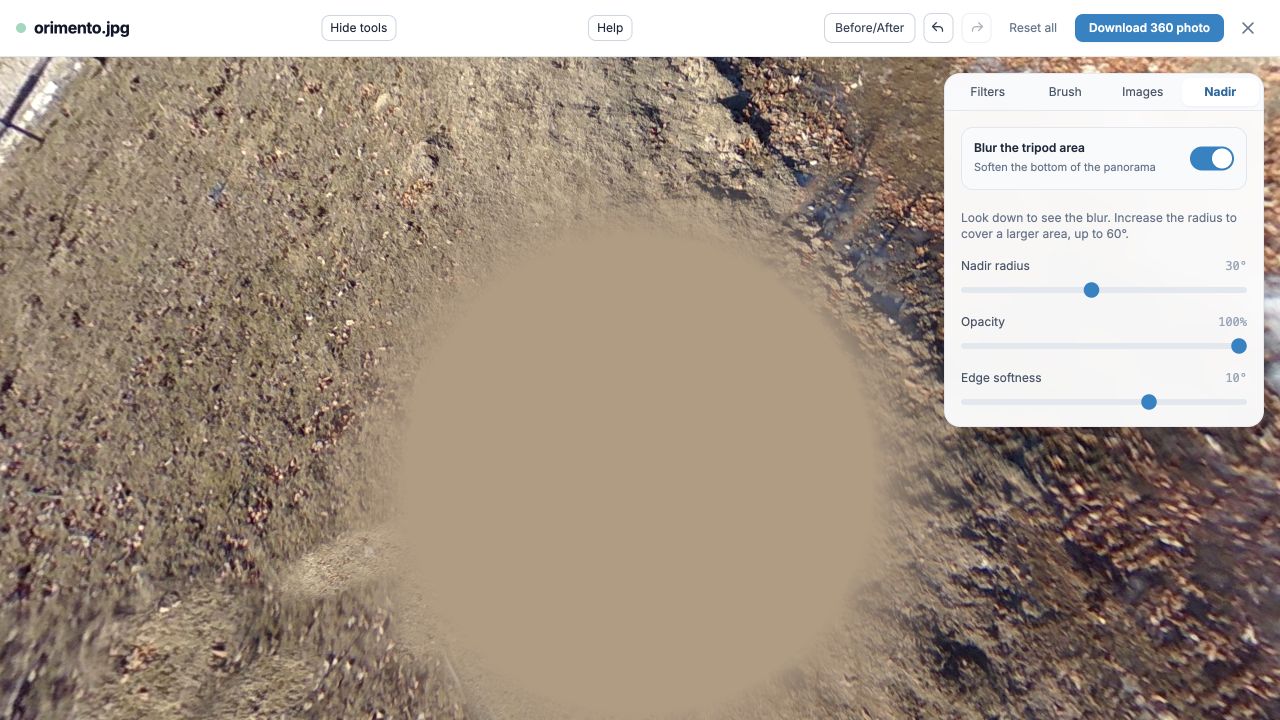
Actual tool output on the Wikimedia panorama. The blur softens the existing ground detail rather than generating replacement ground.
A soft edge often makes the transition less abrupt, but it can also leave detail visible around the outside. If part of a tripod foot remains clear, increase the radius a little and inspect the edge again. Simply increasing softness is not always enough.
Check the photo from more than one direction
Hold Before/After to compare with the original. Then look slightly above the nadir, where someone exploring the photo might first notice the patch. A setting that looks unobtrusive when viewed straight down can still cover too much nearby floor.
Check the normal eye-level view as well. The useful question is whether the finished panorama still communicates the place clearly. If a large part of an important feature falls inside the blur, reduce the effect or use a more suitable retouching method.
Download the full 360° photo
Choose Download 360 photo and keep the editor open until the download starts. The result is a full-resolution JPEG with spherical GPano metadata. The browser handles the editing locally; downloading your result does not require an account.
For an extra check, open that downloaded JPEG in Metadata Doctor. In our verification after the October 22, 2026 update, the nadir-edited Orimento export was recognised as an equirectangular 5376 × 2688 photo with spherical metadata present.
You can then create a Mirame360 account if you want to host and share the finished panorama. If you only need the edited file, the local download is enough. Open your own photo in the editor, look down, and try a small blur first.
Image credits
All editor screenshots are real captures using Kaitu's Orimento panorama. Changes shown include light and colour adjustments, a changed viewing direction and nadir blur. The panorama adaptations in these screenshots are shared under CC BY-SA 4.0.