
You've copied a recording from your 360° camera to your computer. You want to cut out the beginning, keep a few good moments and send someone a video they can look around in. But the file ends in .360, .insv or .osv, and your usual editor doesn't know what to do with it.
With Mirame360, you can upload supported GoPro, Insta360 and DJI recordings, let us prepare them for 360° playback, then edit the result in your browser. You don't have to download the processed video and import it again: there's an editing button on its page.
Let's go through it with a short video you can try yourself.
First, a quick word about camera files
When we say “raw” here, we mean the original recording from your camera, not RAW sensor video. GoPro .360, Insta360 .insv and DJI .osv recordings need preparation before the browser editor can use them. That happens on our servers after you upload.
The file extension alone doesn't tell the whole story. Some recording modes and lens layouts aren't supported, and some Insta360 cameras save a pair of files for one recording. Keep the originals and their companion files together. If a recording won't process, the fallback is to export a stitched, full-sphere MP4 in the manufacturer's software and use that instead. The formats guide has more detail.
For this walkthrough, we'll use an already-stitched video from Wikimedia Commons. It lets you follow the upload and editing steps without owning any of these cameras. It isn't a test of their original file formats.
Create an account, then pick a short video
Open Register, choose a username and enter your email address and password. Click Register, follow the confirmation instructions and sign in. Already have an account? You can skip this part.
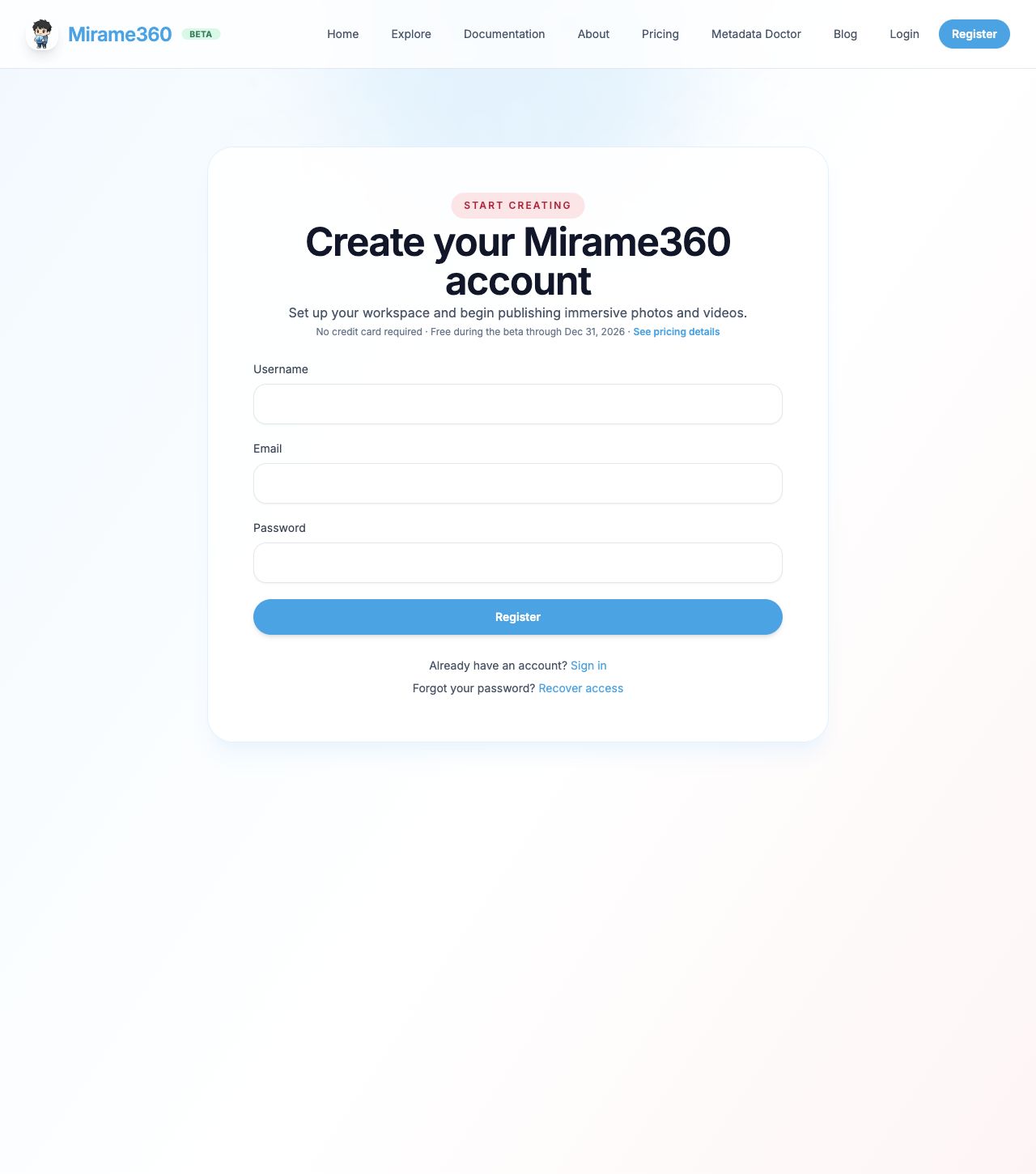
You need an account to upload and host a recording. If you already have a stitched MP4 and only want to edit it on your computer, the standalone editor doesn't require one.
Our example is Jan Ainali's Esino Lario 360. Open the Wikimedia file page and click Original file to download it. It's about 14 seconds long and 1.85 MB: enough footage to make a cut without starting with a huge upload.
The download is a WebM, which Mirame360 accepts. Leave it as it is. There's no need to convert it locally or change the extension.
Upload the video and let it process
Once you're signed in, choose Upload from the top navigation.
- Leave 360° video selected.
- Click Browse file and choose the Wikimedia download, or your own supported camera recording.
- Check the filename below the picker, then click Upload.
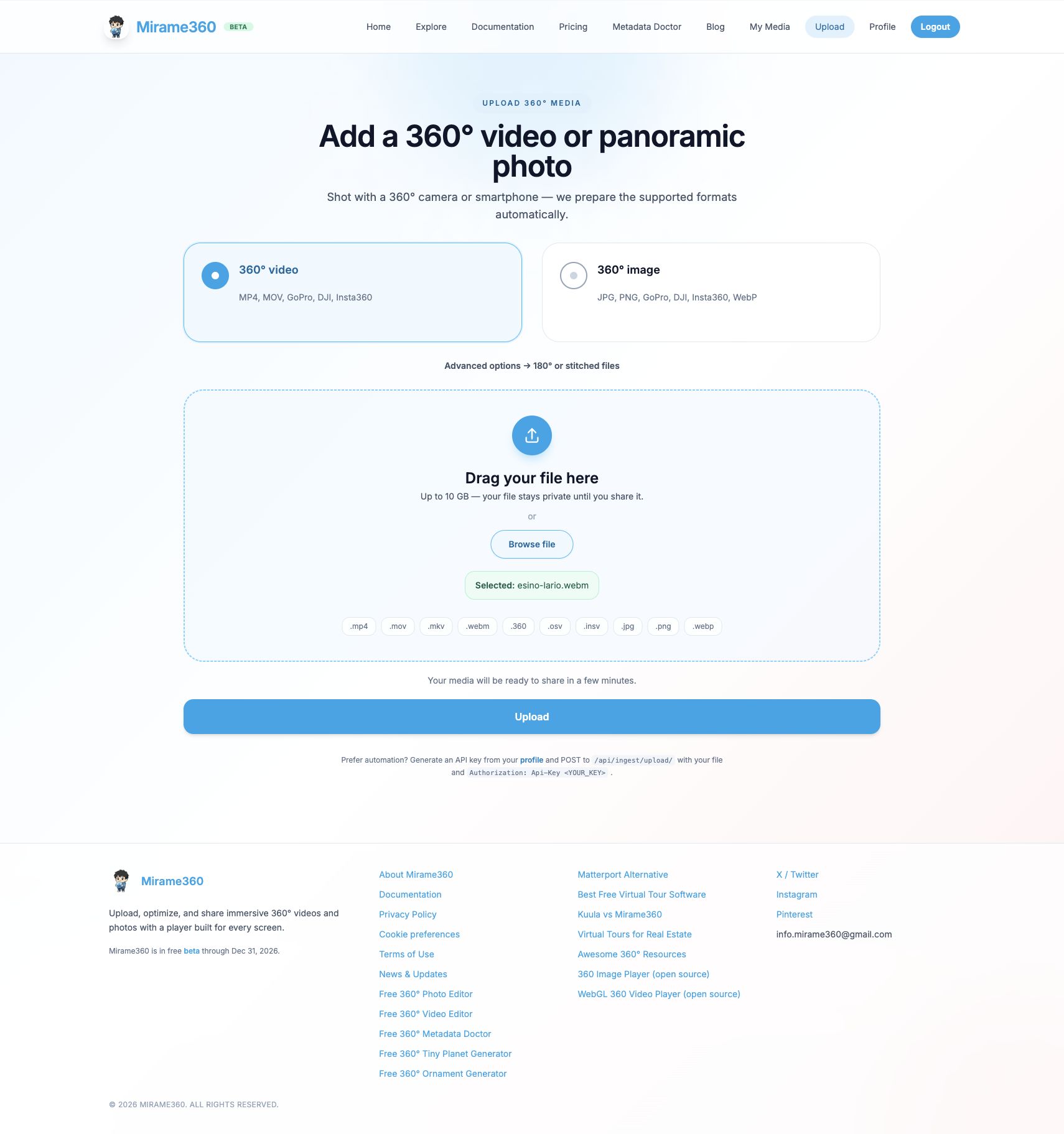
The example file was saved as esino-lario.webm. Your download may have a slightly different name.
Keep the page open while the file transfers. Afterwards, you'll find it in My media, initially named after the file. Open it to see how processing is going. The preview appears when it's ready.
For your first camera upload, choose something short too. You'll get to check the result before sending a whole afternoon's footage. The upload page shows your account's file-size allowance; available storage also matters.
From the video page to the editor
Before editing, play the processed video. Look around and listen to it. With your own camera footage, pay particular attention to the horizon and where the lens views meet. Cutting a clip won't fix a bad join in the source.
Below the preview, click Edit in 360 video editor.
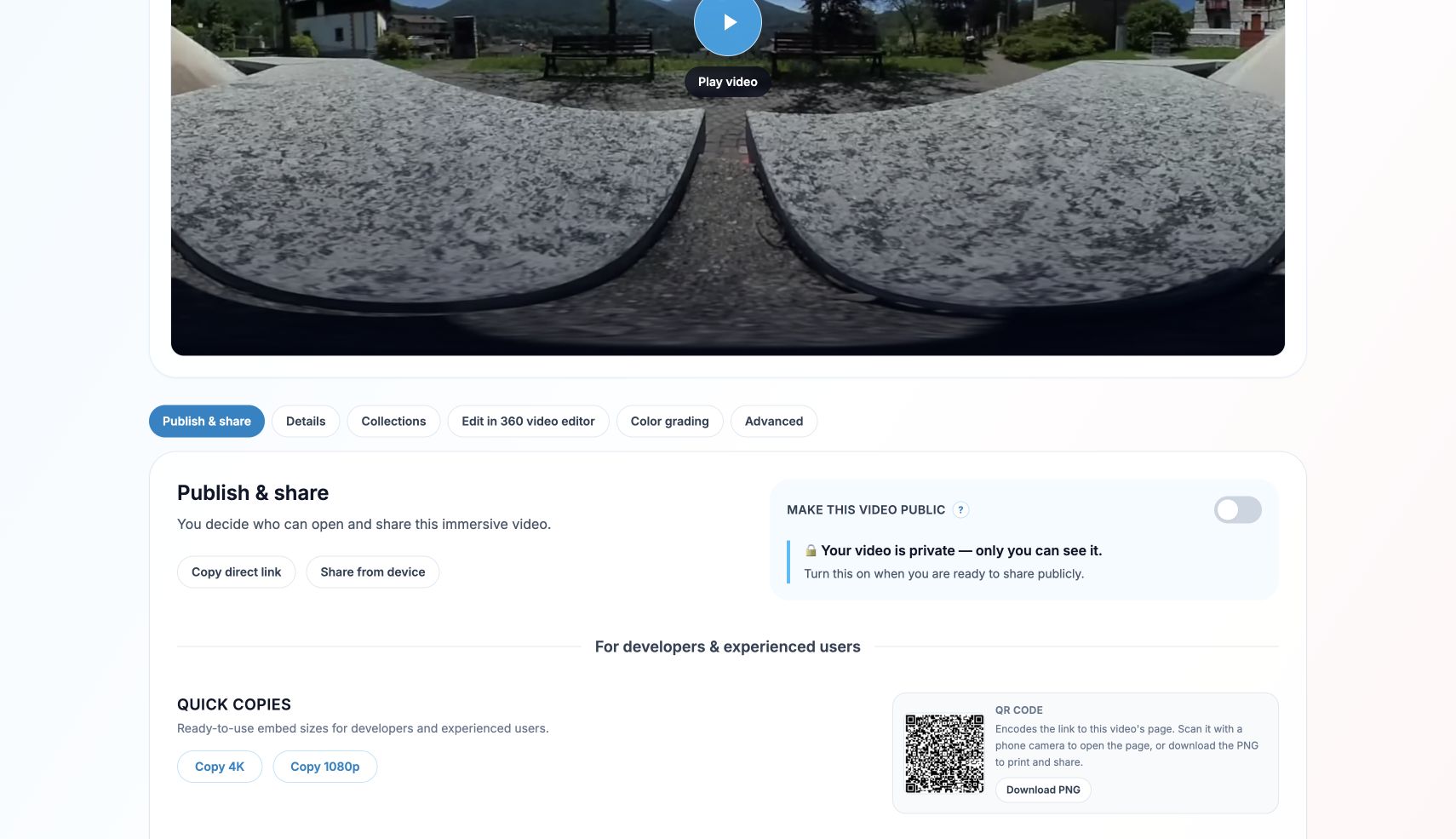
You can open the editor while the video is still private.
The footage loads onto the timeline. In our test, the uploaded Wikimedia WebM arrived in the editor as a processed MP4. That's the connection this guide is about: upload once, then open the prepared video from its page.
Use a desktop or laptop for the edit, preferably with Chrome or Edge. Firefox also works. Safari isn't fully tested, and the editor isn't designed for phones.
Edit your 360° video: keep eight seconds
For now, don't worry about music or camera movements. Let's just shorten the clip.
Select it on the timeline and open Clip in the panel on the right. Set In to 2 and Out to 10, then click Apply trim. You've kept the eight seconds between those points.
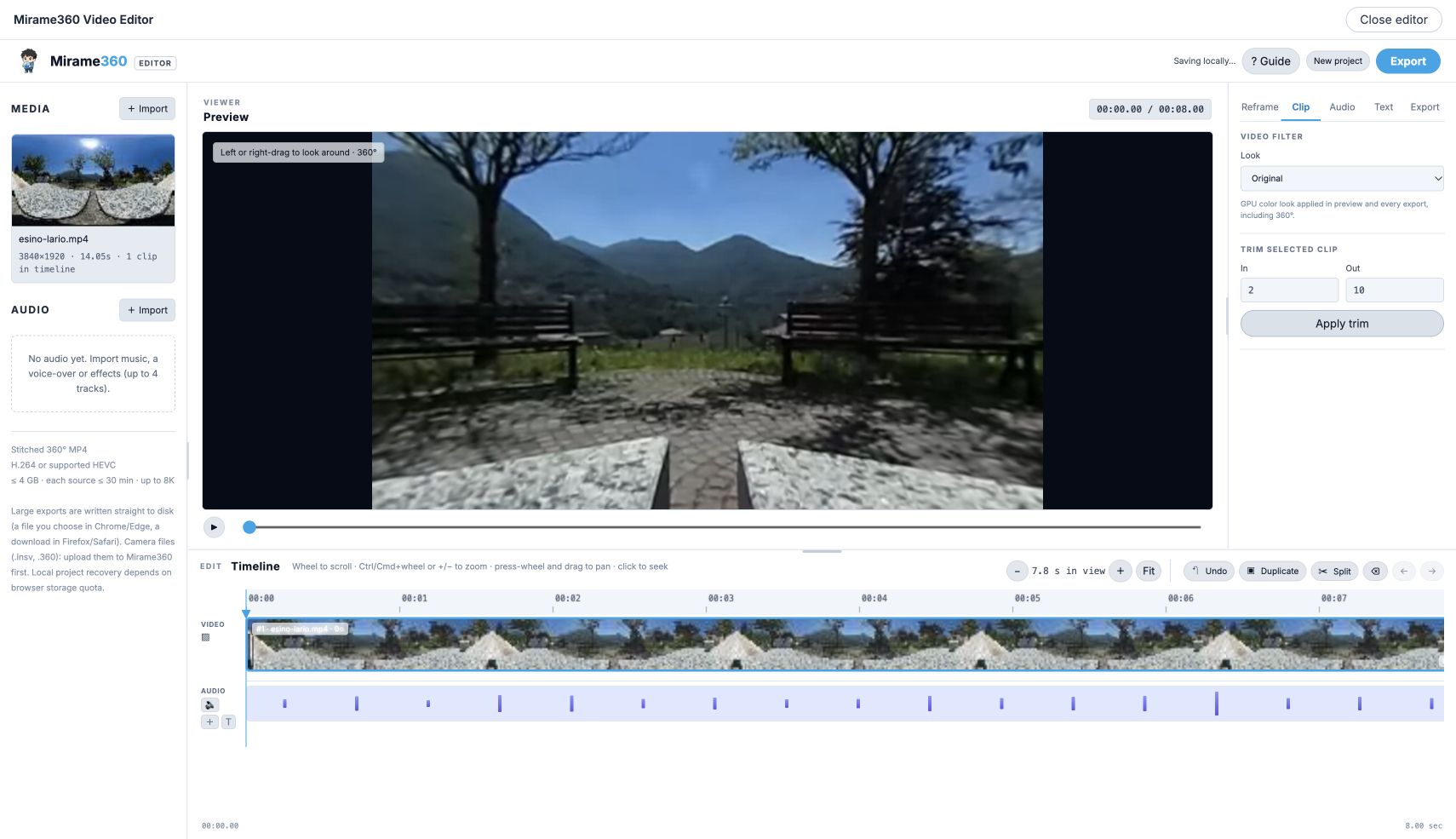
Play it back. This same small edit is useful for removing the bit where you're putting the camera down or reaching for the recording button.
To remove something in the middle, move the playhead and use Split to separate it from the parts you want to keep. You can reorder clips and bring in other stitched MP4s too. If you join two scenes with a crossfade, listen as well as watch: the audio fades between them along with the picture.
Once the sequence feels right, you might want a location title or a little narration. Text is placed on the sphere, attached to a spot in the scene. You can also add up to four extra audio tracks, with volume and fade controls. None of that is required for a useful first edit.
Do you want viewers to look around?
That's the main choice when you export.
For an interactive video, open Export and choose a 360° option. We used 360° · 2K for the example. Full-sphere exports are also available at 1080p and 4K, and include the metadata that tells compatible players the video is spherical.
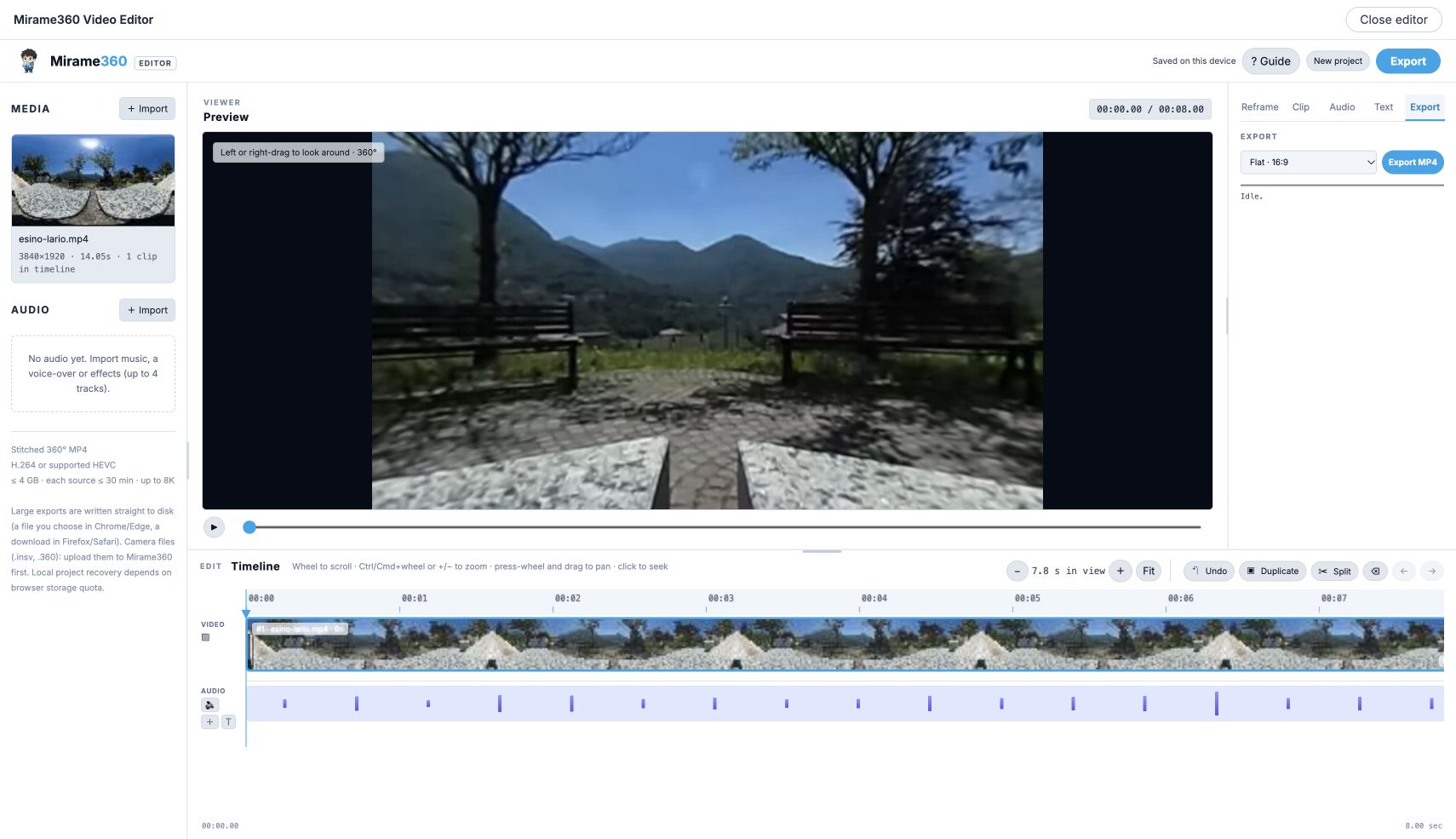
Check this menu before exporting. A flat export won't let viewers explore the scene.
If you want a conventional clip instead, choose Flat · 16:9 for landscape or Flat · 9:16 for vertical. Use Reframe to point the view at your subject and add keyframes where it should move. Start with a couple of positions and watch the movement between them before adding more.
Click Export MP4 and keep the tab open until it's finished. Our eight-second example exported successfully as a 2048 × 1024 spherical video. You can download yours and keep working on another version if you like.
Put the finished edit back on Mirame360
After a full-sphere export, signed-in users can choose Publish to Mirame360. We check your storage and account limits before offering the upload. If there's not enough room, you can still download the file.
This creates a new private video. Your starting video stays where it was, so you can keep both versions. Leave the page open during the upload, then click Open video to visit the new item's page. Once processing finishes, check playback before making it public or copying an embed.
The publishing button is for 360° exports. For a flat landscape or vertical edit, download the MP4 for use elsewhere.