
To share 360 photos and videos on WhatsApp while keeping them interactive, upload the full panorama to a 360 hosting service and paste its viewing link into your chat. The recipient opens the linked page and drags the scene to look around. The interactive experience happens in the browser player, not in the chat thumbnail.
A 360 viewing link is a web address that opens a spherical photo or video in a player with controls for looking in different directions. For a first attempt, use one photo: it's easier to check than a long video and gives friends the same freedom to explore the scene.
Why a 360 photo looks flat in a message
A spherical photograph contains the view around the camera, including above and below it. One common way to store that scene is an equirectangular image: a wide rectangle that a 360 player wraps around the viewer.
An ordinary image preview shows the rectangle as a rectangle. Buildings stretch, the sky occupies an unusual amount of space, and the person receiving it has no obvious way to turn around. The file and the viewing experience are different things.
A second possibility is that you've exported a regular photo from your camera app. Tiny Planet images, screenshots, and a crop aimed at one subject can all come from a 360 capture, but they don't preserve an explorable sphere. A viewing link can't restore directions that were removed during export.
Before uploading, decide what your friend should receive: a picture you composed, or a scene they can explore. Both are useful. This guide is about the second.
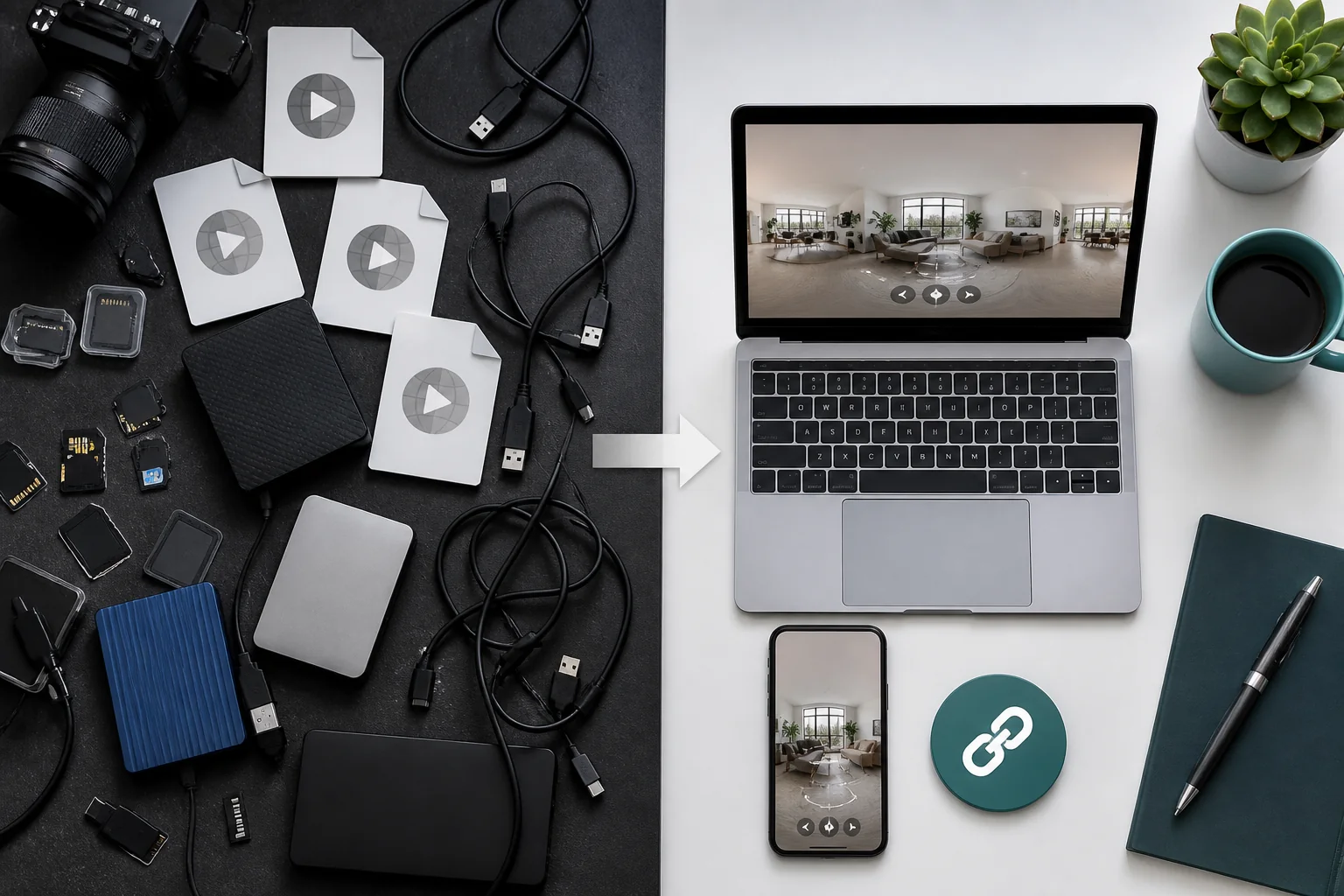
Prepare one full-sphere photo
Choose a scene with something worth discovering beyond the first view: a mountain overlook, a courtyard, or the room where everyone gathered. Check the whole sphere before sharing, including the area behind the camera.
Export a stitched equirectangular JPEG from your camera software. A full monoscopic sphere normally uses a 2:1 image, meaning its width is twice its height. That shape is a useful check, but it doesn't prove the file contains a proper panorama. Don't stretch a normal photograph into that ratio.
Insta360 photos
Insta360's Studio export documentation describes exporting 360 photos as JPG files and distinguishes that operation from taking a snapshot of a non-360 view such as Tiny Planet. Open the original photo in Studio and export the full panorama rather than a screenshot of the preview.
Menu labels vary between Studio versions. If the screen offers only a video export, return to the photo in the media library instead of treating it as a video project. Keep the original camera file as well as the exported JPEG.
DJI and GoPro media
Copying a camera file to your phone isn't necessarily the same as preparing it for browser viewing. DJI's Osmo 360 FAQ documents transfers using DJI Mimo, a card reader, or USB mode. It also distinguishes panoramic OSV recordings from flat MP4 recordings. Check the projection of the finished export rather than assuming every file from a 360 camera is spherical.
For GoPro footage, GoPro Player supports viewing 360 media and exporting footage, as well as reframing it into conventional pictures and videos. Choose the full spherical output when your goal is interactive viewing. Keep camera originals until you've checked the hosted result.
How to share 360 photos on WhatsApp with a link
The following workflow uses a finished panorama, so you can verify the picture before putting it online. Mirame360's upload and sharing guide documents the image type, projection setting, and share controls used here.
- Open Upload in your Mirame360 account. Select Image and upload your equirectangular JPEG. Choose the 360° full-sphere image variant rather than the 180° option.
- Wait until processing is complete. Open the finished media and drag around it. Check the horizon and the join between the camera's lenses.
- Configure access in the media details. Enable the embed when you're ready for others to view it. Use Embed aliases to create a readable share URL and copy that URL.
- Test as a recipient. Open the link in a private browser window while logged out. Confirm that the scene loads and that you can change the view.
- Paste the URL into WhatsApp. Add a sentence explaining what to do. Send the viewing address, not your dashboard URL, an iframe snippet, or just the image attachment.
A useful message is:
Here's the whole view from our hike: [paste your viewing link]. Tap the link, then drag the picture to look around. The lake is behind you!
The instruction matters more than a polished thumbnail. A first-time viewer may otherwise assume the starting angle is all there is to see.
What the recipient sees
Your friend taps the link and opens the hosted scene. They don't need your camera's editing software to use the browser player. On a phone, start by dragging with a finger; on a computer, drag with the mouse.
Don't make motion controls part of the essential instructions. Their availability depends on the device, browser, and permissions. Touch dragging is easier to explain and test.
If the link opens in an app's embedded browser and controls don't respond, try opening the same URL in the phone's main browser. A message preview is only a preview: tapping its image is useful only if it actually opens the viewing page.
Sharing a 360 video uses the same chat step
Once a video is hosted, sending it through WhatsApp is the same operation: paste its viewing link. Preparing the video is the extra work.
Export the complete sphere rather than a vertical or widescreen edit with a fixed viewpoint. For the Project workflow, Insta360's 360 video instructions specify a 2:1 (360) project aspect ratio and Studio v5.6.1 or later. Use a version that also supports your particular camera.
Upload a short test clip first, wait for processing, and check playback before sending it. Our guide to sharing a 360 video with a link covers the broader video export workflow. The WhatsApp message should add “press play” to the instruction to drag around.
Keeping a video interactive doesn't mean delivering its original encoded quality unchanged. Hosting can prepare smaller playback versions, and only part of the spherical frame is visible at any one moment. Keep the original recording and your export separately.
Fix the problem your friend actually encounters
“I can see the picture, but I can't move it”
First check that your friend opened the link rather than looking at the chat preview. Then check your upload: a screenshot or reframed export won't become spherical because it's displayed in a 360 player. Return to the original photo or recording if the surrounding scene is missing.
“It works on your phone, but asks me to sign in”
You may have copied an owner-only address or left embed access disabled. Copy the generated viewing link after configuring sharing, then test it while logged out. An owner preview isn't proof that another person can open the page.
“The panorama is stretched or the horizon is wrong”
Check that you uploaded the full equirectangular export and selected the correct projection. A file containing two separate fisheye circles needs the appropriate stitching workflow; it isn't the same as a finished panorama. Correct stitching or horizon problems in the source workflow before sharing again.
A private chat doesn't make the viewing page private
The access settings of the hosting page determine who can open the content. Sending its address in a private conversation doesn't add restrictions to that page, and recipients can forward a working link.
Check the complete scene for personal details before enabling access. For family memories, keep your own backup too: a convenient viewing page shouldn't be the only surviving copy.

Start with one photograph and send it to one person. Ask whether they found what was behind the camera. If they did, you've shared the experience successfully.
Create a Mirame360 account, upload that first panorama, and send its viewing link with a simple instruction: “Drag to look around.”