No, you usually do not need special software to view a 360° photo. If the photographer sends you a link to a page with a 360° web viewer, the photo should open interactively in your browser; you drag to look around and zoom in or out. You need an app mainly when you are opening a downloaded file, working with a camera's original format, editing the image, or viewing it in a headset.
A 360° photo, also called a photo sphere, records the scene in every horizontal direction and usually from straight up to straight down. The confusion starts because the file can still be an ordinary JPEG. A JPEG can hold the whole sphere, but a normal image window doesn't have to wrap it around you.
Why a 360° photo sometimes looks like a stretched rectangle
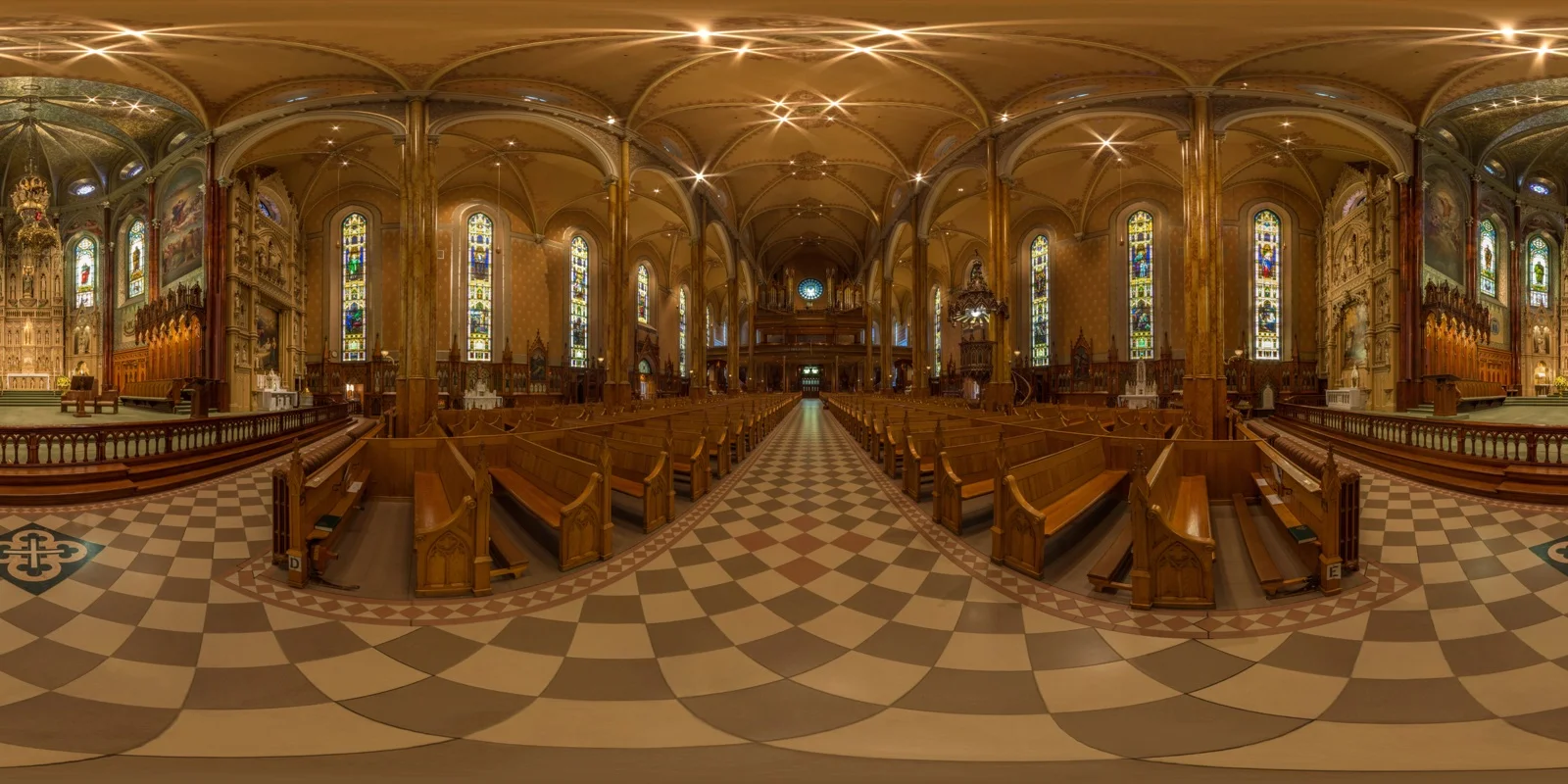
Most shareable 360° photos use an equirectangular projection. It maps a 360-by-180-degree sphere onto a rectangle, much as a world map flattens the globe. A complete photo sphere is normally twice as wide as it is tall: 6,000 × 3,000 pixels, for example. The top and bottom look severely stretched in the flat version because they represent the zenith and nadir, not because the file is broken.

Photo: Stig Nygaard via Wikimedia Commons, CC BY 2.0. This is the flat equirectangular file that a spherical viewer wraps around its virtual camera.
There may also be GPano metadata inside the JPEG. Google's Photo Sphere metadata specification defines fields for the projection, the full panorama dimensions, crop position, heading, pitch, and roll. One field, UsePanoramaViewer, can ask an application to show the file in a spherical viewer. Google's documentation is blunt about the limit: the displaying application may ignore that request.
That is why the same JPEG can be immersive on one website and flat in an email preview. The pixels haven't changed. The viewer has.
What works out of the box in a browser
A browser is enough when the link opens a web page that already contains a panorama viewer. The site supplies the viewer code; the person looking at the photo installs nothing. On a laptop, navigation is usually click-and-drag plus wheel or trackpad zoom. On a phone, it is touch-and-drag, and some viewers can also respond to device motion when the browser and user permissions allow it.
This isn't a special browser image mode. It is a web application doing the projection. For a concrete example, the open-source Pannellum viewer is built with WebGL and JavaScript and can run by itself or inside an iframe. It accepts equirectangular, cube-map, and multiresolution panoramas. Photo Sphere Viewer takes the same general approach and expects a full equirectangular image to cover 360° × 180° unless cropping data is supplied.
From the visitor's perspective, though, it feels native: open link, look around. You can try that behavior on the Mirame360 Explore gallery. The distinction matters because saying a photo works in a browser doesn't mean that every bare JPEG URL becomes interactive. It means the page includes a browser-based 360° viewer.
The practical performance limit is often the image, not the browser
Very large panoramas can be heavy. Pannellum recommends keeping a simple equirectangular image to 4,096 pixels wide for support across WebGL-capable devices, while noting that 8,192 pixels is acceptable for most devices. Higher-resolution work is better delivered as multiresolution tiles so the viewer doesn't download and decode the entire master image at once.
A 17,000-pixel source may be glorious for editing, but making every phone swallow it before the first view appears is poor hosting. A good web platform handles that delivery problem for the viewer.
When opening the file itself is not enough
Suppose someone emails you kitchen-360.jpg. Your browser can decode the JPEG, and your operating system can make a thumbnail. Neither fact guarantees an interactive sphere. If you open the attachment directly and see a long, warped room, you are looking at the source projection.
The quickest fix is often to open an existing hosted link or upload the image to a 360° hosting service. Mirame360 accepts panoramic JPEG, PNG, and WebP files according to its format FAQ, then presents them through its immersive viewer. That is simpler for recipients than asking each person to choose and install a compatible local player.
Phone photo libraries are another trap. Insta360's current export documentation says a 360 export sent to Apple's iPhone Photos app appears as flat media because iOS does not support viewing the 360 effect there. The same documentation says the result depends on whether the target system and platform support 360 media. That is a useful, specific warning: saving a sphere to the camera roll does not magically make the camera roll a sphere viewer.
When a dedicated app earns its place
Apps make sense when you need more than viewing a shared link. Camera makers use them to transfer originals from the camera, preview files before export, reframe a shot, choose a tiny-planet view, correct the horizon, or work offline. Insta360 documents viewing and editing 360° media in either the Insta360 mobile app or Insta360 Studio on a computer. RICOH likewise offers THETA apps around capture, transfer, viewing, and sharing.

Photo: ubahnverleih via Wikimedia Commons, released under CC0 1.0.
A dedicated app is the right tool in four common situations:
- You have a camera-native or unstitched file that a website cannot accept yet.
- You want reliable offline viewing of downloaded photos.
- You need to edit, stitch, level, reframe, or restore 360° metadata.
- You want a headset-specific library, stereoscopic mode, or direct camera-to-headset workflow.
My rule is simple: don't make casual viewers install a vendor app just to look at one photo. Use the app on the creator side when it solves an import or editing problem, then share a browser link. It is less friction and avoids the flat-preview surprise.
Browser, phone app, desktop app, or headset?
For a shared public or private link, start with the browser. A hosted viewer is the most portable option because the sender controls the presentation rather than relying on whatever photo app the recipient happens to use. RICOH360 Tours, for example, states that its tours can be viewed from a computer in supported browsers even though its iOS and Android apps are used to create them. That browser-for-viewing, app-for-creation split is sensible.
For a downloaded standard JPEG, a dedicated panorama viewer can be useful, especially without internet access. For camera originals, use the camera maker's software until you have exported a standard stitched equirectangular JPEG. For editing, use an app. A web viewer is built to display the finished sphere, not to repair seams or rescue a crooked horizon.
A headset is optional, not the definition of 360°. A mouse, trackpad, or touchscreen lets you inspect the same spherical photo. A headset adds head-tracked immersion and scale, but it also introduces another device, another interface, and sometimes another import step.

Photo: FloppaIngénieur via Wikimedia Commons, CC BY 4.0.
How to share a 360° photo so it works the first time
The most reliable handoff is a link, not an attachment. Before sharing, use this short check:
- Export a stitched equirectangular image, ideally at a 2:1 aspect ratio for a complete sphere.
- Preserve or restore GPano metadata after editing, especially the projection and full panorama dimensions.
- Upload the file to a service that renders photos in a real 360° web viewer.
- Open the resulting link in a private browser window and test it on a phone as well as a computer.
- Send the link. Attach the original only if the recipient actually needs to edit or archive it.
This also makes troubleshooting much easier. If the hosted link pans correctly but the downloaded JPEG is flat, nothing was lost during download; the local program is simply showing the projection. If the hosted view is distorted too, check the export ratio, crop metadata, and whether the source is fully stitched.
The short answer: share the viewer, not just the JPEG
You do not need special software to view a 360° photo that has been published in a proper browser viewer. You may need an app to open local files interactively, handle a camera's originals, edit the sphere, or get the full headset experience.
For most people, the cleanest path is to keep the technical work with the uploader and give everyone else a link. If you have an equirectangular photo ready, create a Mirame360 account, upload it, and test the browser link on the device your audience is most likely to use.
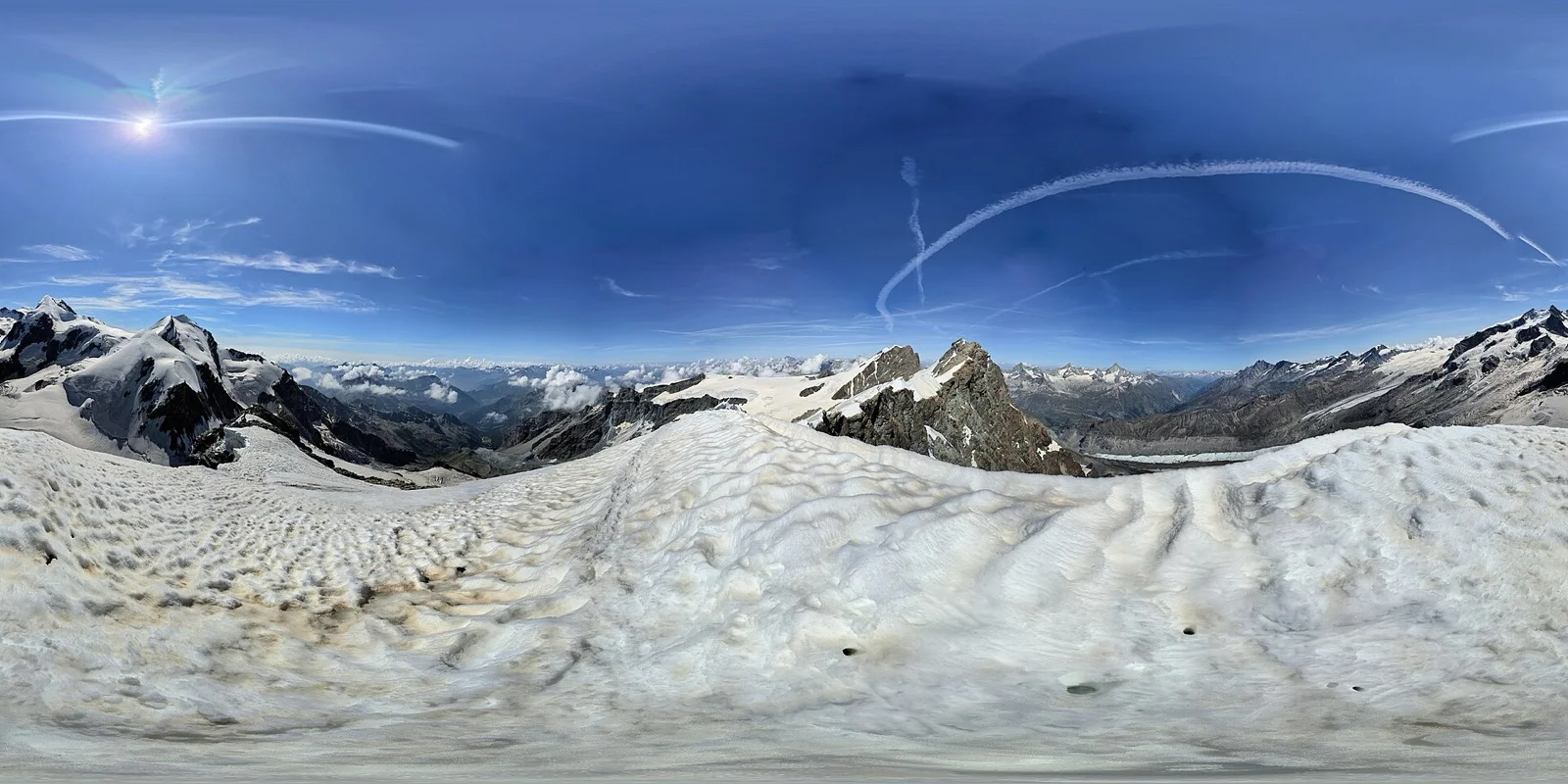
Cover image: Capricorn4049, Roccia Nera Spherical Panorama, via Wikimedia Commons, CC BY-SA 4.0. The cover was resized and JPEG-compressed for web delivery.