Why hosting 360° media directly on WordPress is a bad idea
A single 8K equirectangular video from a modern 360° camera routinely runs 300MB to several gigabytes per minute of footage. Upload that straight into the WordPress Media Library and you've inherited two problems at once: a storage bill that grows every time someone shoots a new tour, and a server that now has to stream large binary files to every visitor on every connection speed.
The math gets ugly fast. A 300MB video watched 1,000 times moves roughly 300GB of bandwidth before you count partial loads, retries, or WordPress's own "Auto" preload setting on the core Video block — which downloads the entire file whether or not a visitor ever presses play. Ten clips like that, plus your backup plugin dutifully zipping up /uploads every night, and a shared hosting plan runs out of headroom in a hurry.
There's a quieter cost too. The HTTP Archive's 2025 Web Almanac found that only 30% of mobile pages weighing over 5MB pass Core Web Vitals, against 57% of pages under 1MB. A raw equirectangular file embedded with a plain <video> tag blows past that 5MB threshold before the panorama has even finished stitching itself together in the browser. Slow pages don't just annoy visitors — they get demoted in search rankings.
None of this is really WordPress's fault. It just wasn't built to be a video CDN, and asking it to be one is where things go wrong.
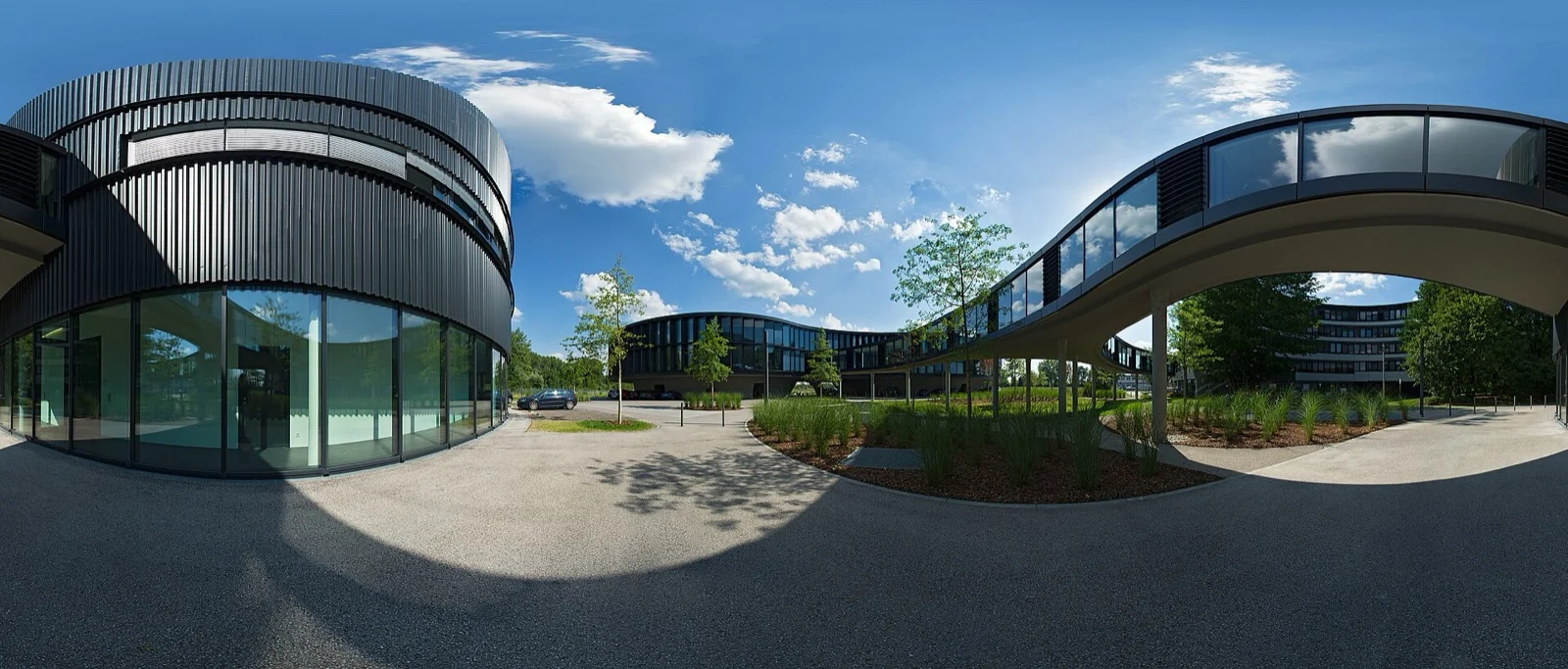
 Photo: MarcusObal, CC BY-SA 3.0, via Wikimedia Commons
What the Mirame360 Embed plugin actually does
Mirame360 hosts, encodes, and adaptively streams 360° media from its own infrastructure. The Mirame360 Embed plugin doesn't touch that pipeline at all — it just gives WordPress a clean, native way to drop a Mirame360 player into a post or page without pasting raw iframe HTML into a Custom HTML block every time.
That distinction matters because it's the difference between your server doing the heavy lifting and your server doing almost nothing. The plugin resolves whatever link or shortcode you give it into a Mirame360 player URL, wraps it in a responsive iframe, sets loading="lazy" so the player doesn't load until a visitor scrolls near it, and applies a privacy-conscious referrer policy. WordPress serves a few hundred bytes of markup; mirame360.com's CDN does the rest.
Supported content types:
- 360° video embeds
- Panoramic photo embeds
- Multi-scene virtual tours
- Named aliases (branded, human-readable links you set up in your Mirame360 library instead of a raw UUID)
One honest caveat before you install anything: at the time of writing, the plugin has been submitted for review and is not yet listed on the official WordPress.org plugin directory. That doesn't stop you from using it today — you install it the same way you'd install any plugin that isn't in the directory yet, from a downloaded zip file — but if you search for it inside your WordPress dashboard's plugin browser and come up empty, that's why. Everything below works either way; once the directory listing goes live, step one just gets a search box instead of an upload.
Installing the plugin
If it's live on WordPress.org (check by searching "Mirame360" from Plugins → Add New in your dashboard):
- Search for "Mirame360 Embed."
- Click Install Now, then Activate.
If it isn't listed yet, install it from the zip file instead:
- Download the plugin archive.
- In your dashboard, go to Plugins → Add New → Upload Plugin.
- Choose the zip file and click Install Now, then Activate.
Either path lands you in the same place. No API keys, no settings page to configure, no database tables added — the readme is explicit that there are "no media files, database settings or external PHP dependencies" beyond what WordPress already ships with.
You will need a free Mirame360 account to actually host media, since the plugin only embeds — it doesn't upload or store anything itself. Registration is free, and the Mirame360 how-to guide walks through generating your first embed link.
Three ways to embed
Gutenberg block
Add the Mirame360 360° Embed block from the block inserter, paste a Mirame360 link, and select Embed. The player preview appears immediately in the editor, and the block sidebar exposes width, height, player profile, and the responsive toggle — no code required.
Shortcode
The shortcode works everywhere Gutenberg doesn't reach, including the classic editor and page builders like Elementor:
[mirame360 url="https://mirame360.com/embed/123e4567-e89b-12d3-a456-426614174000/"]
[mirame360 tour="museum-west-wing" profile="4k"]
[mirame360 alias="summer-panorama" responsive="no" width="1920" height="1080"]
| Attribute | What it does |
|---|---|
url | A full Mirame360 URL or bare UUID. Overrides every other attribute if present. |
id | Bare UUID for a video or photo embed. |
tour | Slug for a multi-scene virtual tour. |
alias | Your custom, human-readable embed alias. |
width / height | Player dimensions in pixels, clamped between 200 and 4096. Defaults: 1280×720. |
profile | default, 4k, 1080p, or image. |
responsive | yes (default), no, true, or false. |
Pasting a bare link
Drop a supported mirame360.com/embed/..., mirame360.com/embed/tour/..., or mirame360.com/video/url/... URL on its own line in the block editor, and WordPress converts it into a live embed automatically — the same behavior you already get from pasting a YouTube or Twitter link.
 Photo: Stig Nygaard, CC BY 2.0, via Wikimedia Commons
Customizing size, responsiveness, and player profile
Leave responsive on its default yes and the player scales to fill its container while keeping the aspect ratio intact — the setting most people should use inside a normal post column. Turn it off and you get a fixed-pixel player, which is occasionally what you want inside a sidebar widget or a narrow theme template where an auto-scaling iframe fights the layout.
The profile attribute controls what resolution the player requests from Mirame360's CDN. 4k is the right call for a hero embed at the top of a landing page; 1080p keeps things lighter for a tour embedded deep in a long blog post where it's one element among many; image is for panoramic photos rather than video or tours. Leaving profile blank lets Mirame360 pick automatically based on the visitor's connection, which is the sensible default for most posts.
Width and height only matter when responsive is off — with responsive embeds, the container does the sizing.
SEO considerations for embedded 360° content
An embedded iframe is invisible to search engines by default; it's just an external URL from Google's point of view. Give the surrounding post real, indexable text: a short description of what the tour shows, the location, and any details a text-only crawler would otherwise miss entirely. That copy also has to carry the weight for voice assistants and answer engines that can't "look inside" an iframe at all.
Lazy loading, which the plugin applies automatically, matters here too — an iframe that only loads once a visitor scrolls near it doesn't count against your Largest Contentful Paint the way an eagerly-loaded one would. If the embed is the actual point of the page (a listing tour, say), keep it above the fold but let the lazy-loading do its job rather than force-loading it with custom code.
One thing to actually verify before publishing: open the page in an incognito window and confirm the embed renders without needing to be logged into Mirame360. Unlisted tours will show for anyone with the link; private ones won't render for site visitors at all, and that's a five-minute check that saves an awkward "why is my tour just a blank box" support ticket later.
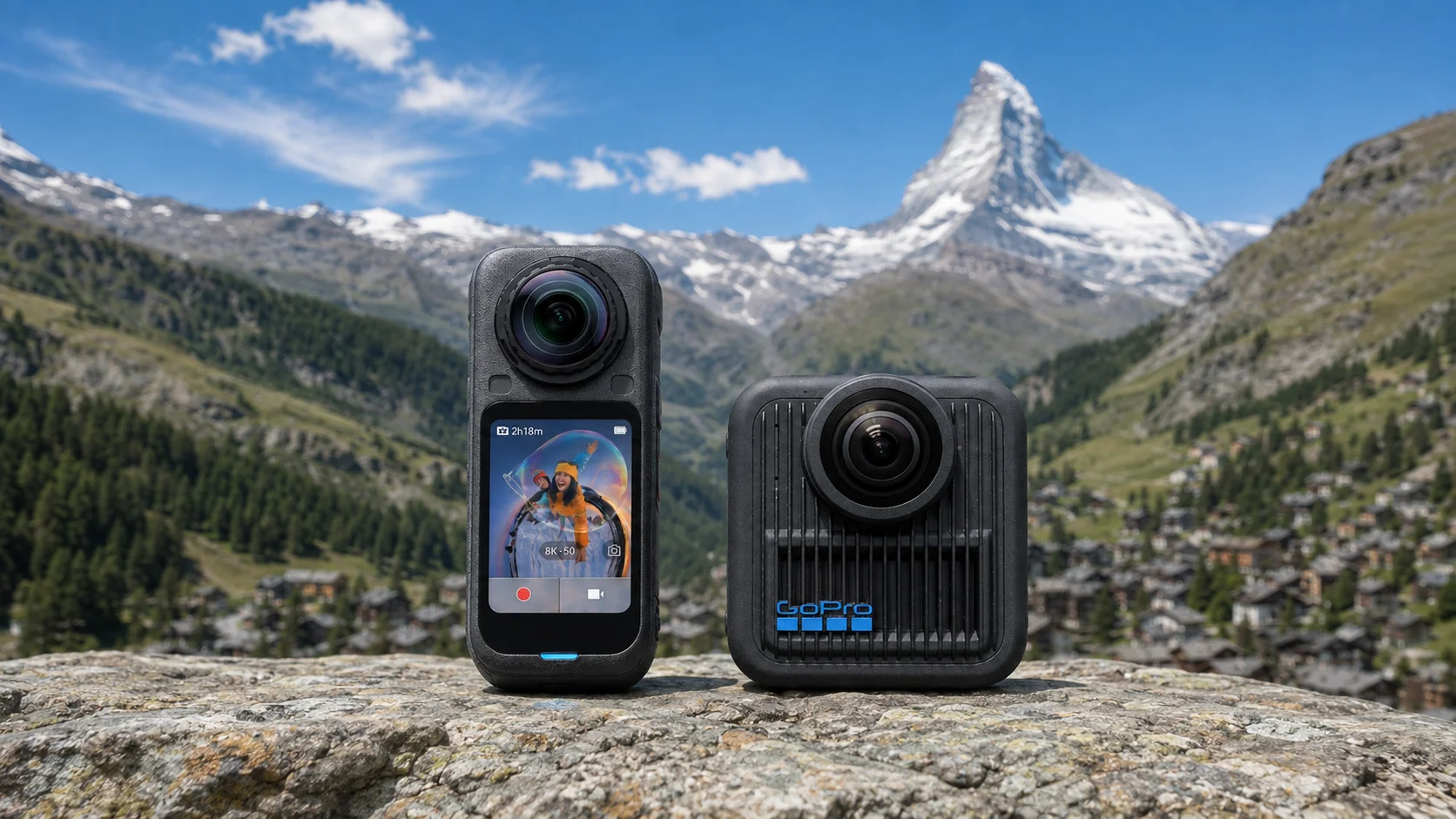
 Photo: Simon Inns, CC BY 2.0, via Wikimedia Commons
Troubleshooting common embed issues
- Nothing shows up, just an empty box. Check the tour or media item's visibility setting in your Mirame360 library — it needs to be Public or Unlisted, not Private, for it to render on a public page.
- The block editor preview works but the published page is blank. Some caching plugins strip iframe attributes or block third-party embeds outright. Whitelist
mirame360.comin your cache/security plugin's embed or iframe allowlist. - The shortcode prints as plain text instead of rendering. This usually means the plugin got deactivated after the shortcode was written, or a page builder is escaping shortcode output — confirm the plugin is active and, if you're on Elementor, use a Shortcode widget rather than a raw text widget.
- The player is tiny or oddly cropped. Check whether
responsivegot set tonowith a leftover fixedwidth/heightfrom an earlier edit — that's the most common cause of a squashed embed. - It works on desktop but visitors on older phones report a flat, non-interactive image. That's usually a browser/WebGL limitation on the visitor's end rather than anything wrong with your embed — you can point them to a browser and app compatibility overview for what's expected to work where.
None of these require touching code. The plugin's whole premise is that the embed is the same three or four attributes whether you're troubleshooting your first tour or your fiftieth.
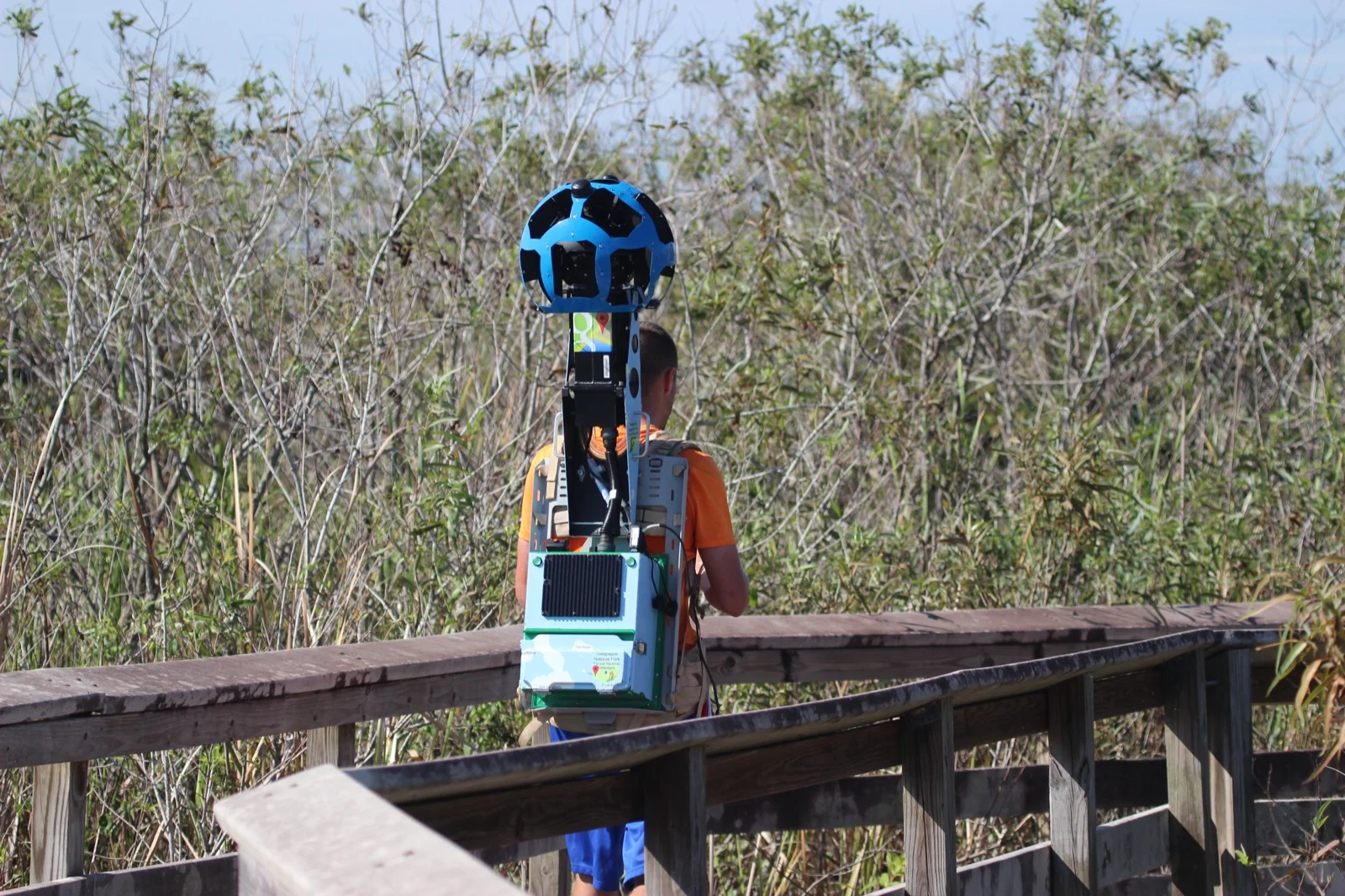
 Photo: Oleg Afonin, CC BY 2.0, via Wikimedia Commons
FAQ
Do I need a paid WordPress plugin to embed a 360° virtual tour? No. The Mirame360 Embed plugin is free, and pasting a bare Mirame360 link into the block editor works even without installing anything.
Does embedding a 360° tour slow down my WordPress site? The panorama itself loads from Mirame360's servers inside an iframe rather than from your own hosting, so it doesn't add to your site's own asset weight the way a self-hosted video or a high-resolution image gallery would.
Can I use the Mirame360 shortcode in a classic, non-block theme? Yes. The shortcode works in any editor that renders WordPress shortcodes, including the Classic Editor, regardless of whether your theme uses Gutenberg blocks.
What's the difference between embedding a video, a photo, and a full virtual tour? They all use the same block, shortcode, or link mechanism — what changes is what you uploaded to Mirame360 and set as the target: a single 360° photo, a 360° video, or a multi-scene tour with hotspots connecting rooms.
Is the plugin compatible with page builders like Elementor or Divi? That's not something the plugin's own documentation confirms one way or the other. If you're using a page builder rather than the native block editor, test with the shortcode or an HTML/embed block first before relying on it for a live page.
Getting your first tour online
If you're weighing this against a paid virtual tour platform because your WordPress site needs to show a property, a workshop, or a venue in 360°, it's worth reading how the economics compare — Mirame360 versus the subscription-based alternatives covers that ground in more detail than fits here.
For a straightforward embed, though, the workflow is short: shoot or source your panorama, upload it to a free Mirame360 account, flip the embed toggle to Unlisted or Public, grab the link or alias, and drop it into a post using whichever of the three methods above fits your editor. Register a free account and publish your first embed today — the hosting and streaming are already handled, so the only thing left to write is the post around it.