
The Insta360 app can take up tens of gigabytes on Android because its storage includes more than the app itself: downloaded camera files, low-resolution previews, editing drafts, exported media and temporary data can all add up. If clearing the cache barely changes the number, some of that space may be held in downloaded files or projects instead.
Start by checking what you want to keep. Clear cache is not the same as Clear storage: the latter can erase app data, including local material. Before deleting anything, make and verify an independent copy of important recordings and finish or export projects you need.
Why is the Insta360 app taking up so much space on Android?
Android reports the storage used by the app and its associated data. That total is not a list of just the videos visible in the album. A downloaded recording, its preview, an edit in progress and an exported version can all occupy space in different places. The exact mix depends on the camera, app version and how you use it.
An Insta360 owner reported an app using more than 80 GB after clearing cache and drafts. That report doesn't prove where every gigabyte went, but it shows why looking only at the visible album can be misleading. Insta360 support advised backing up downloaded materials before any reinstall.
Here are the main things to check:
| What takes space | What it does | Before removing it |
|---|---|---|
| Downloaded camera files | Lets the app work with footage saved on the phone | Copy the complete originals and check the copy opens. |
| LRV previews | Low-resolution files used for preview and some app functions | Don't assume an LRV is the original or that every preview is safe to remove. |
| Drafts and downloaded resources | Store unfinished edits and assets used by the app | Finish or export important edits and confirm what remains editable. |
| Exported photos and videos | Save a finished result, sometimes alongside source files | Check the output and retain originals if you may edit again. |
| Cache | Temporary data used by the app | Start with the app's cache controls; it may build up again. |
First: identify where the footage lives
A video visible while your camera is connected isn't necessarily stored only on the camera. Conversely, a file downloaded into the app may not appear as an ordinary video in your phone's gallery. Insta360's file-management guide distinguishes downloads intended for app post-production from material saved to the phone album.
The same guide notes that, for some stabilized media, the app and phone album show the same file: deleting it in one place can remove it from the other. Don't count two visible entries as two independent backups. Check the actual copies on different storage locations before removing either.
On Android, Insta360 documents its original-media folder under Internal storage/Android/data/com.arashivision.insta360akiko/files/Insta360OneR/galleryOriginal. Access to Android/data varies with the Android version and file manager. If the folder doesn't open on your phone, don't bypass restrictions with an unknown cleaner. Use the manufacturer's computer transfer instructions, or copy directly from the camera or card if your model supports it.

An external drive can hold a separate copy of camera footage. Photo: Tony Webster, CC BY 2.0, via Wikimedia Commons. Keep another independent copy and verify that your files open.
Back up originals before cleaning the app
Copy the complete camera files to a computer, external drive or another reliable location. Keep matching files and the camera's folder structure together; some models and modes need more than one source file for a recording. An exported MP4 can be useful for viewing, but it isn't automatically equivalent to the original INSV recording and its companion data.
After copying, open a sample from the destination in compatible software, check its duration and inspect the full 360° view. For important footage, verify all the files you intend to remove, and keep another independent copy. A successful progress bar alone doesn't tell you that an edit will open later.
Use Mirame360 for an online viewing copy
If your phone or home drive is full, you can upload supported 360° photos and videos to Mirame360 and keep an online copy to view and share in a browser. Upload one short clip first, wait for processing, and check playback on another device before removing a local copy. Supported inputs and camera-file limitations are described in the upload guide.
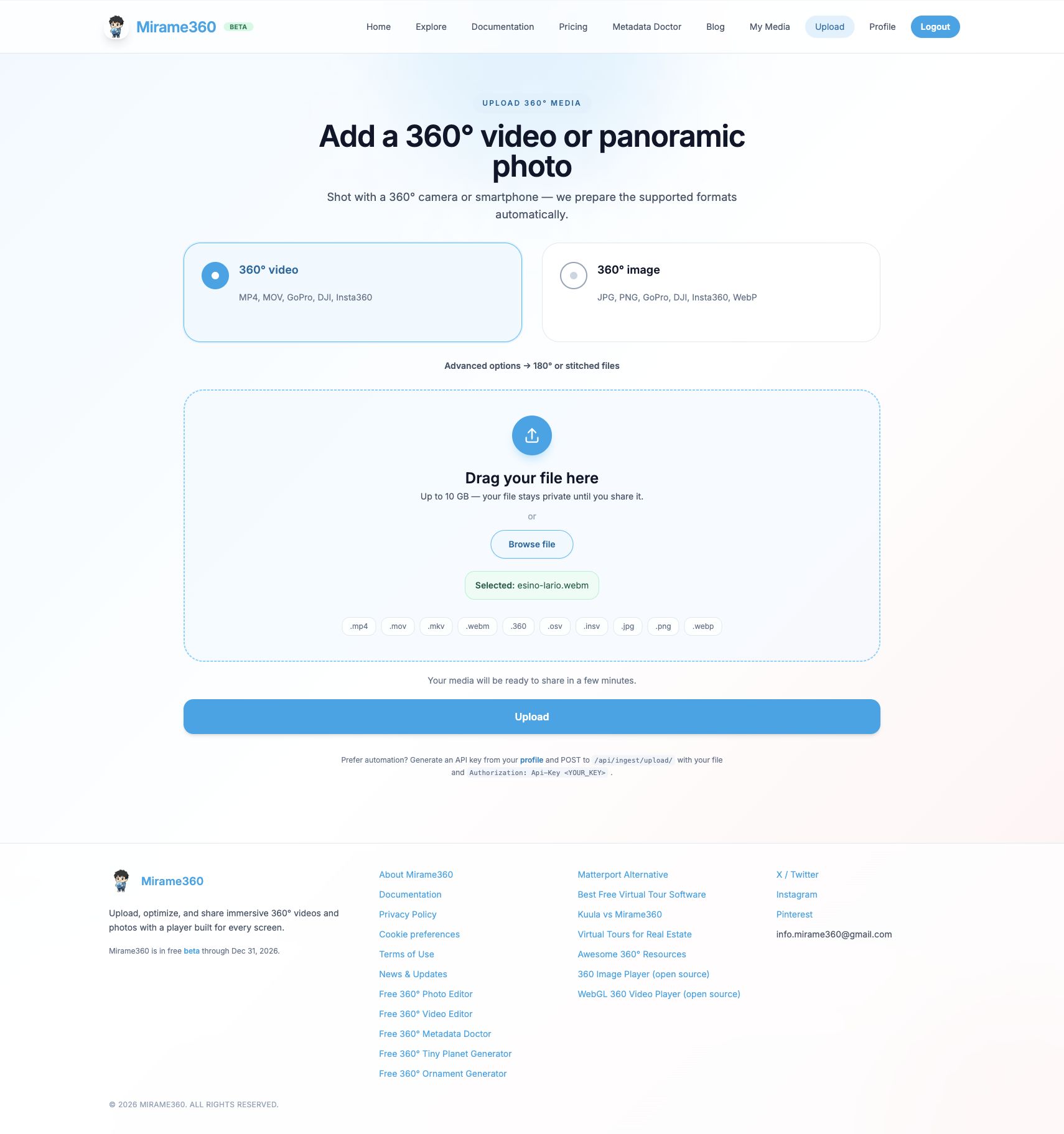
The Mirame360 upload form. Example: Jan Ainali, Esino Lario 360, CC BY-SA 4.0, via Wikimedia Commons. Wait for processing and check your result before changing local copies.
Mirame360 processes uploaded media for playback. Don't assume the playable version is a byte-for-byte backup of the camera original or that every INSV companion, draft, or camera-specific feature can be restored from it. Keep a verified independent archive of originals and projects, especially if you want to re-edit them in Insta360 software. Check the current storage limits and pricing; account capacity is finite, and large recordings may not fit.
Clear the Insta360 cache, then check the number again
Insta360 support has directed users to the app's Me page and Clear Cache control. Labels and placement can change, so look through the current app settings if your screen differs. Record the storage figure before and after, and give the phone a moment to update it.
You can also check Android's app settings:
- Open Settings, then Apps and select Insta360.
- Open Storage or Storage & cache. Names differ by device.
- Note the reported app size and cache, then choose Clear cache if available.
- Reopen the app and check your album and projects. Compare the storage figure again.
According to Google's Android guidance, clearing cache removes temporary data; Clear storage permanently deletes all app data. The two buttons are easy to confuse. Cache can also accumulate again as you continue using the app.
If clearing it frees only a little, that doesn't mean the control failed. Downloaded footage, drafts or previews may be accounted for elsewhere in the app's data. Work through those categories rather than repeating the same cache clear.
What are LRV files, and can you delete them?
LRV means low-resolution video: a smaller preview associated with footage. It isn't a replacement for the original recording. In a September Reddit discussion, an Android user found LRV files remaining after removing downloaded videos. Insta360 support replied that previews may be downloaded or cached for preview and analysis functions.
That is a useful clue, not a diagnosis for every phone. LRV files can be associated with footage or app features you still use. Check the originals and your backup first, and prefer the app's own management controls. If you can't tell which files are expendable or the app still reports unexplained storage, ask Insta360 support for guidance for your camera and app version. Avoid deleting entire folders based on an internet path.
Review downloads, exports and unfinished projects
Open the local album and look for the recordings you actually need on the phone. Once a recording has an independently verified copy, remove only the local item you have identified. Read the confirmation screen carefully: deleting from a camera, an app album or the phone gallery can have different consequences. Where an item is shared with the phone gallery, deleting one entry may remove the other too.
Next, review Edit → Drafts or the equivalent section in your app. Finish work you care about, verify any exported result and make a note that exporting a video doesn't necessarily preserve an editable timeline. Remove only projects you no longer need. Downloaded templates and other resources can also contribute to the total; the options for managing them vary by app version.
A finished full-sphere video and a reframed flat video serve different purposes. The 360° video editor guide explains the choice if you want an interactive copy viewers can look around in. A flat export cannot recover directions cropped out of the image.
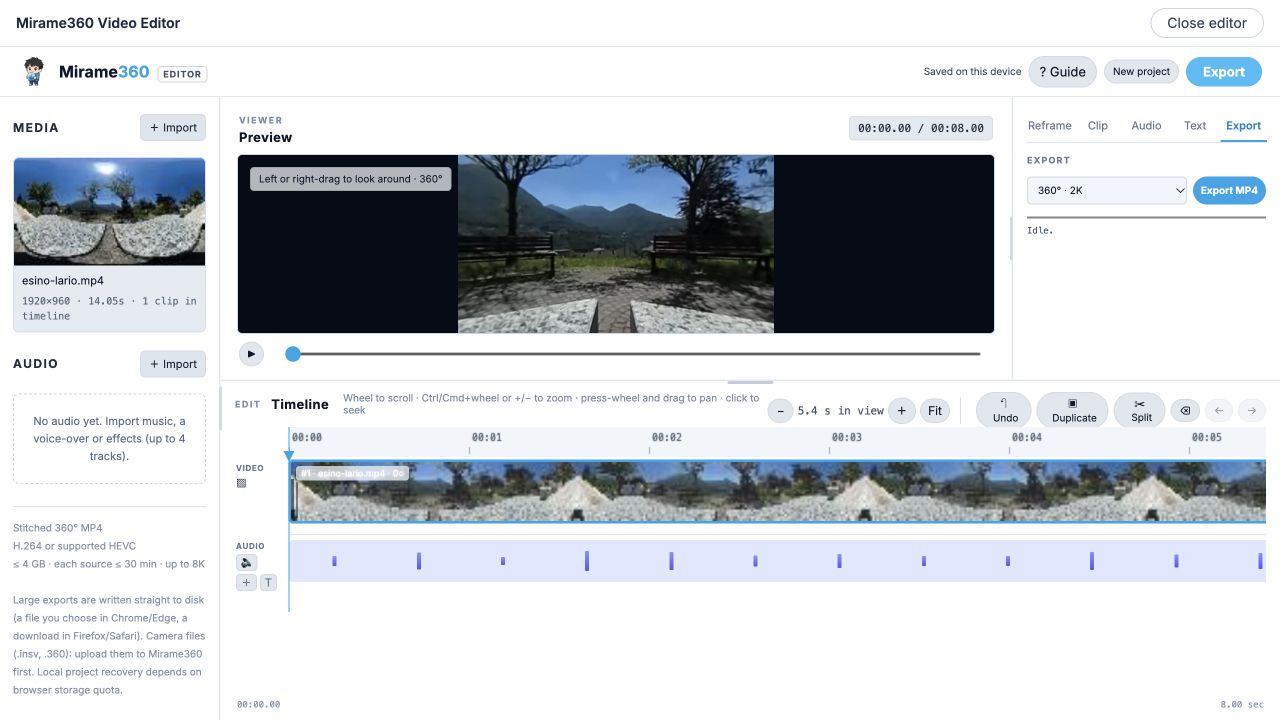
Choose a full-sphere export for interactive viewing. The example uses Jan Ainali’s Esino Lario 360, CC BY-SA 4.0, converted and trimmed. The export is not a substitute for a verified camera-original archive.
Should you clear storage or reinstall Insta360?
Treat both as a last resort. Google's Android instructions say clearing app storage permanently deletes app data, and Insta360 support has warned that reinstalling can clear downloaded materials. Local drafts and files that exist only inside the app may be lost. A cloud thumbnail or a file visible in the gallery is not enough evidence that all originals and editable projects are safe.
If you still need to reset the app, first confirm independent copies, check that source files open, finish or export needed drafts, and confirm you can sign back in. Follow the current support instructions for your device. If you're unsure what the data contains, contact Insta360 before pressing Clear storage or uninstalling.
Keep the phone from filling up again
After a shoot, transfer and verify originals, decide which clips need to remain available on the phone, and remove only redundant local copies. Check drafts after a project is delivered. Some Insta360 models and app versions offer automatic download settings; review them if new footage keeps arriving on the device. The manufacturer notes that the Android app's default file location can't be changed to an external SD card in the workflow covered by its current file guide.
Does clearing cache delete my Insta360 videos?
Android describes cache as temporary data, while clearing storage deletes app data. Even so, protect valuable footage first and check the exact control you tap. Deleting downloaded media, clearing storage and uninstalling are different actions from clearing cache.
Can I delete INSV files after exporting an MP4?
Only if you have decided you no longer need the camera originals and have verified the copies you intend to keep. An MP4 may be flattened, recompressed or missing information used by camera software. It is not necessarily an editable replacement for the source.
Why is the app still large after clearing cache?
The remaining space may include downloaded files, drafts, resources or previews not removed by that particular cache control. Check the album and projects and ask support if the reported size remains unexplained.
When the phone starts filling up, try a short upload to Mirame360. You'll have an online version you can play without keeping that viewing copy on Android or a home drive. Verify the result, check your account limits, and retain your independent originals before deleting anything important.