
Your 360 project is finished. Now you need to send it to a client.
What should you send: the original camera files, an MP4, a download folder, or a link?
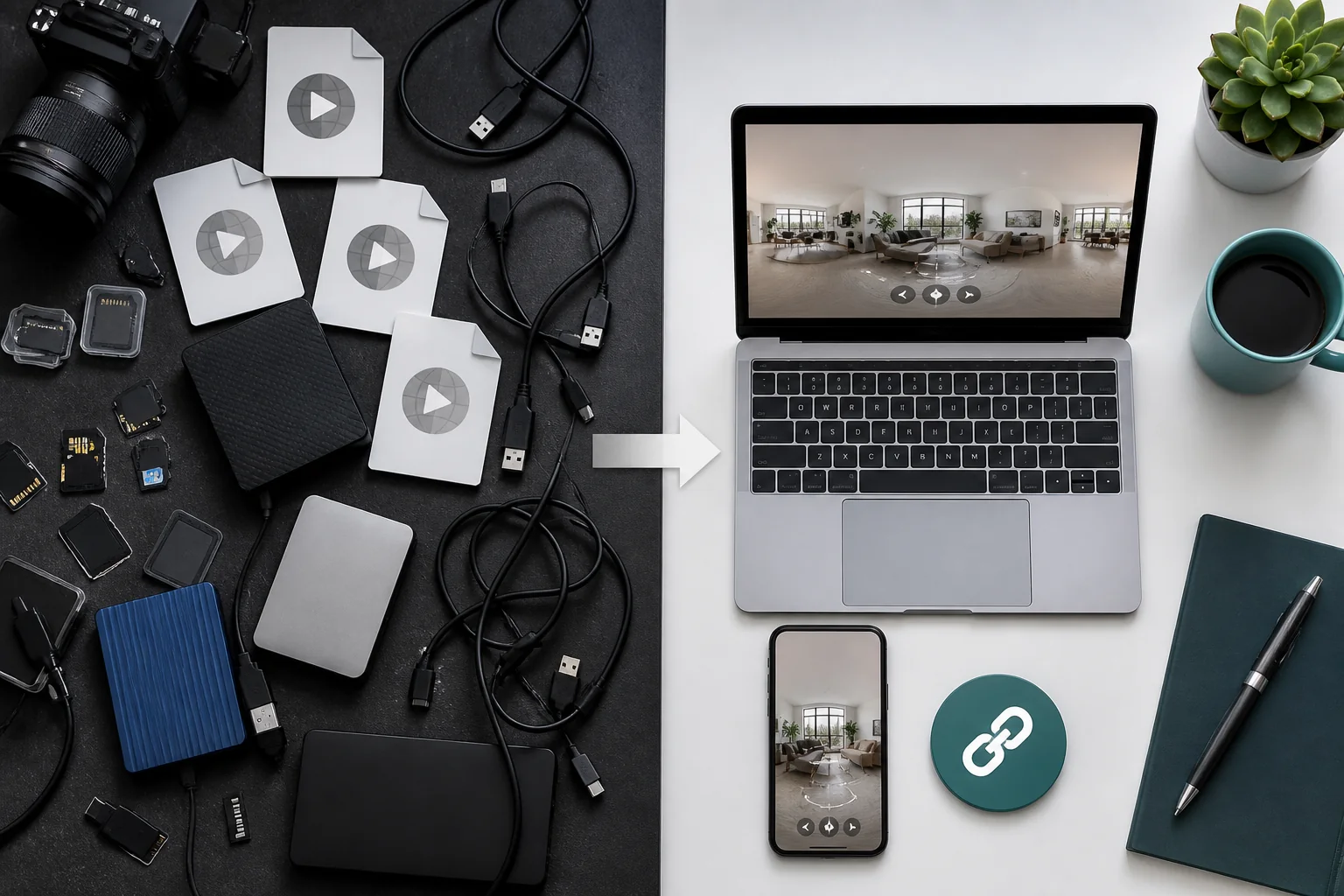
The simplest answer is this: send one link that opens the 360 photo or video in a web browser. If the client also needs the high-resolution files, add a separate download link.
Your client should not need to install Insta360 Studio, DJI Studio, or another special app just to see the work. They should be able to click, look around, and understand what you delivered.
This guide shows you how to create that simple handoff.
What your client actually needs
Most clients need one or two things:
- A viewing link to open the 360 experience on a phone or computer.
- A download link if they need to keep, edit, or publish the original-quality file.
Do not mix these two jobs.
A Google Drive or Dropbox folder can transfer a large file, but it may show a flat, stretched preview. A browser-based 360 viewer presents the same file as an interactive scene.
This difference causes real confusion. People in 360 communities regularly ask how to share a panorama that friends can explore without installing an app or why another person cannot save a shared 360 video.
The easiest way to avoid those questions is to give the client a viewing link first and downloads second.
Step 1: ask how the client will use the work
Before exporting, ask one simple question:
Where will you use this 360 photo or video?
The answer tells you what to deliver.
If the client only wants to view or approve it
Send a private or unlisted browser link. This is usually enough for an internal review.
If the client wants it on a website
Send the viewing link and the embed instructions. Test the embed on both desktop and mobile.
If the client wants social-media content
Send a normal reframed video for Instagram, TikTok, LinkedIn, or YouTube Shorts. Also send the interactive 360 version if it was included in the project.
If the client wants to archive or edit it
Send the high-quality exported master as a download. Send raw camera files only if they were included in the agreement.
Clear deliverables prevent the familiar “Which file should I use?” email after the project is finished.
Step 2: keep the camera files, but do not make the client open them
Files such as INSV, OSV, .360, DNG, and camera companion files are important. Keep them in your own archive until the project is complete and backed up.
But they are usually a poor client deliverable. The recipient may not have the correct software, the second lens file, the required metadata, or enough storage.
Instead, export a finished master:
- For a 360 photo, use a full-resolution 2:1 equirectangular JPEG with its panorama metadata.
- For a 360 video, use a stitched 2:1 equirectangular MP4 at the original frame rate.
Use H.264 when wide compatibility matters. H.265 can create a smaller file, but older devices and editing systems may struggle with it.
Keep the raw camera files for recovery and future edits. Give the client a finished file they can actually use.
Step 3: create a browser-ready link
Upload the finished master to a platform that understands 360 media. The result should open as an interactive sphere, not as a stretched rectangle.
Before sending the link, make sure it:
- opens without the camera manufacturer's app;
- works on phone and desktop;
- lets the viewer look around naturally;
- starts in a useful direction;
- has the correct title and thumbnail;
- uses the right public, unlisted, or private setting;
- can be embedded if the client needs it on a website.
Mirame360 lets you upload finished 360 media and share it through a browser-ready page. If you are comparing services, read our guide to 360 video hosting platforms.
Try the delivery before your next client project: create a free Mirame360 account, upload one finished 360 photo or video, and open the link on your phone.
Step 4: test it like a client
Do not test only from the account you used to upload the file.
Open the delivery link in a private browser window. Then open it on a real phone. This catches permission problems, bad thumbnails, slow playback, and links that work only while you are logged in.
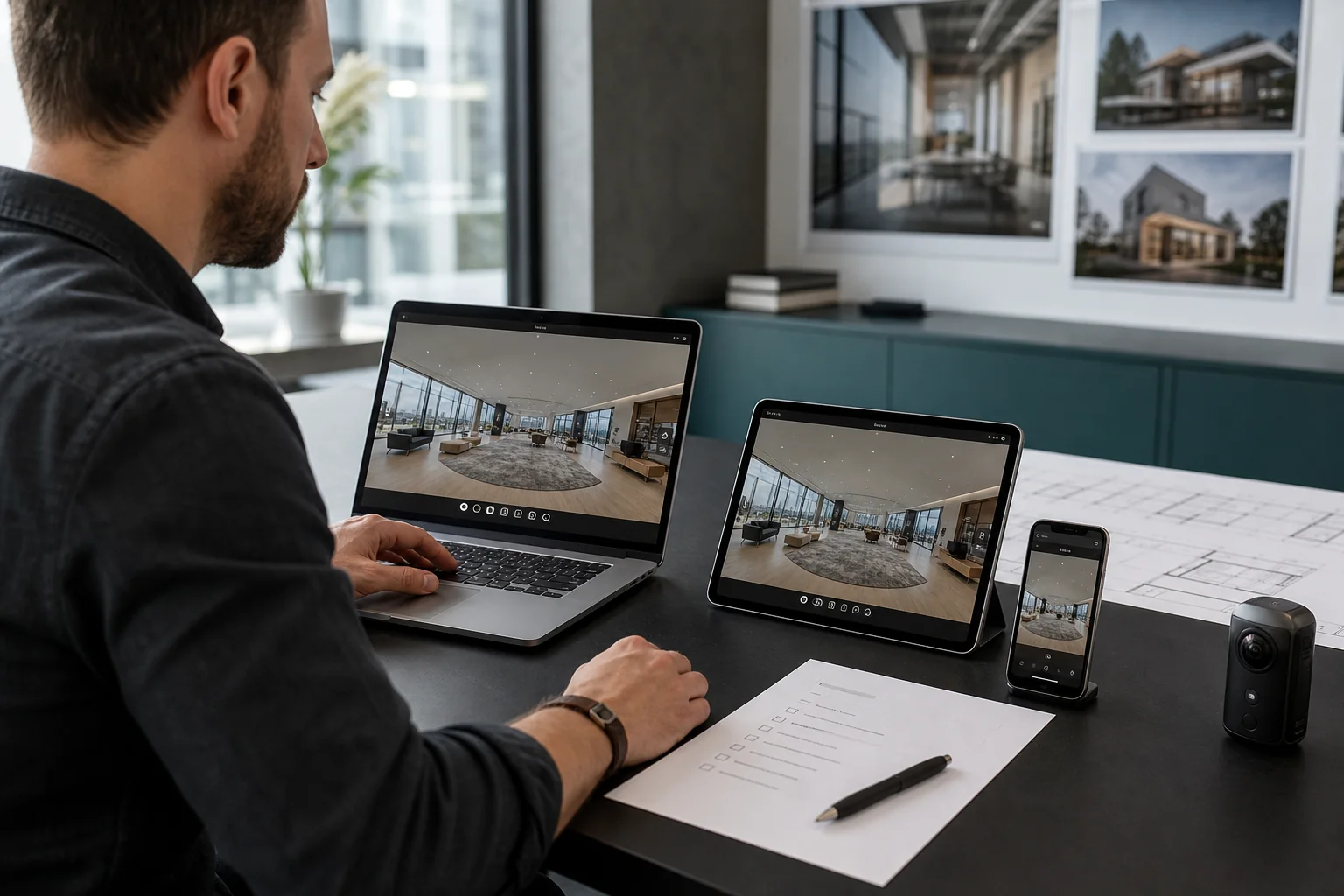
Look around the entire scene and check:
- Is the horizon level?
- Does the scene open in the right direction?
- Are there visible stitching errors?
- Is the tripod area acceptable?
- Are the image and video sharp enough?
- Does the video play to the end?
- Is the audio synchronized?
- Are there faces, documents, screens, number plates, or private areas that should be hidden?
If you also provide a download, download it yourself and open it in a 360 player. This confirms that the client is receiving the correct file rather than an old export or compressed preview.
Step 5: send a short delivery email
The client does not need an explanation of codecs and projections. Tell them what to click and what each link is for.
You can copy this template:
Subject: Your 360 project is ready
Hi [Name],
Your interactive 360 project is ready.
View it here: [browser link]
Open the link on a phone, tablet, or computer. Drag the image to look around. You do not need to install an app.
Download the high-resolution files: [download link]
Please send any revision notes by [date]. The viewing link will remain available until [date or condition].
Thanks, [Your name]
If there is no download, remove that section. If the client needs an embed, add it below the viewing link with a clear heading.
What to put in the download folder
Keep the folder small and obvious. You do not need a complex archive for every job.
Client_Project/
├── 360_MASTERS/
├── SOCIAL_EXPORTS/
├── THUMBNAILS/
└── SOURCE_FILES/   (only if included)
Use names such as hotel-lobby-360.jpg or factory-tour-360.mp4. Avoid names such as final-v8-new-revised.mp4.
If one file is the recommended version, say so in a short README or delivery note.
Public, unlisted, or private?
A 360 image shows everything around the camera. It can reveal much more than a normal photograph.
Before delivery, check for:
- people and reflections;
- computer screens and documents;
- access codes and security equipment;
- number plates;
- private rooms;
- valuable or sensitive objects.
Then choose the appropriate access level:
- Private review: for approval before publication.
- Unlisted link: for sharing with people who have the URL.
- Public page: for websites, listings, and campaigns.
Tell the client which option you used. A link is not automatically private just because it has not been posted on social media.
Common mistakes to avoid
Sending only the raw camera files
The client may not be able to open them. Raw files are useful for editing and backup, not for simple viewing.
Sending only a Drive or Dropbox preview
The preview may be flat or compressed. Use storage for downloading and a 360 viewer for presentation.
Sending ten “final” exports
Choose one recommended version. Put optional formats in clearly named folders.
Sending only a flat social video
A reframed Reel is useful, but it is no longer interactive. If the client paid for a 360 experience, include the 360 viewing link.
Publishing before approval
Start with a review link when the scene contains client property, people, or unfinished work.
Forgetting to explain how long the link will work
State whether hosting is permanent, included for one year, or tied to a maintenance plan.
How long should you keep the files?
Decide this before a client asks for another copy six months later.
A simple policy might be:
- working files: 90 days;
- exported masters: one year;
- browser experience: while the agreed hosting remains active.
Choose periods that fit your business and include them in the proposal. Whatever you choose, keep at least two verified copies of paid work during the agreed retention period.
Final checklist
Before clicking Send, confirm:
- The browser link works while you are logged out.
- You tested it on a phone and computer.
- The title, thumbnail, horizon, and starting view are correct.
- Privacy settings match the client's request.
- The download contains the correct master.
- Filenames are easy to understand.
- Raw files are included only if promised.
- The client knows which link is for viewing and which is for downloading.
- The approval deadline and hosting period are clear.
- You have a backup.
How Mirame360 helps with client delivery
Mirame360 takes care of the part between your final export and the client's screen.
You upload the finished 360 photo or video, and Mirame360 prepares it for interactive playback in a web browser. The file stays private while you prepare the delivery. When it is ready, you can:
- open the interactive player and check the result yourself;
- create a human-friendly share URL;
- control whether embedding is enabled;
- copy a ready-made website embed in 4K or 1080p;
- give the client a download when they need the master file;
- see viewing and embed analytics after delivery.
This turns the workflow into four simple actions:
- Export your finished equirectangular photo or video.
- Upload it to Mirame360.
- Check the interactive result on your phone and computer.
- Copy the viewing link into your client-delivery email.
The client clicks the link and looks around directly in the browser. They do not need your camera, your editing software, or an Insta360 or DJI account. You can still keep the raw files and high-resolution master in your own archive.
Instead of sending a folder and a set of technical instructions, you send a finished experience.
Ready to try it with a real project? Create a free Mirame360 account, upload one finished 360 photo or video, and copy your first browser-ready client link.