
Documentation
How to fix a flat 360° photo or video and its wrong date
Does your 360° photo or video look flat and stretched on YouTube, or show up in your gallery under the wrong date? This guide fixes both with the free Mirame360 Metadata Doctor, which runs in your browser.
Watch: fix a photo and a video in three minutes
1. Understand what is wrong
A 360° file is really a flat rectangle, twice as wide as it is tall. A small piece of hidden information, called metadata, tells players to wrap that rectangle around a sphere. When an editor or an export removes it, the picture shows up flat and stretched.
The same happens with dates: exports often stamp the day you exported, not the day you filmed, so galleries sort the file in the wrong place.
2. Open the tool and choose a file
Open the Metadata Doctor and scroll to the check box. It accepts photos in JPEG, PNG and WebP and videos in MP4 and MOV. Drop the file on the box, or click it and choose the file.
Your file is never uploaded: everything happens in your browser, on your own computer, and the original is never changed. You always get a corrected copy. No account is needed.
3. Read the diagnosis
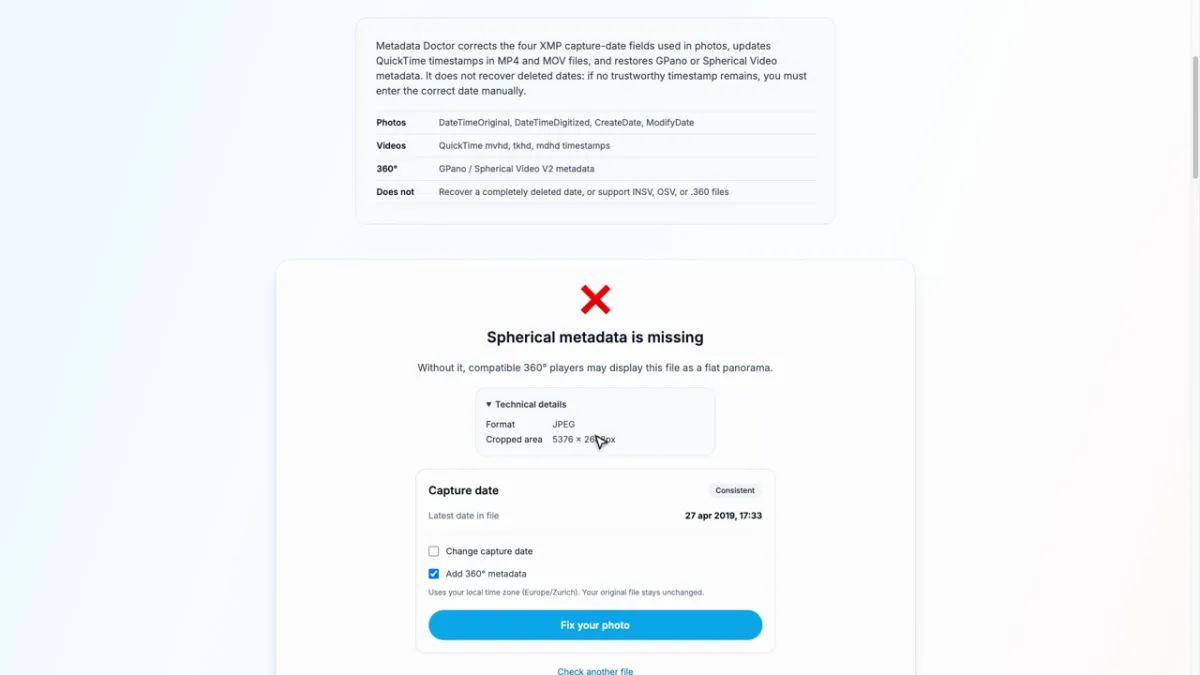
In a moment the tool tells you what it found. Here it says spherical metadata is missing, which is why other apps would show the photo as a flat strip. Open Technical details to see the format and the size of the picture. The Capture date card shows the latest date found in the file, which for a video exported without care is often the day of the export.
4. Choose the fixes and download
- Add 360° metadata is ticked when it is missing. Keep it ticked.
- Change capture date: tick it only if the date is wrong, then type the real date and time. The tool uses your computer’s time zone.
Click Fix your photo (or Fix your video). Your browser downloads a corrected copy with a suffix added to its name; the original stays as it was. A video is not converted again, only its headers are rewritten, so even a big file takes seconds and keeps its full quality.
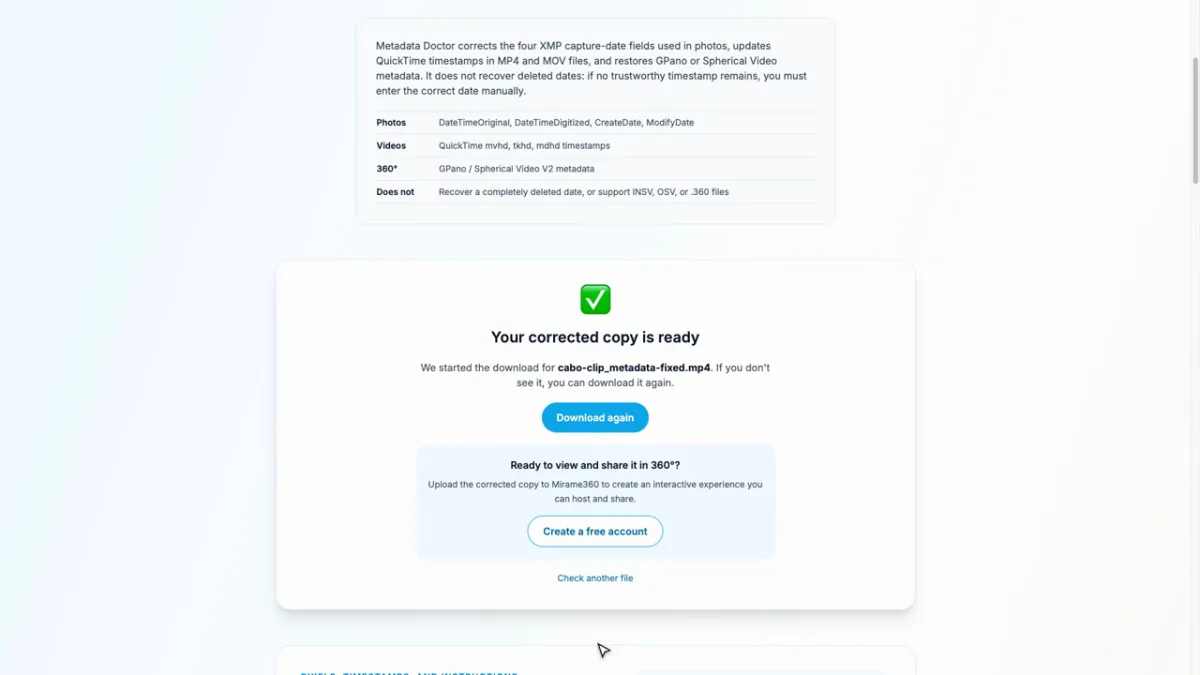
5. Check the result
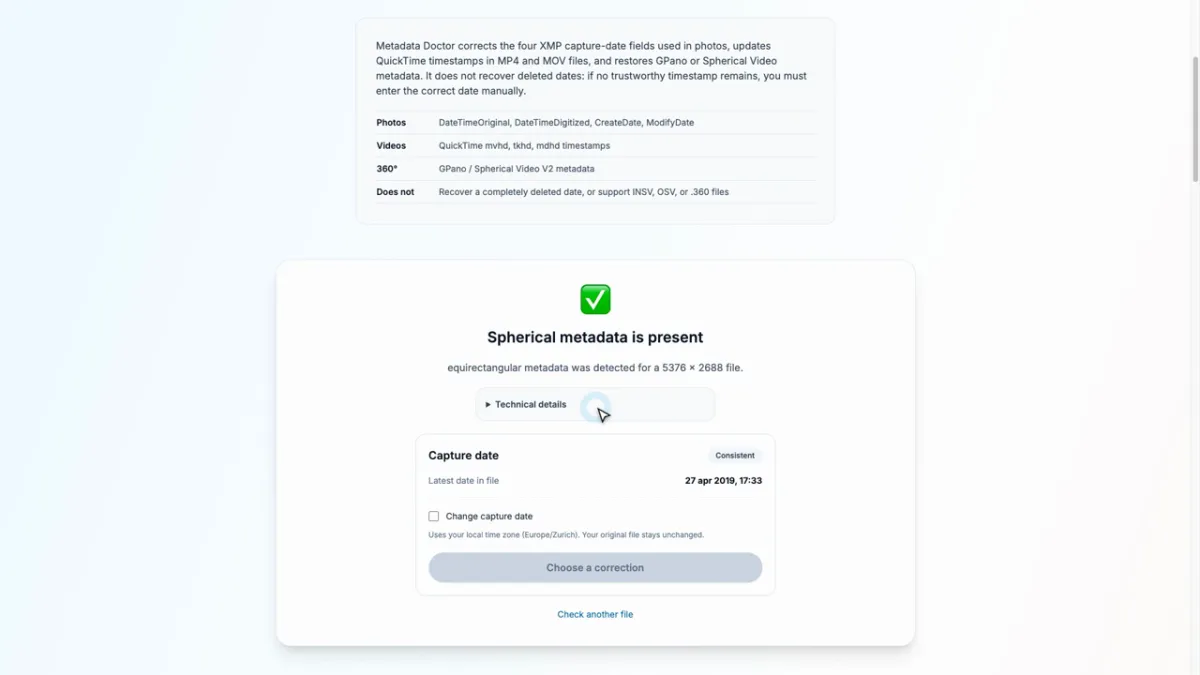
Click Check another file and drop the corrected copy. Now the tool says that spherical metadata is present and the projection is equirectangular. The file will play as 360° on YouTube and in other players; the latest date in the file is now the one you set.
What it cannot fix
The tool adds the missing information, but it cannot fix the picture itself.
- A file that was stitched badly, or that is not equirectangular, stays that way.
- Raw camera files, such as INSV, OSV or GoPro .360, are not supported. Export them from the camera app as a standard MP4 or JPEG first.
- It cannot recover a date that was completely deleted from the file; in that case you type the date yourself.
See Video & photo formats for how 360° files are structured and which formats work.
What to do next
When the file is ready, upload it to Mirame360 to view it in 360°, edit it with the video editor or the photo editor, and share it with a link or on your website.
Sample files in the screenshots: photo "Seemannsclub Duckdalben Umgebung" by Uwe Rohwedder, CC BY-SA 4.0; video "Não veja este video 360 se tiver vertigens! Madeira - Cabo Girão" by Vasco Marques, CC BY 3.0; both via Wikimedia Commons.